 MANSOQ
 Pharmacy · VERSION 3f4f9e19
Choose a patient and encounter for New Dispense
Find an existing patient in New Dispense, compare Change, footer Cancel and the Sheet X, choose the correct existing encounter, and leave the preparation screen without billing. Recognise the separate Not Found fallback when a queue patient is already selected.
Pharmacist
 12345
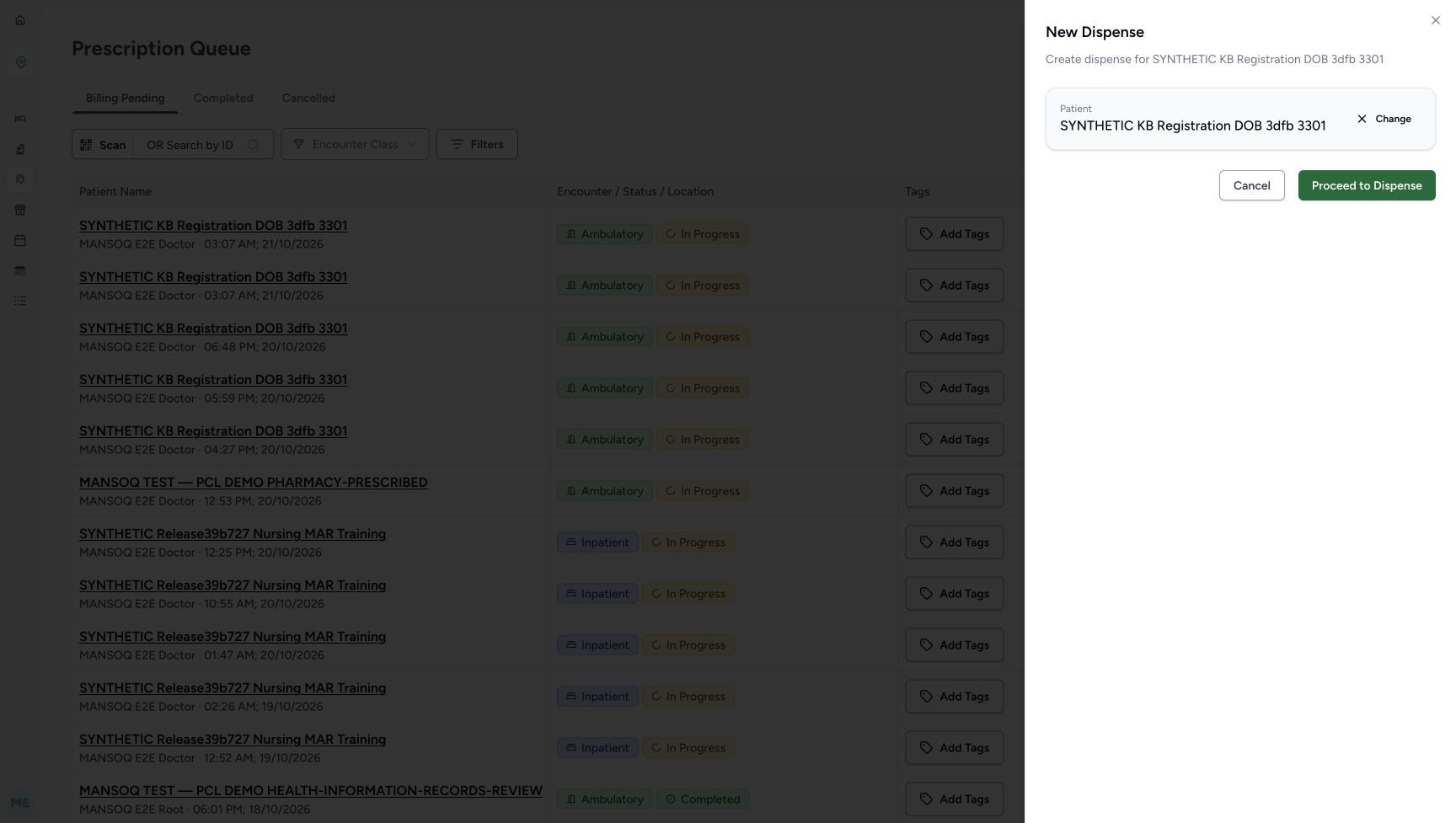
12345Verify the selected patient and locate Change, Cancel and Proceed
Capture details
New Dispense patient selection, local close-and-reopen behavior, existing encounter handoff and unsaved preview recovery. No patient, encounter, medicine bill, stock or payment is created or changed in this example.
Image SHA-256 0d3dd672c81ceb7c42b7003cb3ead383e1fd2f1c5379903c013a224391aef269
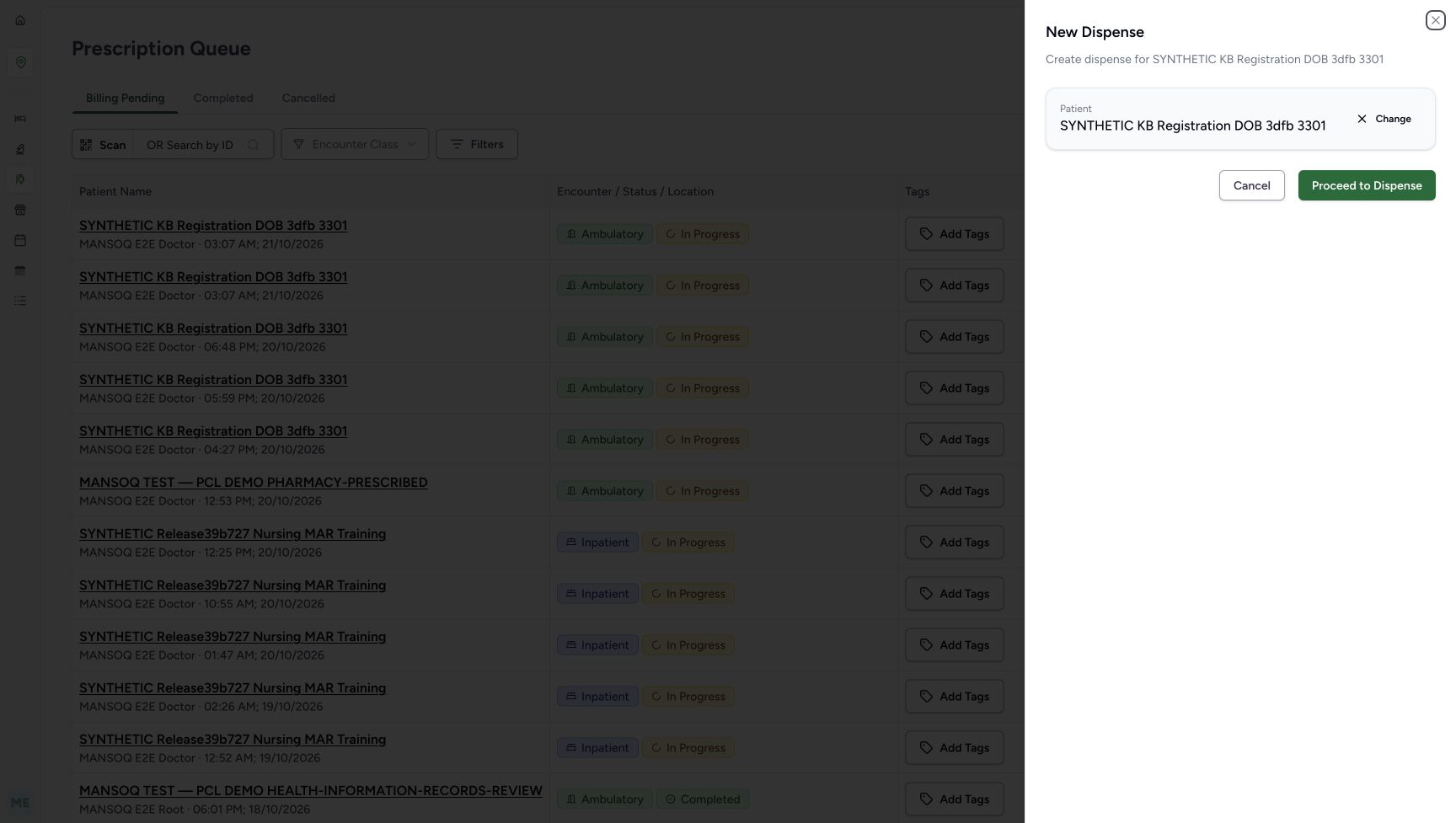
- Verify the selected full name: Check the intended patient before continuing or comparing the local close controls.
- Use Change to clear the selection: Change returns to the selector and clears this local selection and its search text.
- Use footer Cancel to close without proceeding: In this version the selected patient is retained when this footer-cancelled selector is reopened.
- Proceed only for the verified patient: Proceed to Dispense opens the verified patient home; it does not submit a medicine bill.
- Locate the separate Sheet X: This top-right close control clears the local selection when the Sheet is reopened.
 1234567
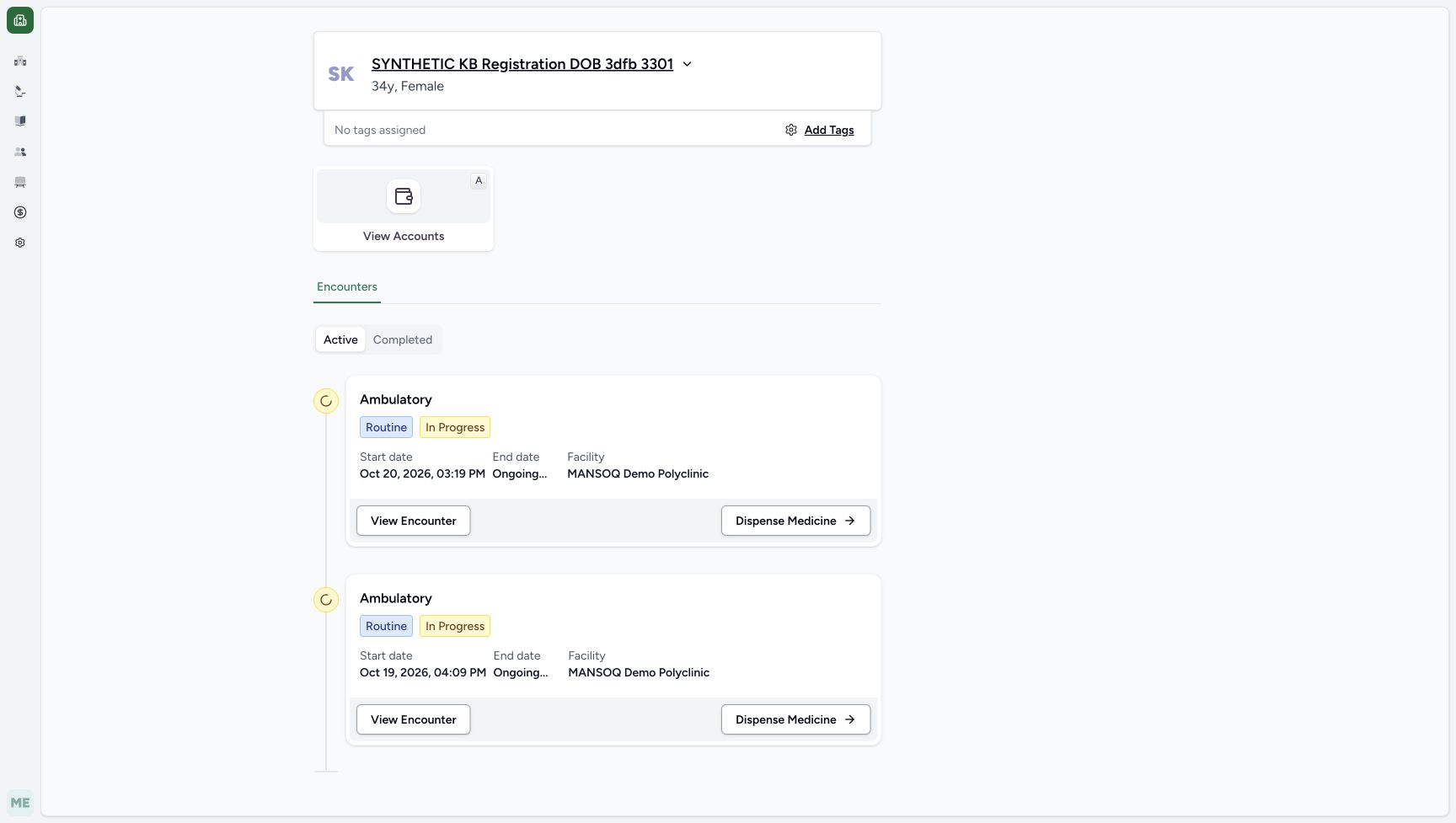
Verify patient home and choose the correct active encounter
Capture details
New Dispense patient selection, local close-and-reopen behavior, existing encounter handoff and unsaved preview recovery. No patient, encounter, medicine bill, stock or payment is created or changed in this example.
Image SHA-256 44b479a7d3efbd617d57d21692b6293e1f55d0e2254cdce7c9e63490447650cc
- Verify the patient home identity: Compare the full name with the patient selected in New Dispense.
- Read Active encounters: These are the existing active encounters for the verified patient.
- Compare the Completed tab: The following view checks that separate list without changing encounter status.
- Identify Oct 20, 2026, 03:19 PM: Use this start date and time for the intended existing encounter.
- Confirm MANSOQ Demo Polyclinic: Check the facility on the intended encounter card.
- Click this encounter’s Dispense Medicine link: Choose the link on the Oct 20 card to open its new-dispense preparation screen.
- Distinguish the older Oct 19 encounter: The second Ambulatory card is a different existing encounter; do not choose it merely because the class matches.
 12345678
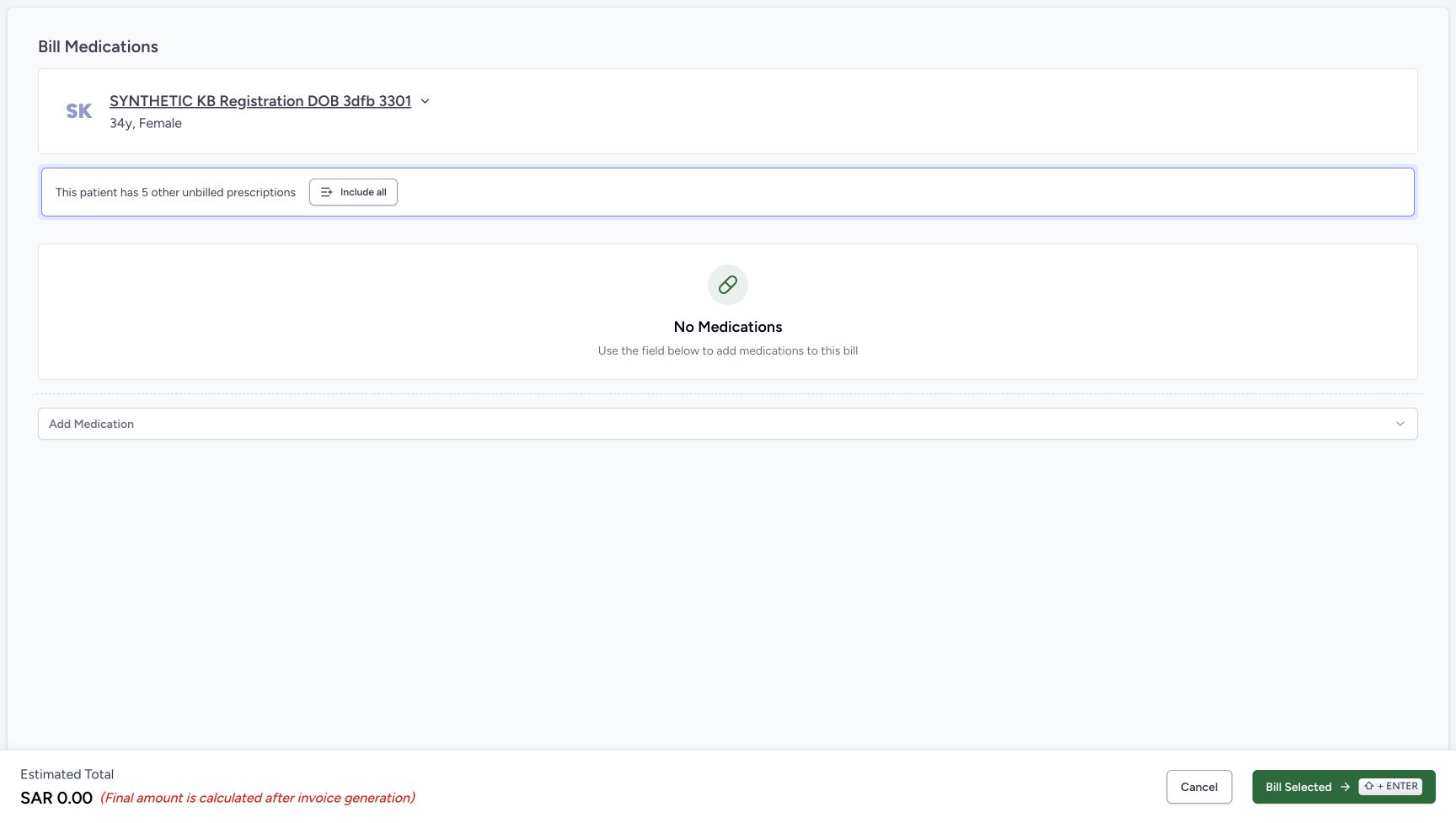
Inspect the empty new-dispense preparation screen
Capture details
New Dispense patient selection, local close-and-reopen behavior, existing encounter handoff and unsaved preview recovery. No patient, encounter, medicine bill, stock or payment is created or changed in this example.
Image SHA-256 6a02e203d96273ee71722f2ab321be8cf24888e452d8ed26bdde169a877cb71a
- Verify the patient before preparation: The same full name must be shown after choosing the encounter.
- Read five other unbilled prescriptions: This notice offers a separate route to the existing prescription groups.
- Choose Include all only for the illustrated preview: The next screen loads existing groups; it does not submit a bill.
- Read No Medications: New Dispense begins without a manually added medicine in this example.
- Leave Add Medication unused: Medicine entry and saving are outside this patient-and-encounter handoff.
- Read the SAR 0.00 estimate: An empty preparation estimate is not an issued invoice or a recorded payment.
- Use Cancel to leave the preparation screen: In the illustrated entry route this returns to the verified Patient Home.
- Leave Bill Selected unused: Do not submit a bill in this navigation exercise.
17 of 17 content blocks have reviewed image alignment.
Before you begin
- Use your existing assigned Pharmacist access and established Main Pharmacy queue. The example uses the existing fictional patient SYNTHETIC KB Registration DOB 3dfb 3301 at MANSOQ Demo Polyclinic. Check the intended person and encounter before proceeding. For the established queue entry and patient filter, see Find the pharmacy queue and review an unsaved billing draft.
 1234
1234Recorded release 3f4f9e19 · 2026-10-21T02:50:18.682669+00:00 · 1728 × 977 Distinguish the patient-filtered queue from normal New Dispense entry
Capture details
New Dispense patient selection, local close-and-reopen behavior, existing encounter handoff and unsaved preview recovery. No patient, encounter, medicine bill, stock or payment is created or changed in this example.
Image SHA-256
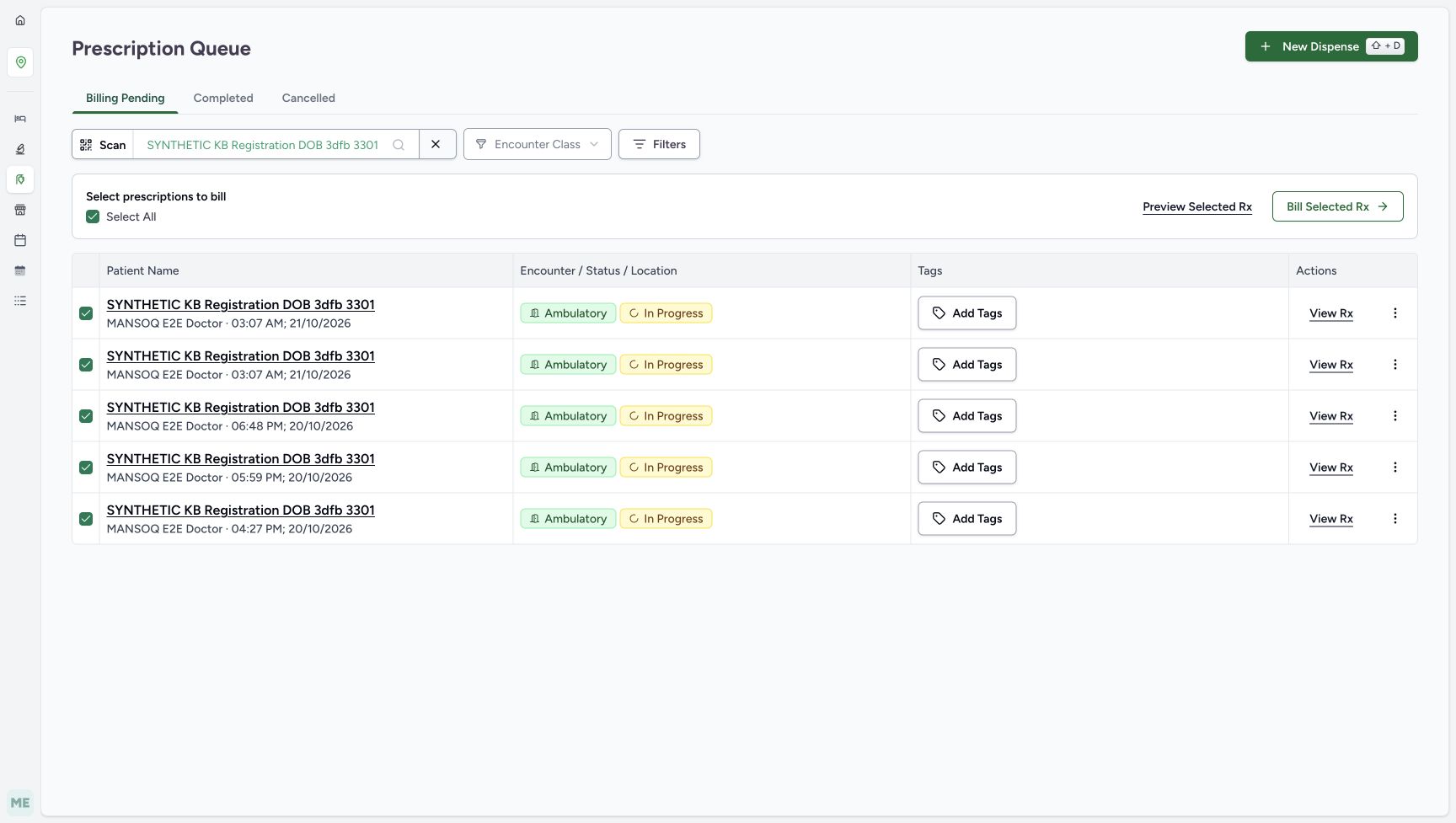
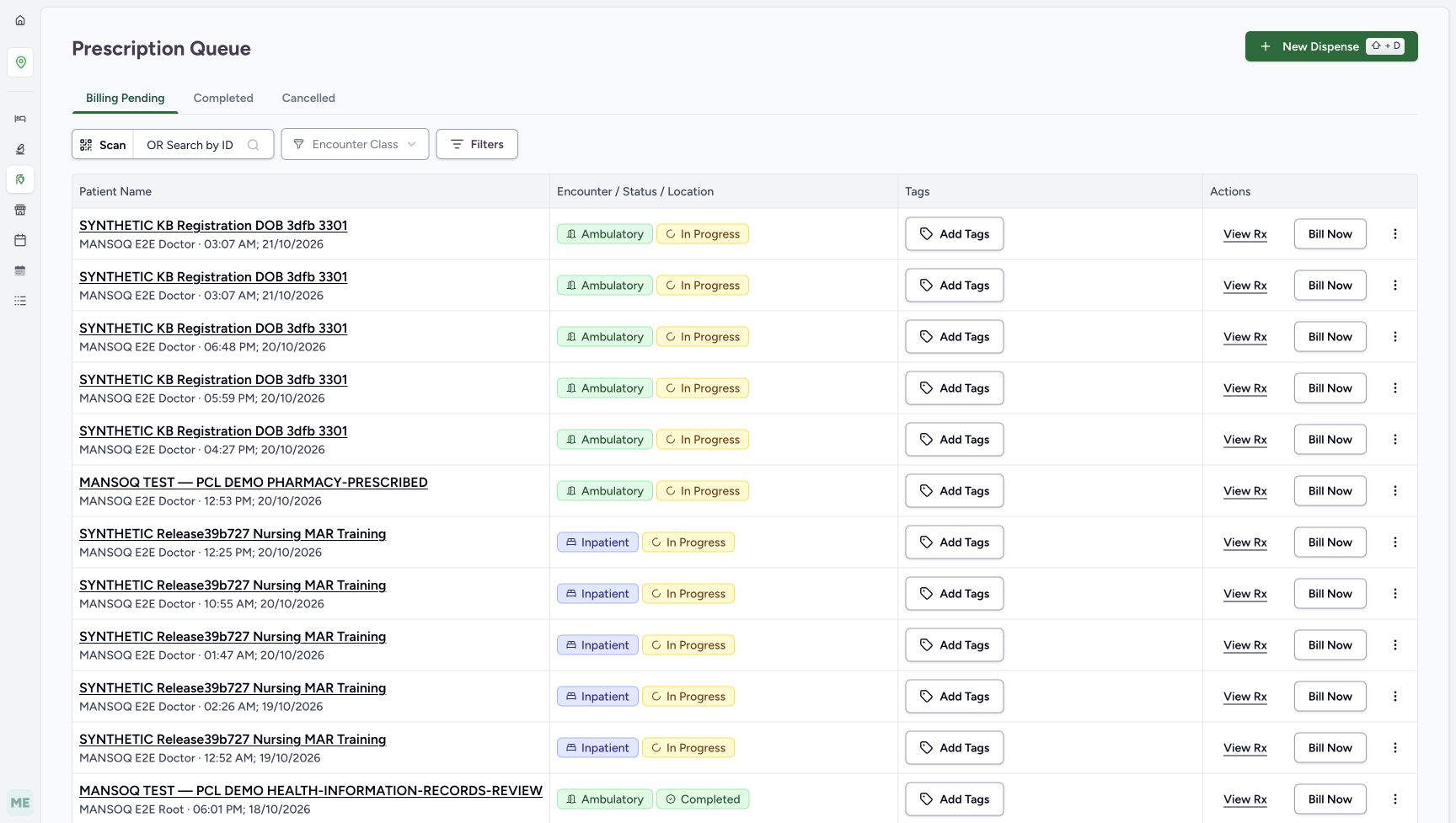
086f9c8e76c350377b1767b4caaea6767724c2ea03bd5df9eb50f072ef55f6a8- Verify the selected queue patient: This patient filter belongs to the queue, before the separate New Dispense selector is opened.
- Clear the queue patient for normal entry: Use this X before opening the normal no-preselected-patient route.
- Open New Dispense: With the queue patient cleared, this control opens the patient selector.
- Keep the queue context: Billing Pending is the illustrated starting tab; do not use its billing or prescription actions here.
1234567Recorded release 3f4f9e19 · 2026-10-21T02:53:54.698732+00:00 · 1728 × 977 Verify patient home and choose the correct active encounter
Capture details
New Dispense patient selection, local close-and-reopen behavior, existing encounter handoff and unsaved preview recovery. No patient, encounter, medicine bill, stock or payment is created or changed in this example.
Image SHA-256
44b479a7d3efbd617d57d21692b6293e1f55d0e2254cdce7c9e63490447650cc- Verify the patient home identity: Compare the full name with the patient selected in New Dispense.
- Read Active encounters: These are the existing active encounters for the verified patient.
- Compare the Completed tab: The following view checks that separate list without changing encounter status.
- Identify Oct 20, 2026, 03:19 PM: Use this start date and time for the intended existing encounter.
- Confirm MANSOQ Demo Polyclinic: Check the facility on the intended encounter card.
- Click this encounter’s Dispense Medicine link: Choose the link on the Oct 20 card to open its new-dispense preparation screen.
- Distinguish the older Oct 19 encounter: The second Ambulatory card is a different existing encounter; do not choose it merely because the class matches.
- Keep this a software-only navigation exercise. Reuse the existing patient and encounters; do not register a patient, create an encounter, add a medicine, change a prescription or submit Bill Selected. The fictional purpose notes remain in force, including the FEVADOL instruction to cancel its preview and not bill. Search and scan choices depend on facility configuration; scanning and registration are not demonstrated here.
 12345
12345Recorded release 3f4f9e19 · 2026-10-21T02:51:09.941230+00:00 · 1728 × 977 Read a no-match search without creating a patient
Capture details
New Dispense patient selection, local close-and-reopen behavior, existing encounter handoff and unsaved preview recovery. No patient, encounter, medicine bill, stock or payment is created or changed in this example.
Image SHA-256
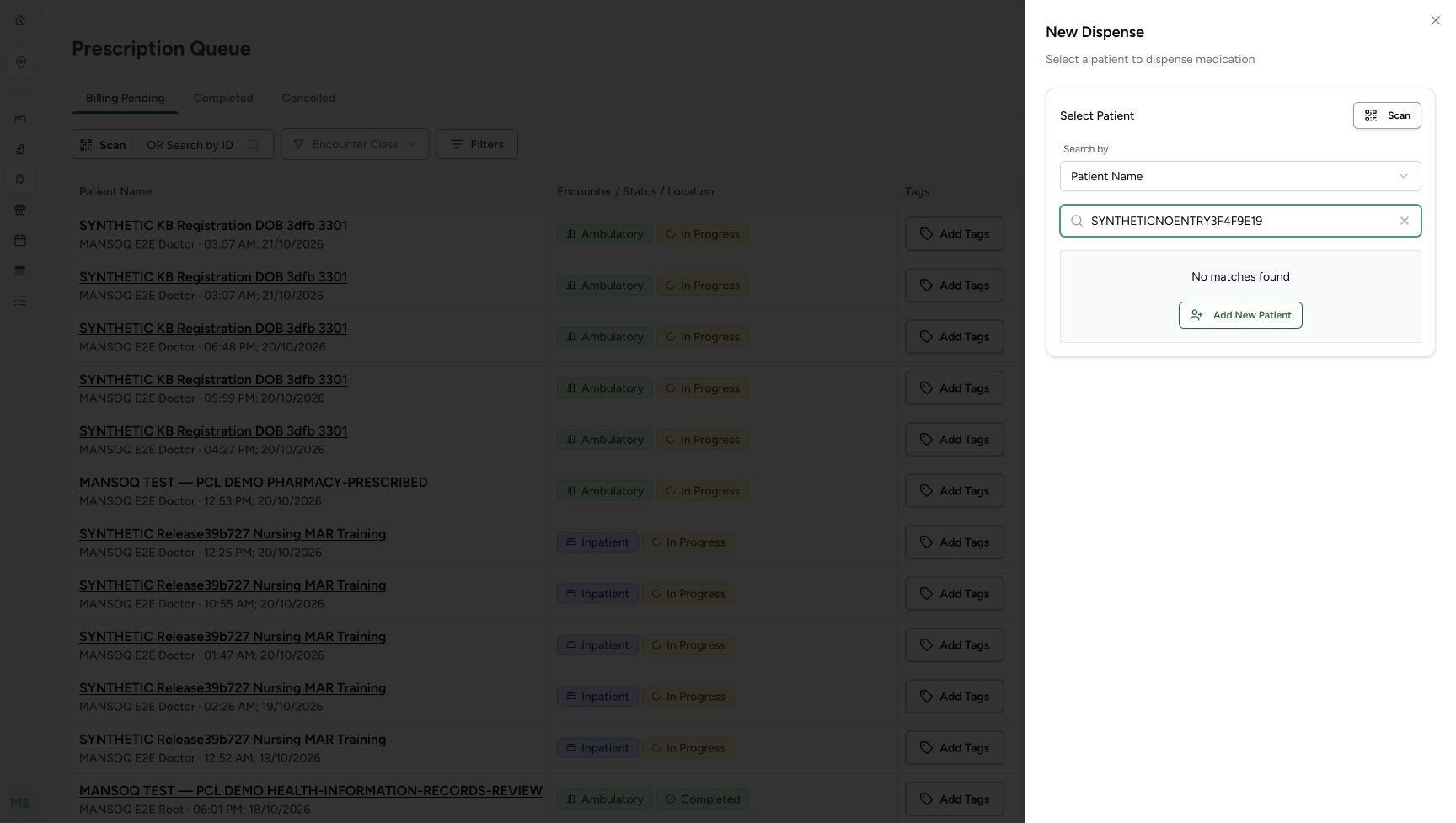
ffe1d06b5c451307a93fbe0403cbcd1f199010a9c086d036662c5050e9702abe- Read the configured Patient Name choice: Use the search mode actually offered in this facility.
- Replace the no-match search text: For the existing fictional record, enter 3301 instead of the deliberate no-match term.
- Locate the search-field clear X: This X clears search text inside the selector, not a saved patient record.
- Read No matches found: This result describes the current search, not proof that an existing patient was deleted.
- Leave Add New Patient unused: This example reuses an existing record and does not register a duplicate.
12345678Recorded release 3f4f9e19 · 2026-10-21T02:55:44.290553+00:00 · 1728 × 977 Inspect the empty new-dispense preparation screen
Capture details
New Dispense patient selection, local close-and-reopen behavior, existing encounter handoff and unsaved preview recovery. No patient, encounter, medicine bill, stock or payment is created or changed in this example.
Image SHA-256
6a02e203d96273ee71722f2ab321be8cf24888e452d8ed26bdde169a877cb71a- Verify the patient before preparation: The same full name must be shown after choosing the encounter.
- Read five other unbilled prescriptions: This notice offers a separate route to the existing prescription groups.
- Choose Include all only for the illustrated preview: The next screen loads existing groups; it does not submit a bill.
- Read No Medications: New Dispense begins without a manually added medicine in this example.
- Leave Add Medication unused: Medicine entry and saving are outside this patient-and-encounter handoff.
- Read the SAR 0.00 estimate: An empty preparation estimate is not an issued invoice or a recorded payment.
- Use Cancel to leave the preparation screen: In the illustrated entry route this returns to the verified Patient Home.
- Leave Bill Selected unused: Do not submit a bill in this navigation exercise.
 12345
12345Recorded release 3f4f9e19 · 2026-10-21T02:58:44.351655+00:00 · 1728 × 977 Inspect the included prescription preview without submitting it
Capture details
New Dispense patient selection, local close-and-reopen behavior, existing encounter handoff and unsaved preview recovery. No patient, encounter, medicine bill, stock or payment is created or changed in this example.
Image SHA-256
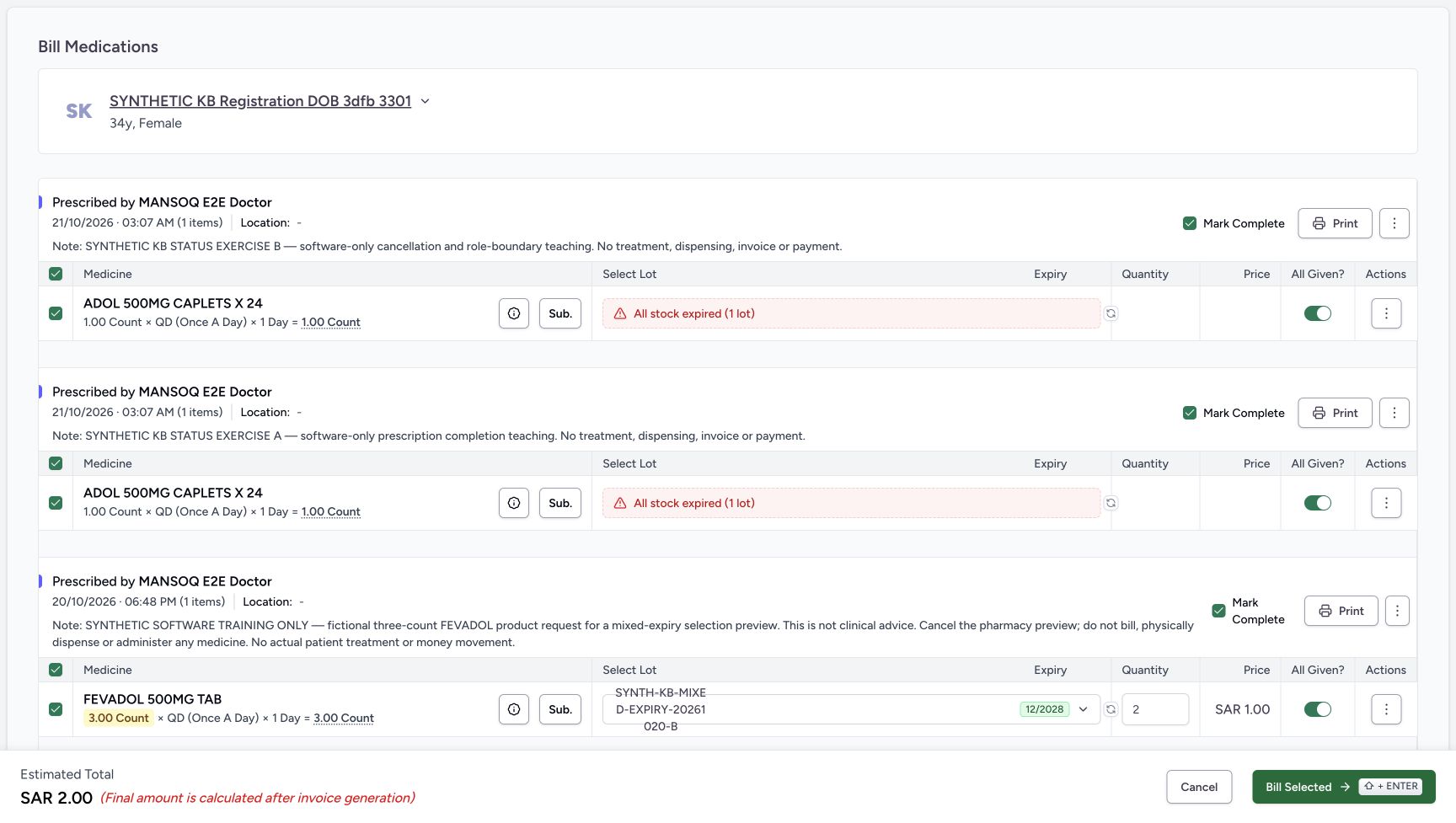
b141ee681463a27742a708879c4937cee904d30fec4555528a63822ff3615bf8- Read the first fictional purpose note: The existing notes identify status and preview exercises; inclusion is not an instruction to dispense them.
- Read the automatically selected FEVADOL lot: This lot appeared after loading settled; no lot selection was edited here.
- Read the unchanged quantity 2: The field is populated by the existing preview; this example does not change or fulfil that request.
- Read the SAR 2.00 estimate: This remains an unsaved preparation estimate, not an invoice total or payment.
- Cancel the included preview: In this witnessed route Cancel returns directly to Patient Home; it does not return to the empty form first.
1. Clear the queue patient and open the normal selector
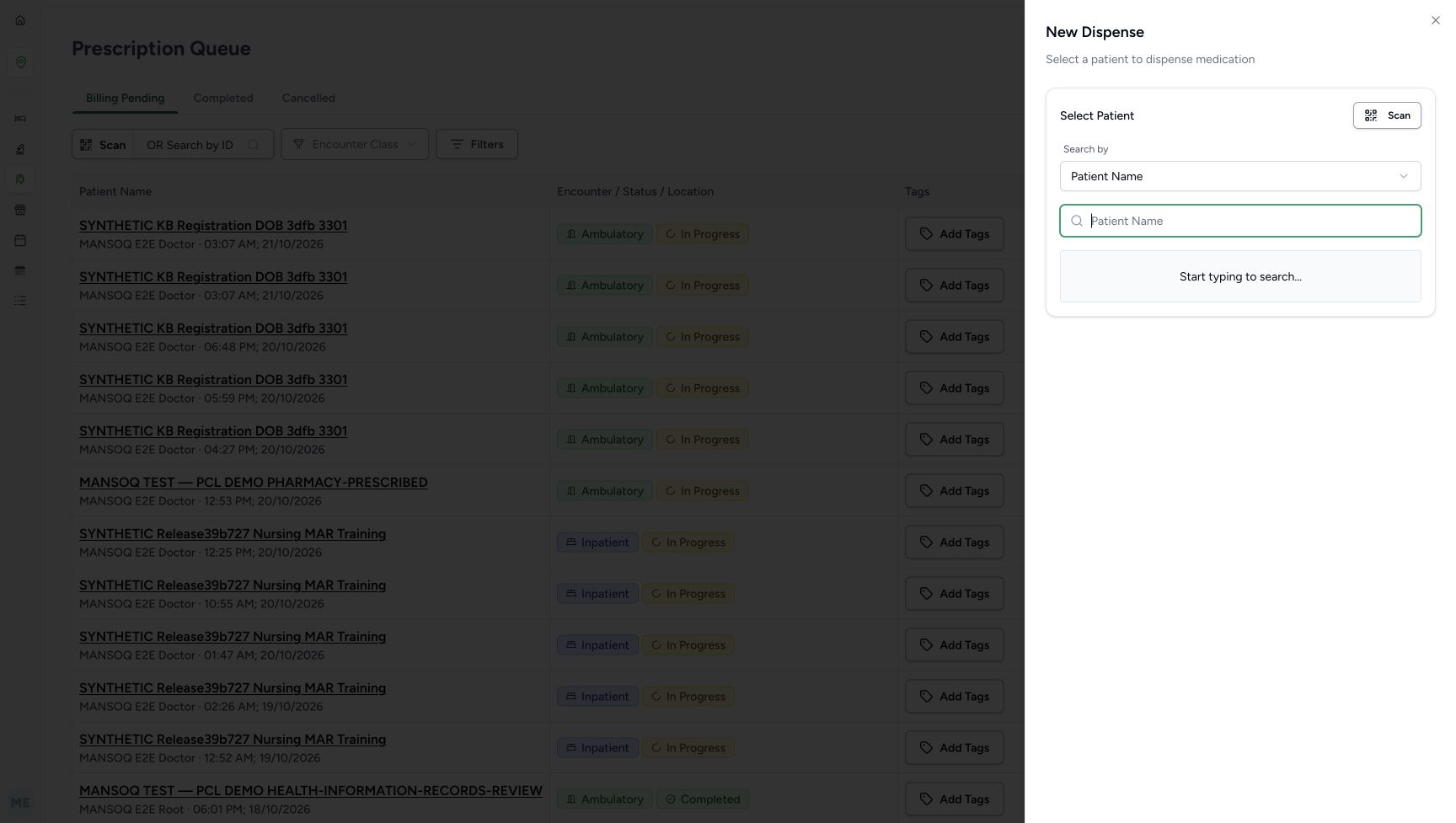
For the normal selector route, clear the queue’s selected-patient filter with its X, then choose New Dispense. Wait until the Sheet is fully open. Confirm the offered Patient Name choice and the empty search input. This is the New Dispense selector, separate from the queue’s patient-filter popup.
1234Distinguish the patient-filtered queue from normal New Dispense entry
Capture details
New Dispense patient selection, local close-and-reopen behavior, existing encounter handoff and unsaved preview recovery. No patient, encounter, medicine bill, stock or payment is created or changed in this example.
Image SHA-256 086f9c8e76c350377b1767b4caaea6767724c2ea03bd5df9eb50f072ef55f6a8
- Verify the selected queue patient: This patient filter belongs to the queue, before the separate New Dispense selector is opened.
- Clear the queue patient for normal entry: Use this X before opening the normal no-preselected-patient route.
- Open New Dispense: With the queue patient cleared, this control opens the patient selector.
- Keep the queue context: Billing Pending is the illustrated starting tab; do not use its billing or prescription actions here.
 12
12Locate New Dispense on the wider queue
Capture details
New Dispense patient selection, local close-and-reopen behavior, existing encounter handoff and unsaved preview recovery. No patient, encounter, medicine bill, stock or payment is created or changed in this example.
Image SHA-256 d5c9a306f5d7a96b162ed9acbaa789c2075fdb195ca8bdf01dc71433c022a4b3
- Notice the clear queue patient filter: The wider queue behind the selector is separate from the locally selected patient.
- Reopen New Dispense: The next selected-patient readback demonstrates what footer Cancel retained.
 1234
1234Use the fully settled empty New Dispense selector
Capture details
New Dispense patient selection, local close-and-reopen behavior, existing encounter handoff and unsaved preview recovery. No patient, encounter, medicine bill, stock or payment is created or changed in this example.
Image SHA-256 161a2d1510f8df52df7cad1a7e5b56b74344a73636a5c0dd5926a6d401f9c726
- Confirm the offered search mode: Patient Name is the configured mode used in this example.
- Enter the existing patient’s search text: Use 3301 for the illustrated fictional record after checking the intended identity.
- Read Start typing to search: There is no current search or selected patient card.
- Use the Sheet X when you need to clear and close: After this top-right close control, reopening returns to an empty selector in this example.
2. Recover from a no-match search and select the existing patient
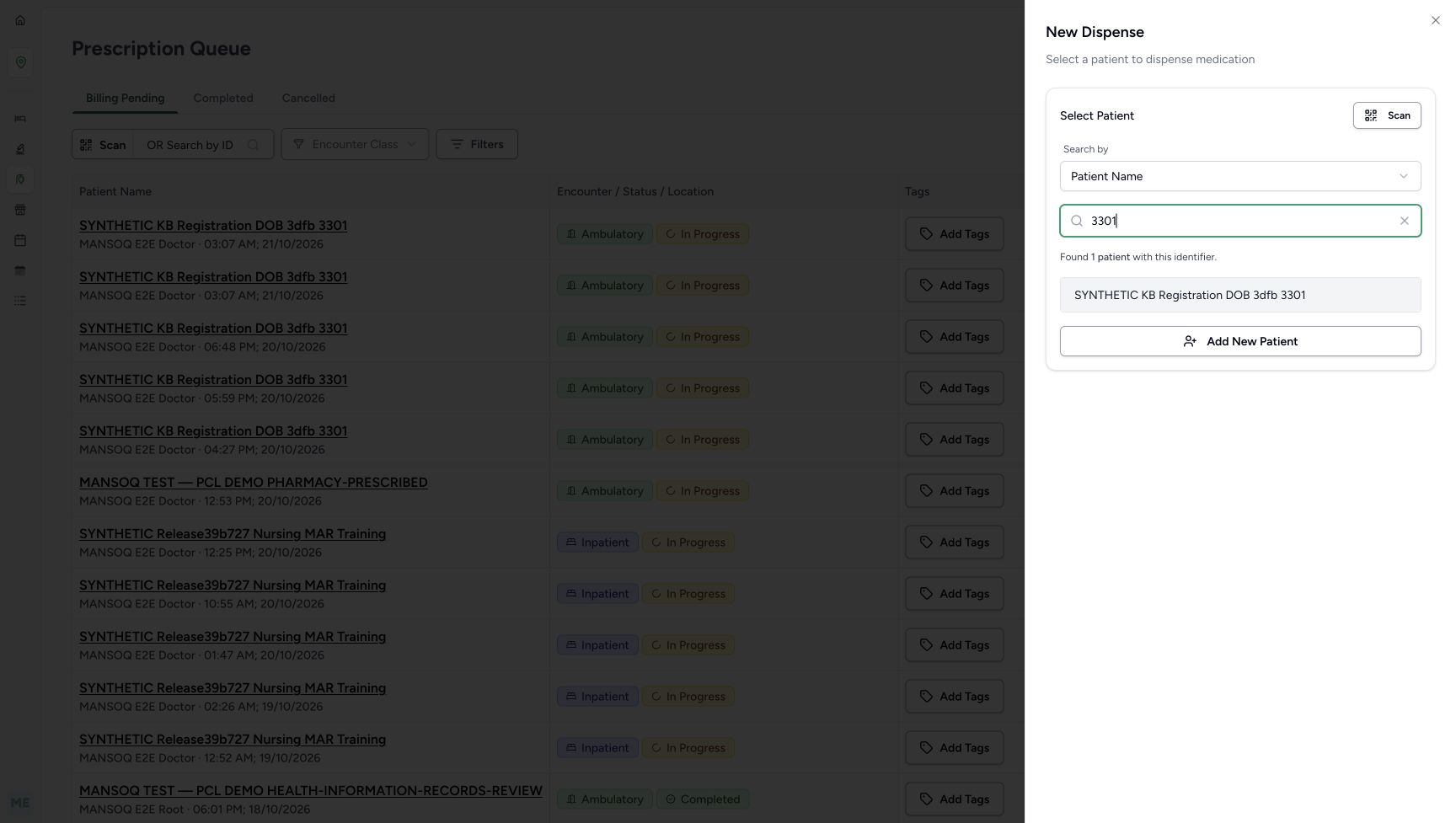
With Patient Name selected, the deliberate fictional search SYNTHETICNOENTRY3F4F9E19 shows No matches found. Leave Add New Patient unused. Replace the text with 3301, then verify and select the complete SYNTHETIC KB Registration DOB 3dfb 3301 result. This configured search selects the full result directly; no birth-year verification dialog is shown in this example.
12345Read a no-match search without creating a patient
Capture details
New Dispense patient selection, local close-and-reopen behavior, existing encounter handoff and unsaved preview recovery. No patient, encounter, medicine bill, stock or payment is created or changed in this example.
Image SHA-256 ffe1d06b5c451307a93fbe0403cbcd1f199010a9c086d036662c5050e9702abe
- Read the configured Patient Name choice: Use the search mode actually offered in this facility.
- Replace the no-match search text: For the existing fictional record, enter 3301 instead of the deliberate no-match term.
- Locate the search-field clear X: This X clears search text inside the selector, not a saved patient record.
- Read No matches found: This result describes the current search, not proof that an existing patient was deleted.
- Leave Add New Patient unused: This example reuses an existing record and does not register a duplicate.
 12
12Select the full existing patient result
Capture details
New Dispense patient selection, local close-and-reopen behavior, existing encounter handoff and unsaved preview recovery. No patient, encounter, medicine bill, stock or payment is created or changed in this example.
Image SHA-256 729071aaf57d4cd5583bfeaddaa64cd7f9fda82e75d9cab7910e0b5d3fdddf67
- Check the example search text: 3301 is the fragment used to find this fictional name in the configured search.
- Select the full matching name: Verify SYNTHETIC KB Registration DOB 3dfb 3301 before selecting this row.
12345Verify the selected patient and locate Change, Cancel and Proceed
Capture details
New Dispense patient selection, local close-and-reopen behavior, existing encounter handoff and unsaved preview recovery. No patient, encounter, medicine bill, stock or payment is created or changed in this example.
Image SHA-256 0d3dd672c81ceb7c42b7003cb3ead383e1fd2f1c5379903c013a224391aef269
- Verify the selected full name: Check the intended patient before continuing or comparing the local close controls.
- Use Change to clear the selection: Change returns to the selector and clears this local selection and its search text.
- Use footer Cancel to close without proceeding: In this version the selected patient is retained when this footer-cancelled selector is reopened.
- Proceed only for the verified patient: Proceed to Dispense opens the verified patient home; it does not submit a medicine bill.
- Locate the separate Sheet X: This top-right close control clears the local selection when the Sheet is reopened.
3. Use Change and reselect the intended patient
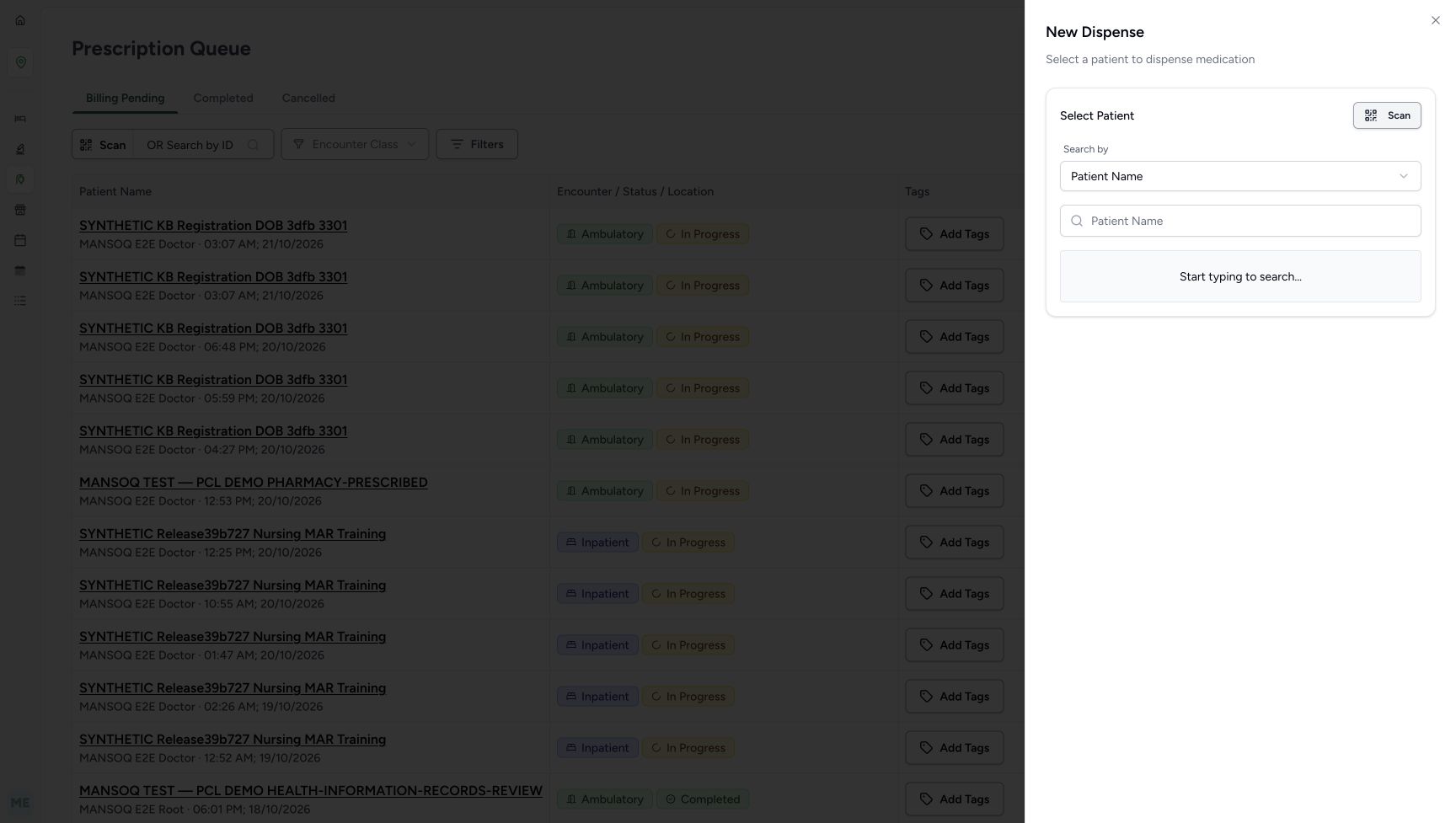
Check the full name on the selected-patient card, then choose Change. The card and previous search text clear, while Patient Name remains selected. Search 3301 again and choose the same full result. Change alters this local selection; it does not remove or edit the patient record.
12345Verify the selected patient and locate Change, Cancel and Proceed
Capture details
New Dispense patient selection, local close-and-reopen behavior, existing encounter handoff and unsaved preview recovery. No patient, encounter, medicine bill, stock or payment is created or changed in this example.
Image SHA-256 0d3dd672c81ceb7c42b7003cb3ead383e1fd2f1c5379903c013a224391aef269
- Verify the selected full name: Check the intended patient before continuing or comparing the local close controls.
- Use Change to clear the selection: Change returns to the selector and clears this local selection and its search text.
- Use footer Cancel to close without proceeding: In this version the selected patient is retained when this footer-cancelled selector is reopened.
- Proceed only for the verified patient: Proceed to Dispense opens the verified patient home; it does not submit a medicine bill.
- Locate the separate Sheet X: This top-right close control clears the local selection when the Sheet is reopened.
 123
123Read the empty selector returned by Change
Capture details
New Dispense patient selection, local close-and-reopen behavior, existing encounter handoff and unsaved preview recovery. No patient, encounter, medicine bill, stock or payment is created or changed in this example.
Image SHA-256 89e5a9d7a0263fc500e87655a3db630250d59db3adab57028d6d47d43ee7b0d9
- Confirm the search mode remains: Change does not change this configured Patient Name choice.
- Search again after Change: The previous search text and selected card have been cleared.
- Read the returned empty search state: This is the empty selector after Change; no patient record was removed.
12Select the full existing patient result
Capture details
New Dispense patient selection, local close-and-reopen behavior, existing encounter handoff and unsaved preview recovery. No patient, encounter, medicine bill, stock or payment is created or changed in this example.
Image SHA-256 729071aaf57d4cd5583bfeaddaa64cd7f9fda82e75d9cab7910e0b5d3fdddf67
- Check the example search text: 3301 is the fragment used to find this fictional name in the configured search.
- Select the full matching name: Verify SYNTHETIC KB Registration DOB 3dfb 3301 before selecting this row.
4. Compare footer Cancel with the Sheet X before proceeding
With the intended patient selected, choose the footer Cancel. The Sheet closes without proceeding. Choose New Dispense again: in this version the selected patient is retained. Check the full name, then close with the separate X at the top-right of the Sheet. Reopen New Dispense and confirm the empty selector. Search and select the intended patient again, verify the name, then choose Proceed to Dispense. Do not assume all close controls reset the selection in the same way.
12345Verify the selected patient and locate Change, Cancel and Proceed
Capture details
New Dispense patient selection, local close-and-reopen behavior, existing encounter handoff and unsaved preview recovery. No patient, encounter, medicine bill, stock or payment is created or changed in this example.
Image SHA-256 0d3dd672c81ceb7c42b7003cb3ead383e1fd2f1c5379903c013a224391aef269
- Verify the selected full name: Check the intended patient before continuing or comparing the local close controls.
- Use Change to clear the selection: Change returns to the selector and clears this local selection and its search text.
- Use footer Cancel to close without proceeding: In this version the selected patient is retained when this footer-cancelled selector is reopened.
- Proceed only for the verified patient: Proceed to Dispense opens the verified patient home; it does not submit a medicine bill.
- Locate the separate Sheet X: This top-right close control clears the local selection when the Sheet is reopened.
12Locate New Dispense on the wider queue
Capture details
New Dispense patient selection, local close-and-reopen behavior, existing encounter handoff and unsaved preview recovery. No patient, encounter, medicine bill, stock or payment is created or changed in this example.
Image SHA-256 d5c9a306f5d7a96b162ed9acbaa789c2075fdb195ca8bdf01dc71433c022a4b3
- Notice the clear queue patient filter: The wider queue behind the selector is separate from the locally selected patient.
- Reopen New Dispense: The next selected-patient readback demonstrates what footer Cancel retained.
 123
123Verify footer Cancel retained the patient, then distinguish the Sheet X
Capture details
New Dispense patient selection, local close-and-reopen behavior, existing encounter handoff and unsaved preview recovery. No patient, encounter, medicine bill, stock or payment is created or changed in this example.
Image SHA-256 311e663ddb4a6977dcc74327131e4355d0f6ad5f656571cdc5abc1ab9bd2f86d
- Verify the retained selected patient: Footer Cancel did not clear this local selection; recheck the full name before continuing.
- Use Change if the selection is wrong: Return to the configured search instead of proceeding with the wrong person.
- Close with the top-right Sheet X to clear: Reopen New Dispense and compare the empty selector, then select the intended patient again.
1234Use the fully settled empty New Dispense selector
Capture details
New Dispense patient selection, local close-and-reopen behavior, existing encounter handoff and unsaved preview recovery. No patient, encounter, medicine bill, stock or payment is created or changed in this example.
Image SHA-256 161a2d1510f8df52df7cad1a7e5b56b74344a73636a5c0dd5926a6d401f9c726
- Confirm the offered search mode: Patient Name is the configured mode used in this example.
- Enter the existing patient’s search text: Use 3301 for the illustrated fictional record after checking the intended identity.
- Read Start typing to search: There is no current search or selected patient card.
- Use the Sheet X when you need to clear and close: After this top-right close control, reopening returns to an empty selector in this example.
12Select the full existing patient result
Capture details
New Dispense patient selection, local close-and-reopen behavior, existing encounter handoff and unsaved preview recovery. No patient, encounter, medicine bill, stock or payment is created or changed in this example.
Image SHA-256 729071aaf57d4cd5583bfeaddaa64cd7f9fda82e75d9cab7910e0b5d3fdddf67
- Check the example search text: 3301 is the fragment used to find this fictional name in the configured search.
- Select the full matching name: Verify SYNTHETIC KB Registration DOB 3dfb 3301 before selecting this row.
5. Verify patient home and compare Active with Completed
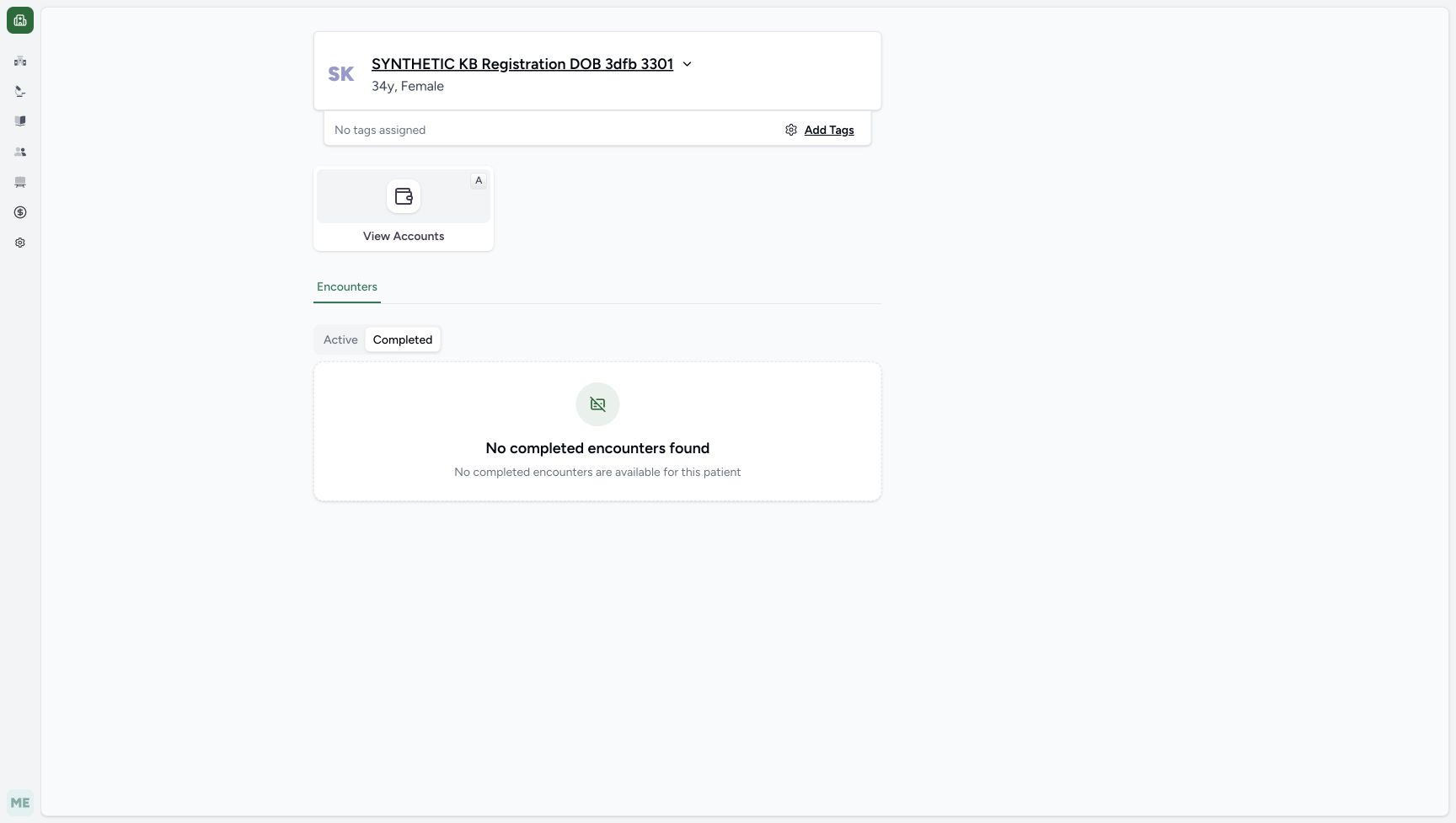
Wait for the verified patient home and compare its full name with your selection. Under Encounters, Active shows two Ambulatory, In Progress cards at MANSOQ Demo Polyclinic. The intended card started Oct 20, 2026 at 03:19 PM; the older card started Oct 19 at 04:09 PM. Choose Completed to inspect that separate list: No completed encounters found appears. Return to Active; the two original cards remain.
1234567Verify patient home and choose the correct active encounter
Capture details
New Dispense patient selection, local close-and-reopen behavior, existing encounter handoff and unsaved preview recovery. No patient, encounter, medicine bill, stock or payment is created or changed in this example.
Image SHA-256 44b479a7d3efbd617d57d21692b6293e1f55d0e2254cdce7c9e63490447650cc
- Verify the patient home identity: Compare the full name with the patient selected in New Dispense.
- Read Active encounters: These are the existing active encounters for the verified patient.
- Compare the Completed tab: The following view checks that separate list without changing encounter status.
- Identify Oct 20, 2026, 03:19 PM: Use this start date and time for the intended existing encounter.
- Confirm MANSOQ Demo Polyclinic: Check the facility on the intended encounter card.
- Click this encounter’s Dispense Medicine link: Choose the link on the Oct 20 card to open its new-dispense preparation screen.
- Distinguish the older Oct 19 encounter: The second Ambulatory card is a different existing encounter; do not choose it merely because the class matches.
 123
123Read the separate empty Completed-encounters list
Capture details
New Dispense patient selection, local close-and-reopen behavior, existing encounter handoff and unsaved preview recovery. No patient, encounter, medicine bill, stock or payment is created or changed in this example.
Image SHA-256 a85096eadadc9e3413cb523bb5f4fc2e43be36800439c50615c5aabdf1f00557
- Read Completed selected: This encounter-list tab is different from a prescription or medicine completion control.
- Read No completed encounters found: The current Completed list is empty; the Active encounters still exist.
- Return to Active: Return to the existing active encounter cards before choosing the intended Oct 20 link.
6. Click Dispense Medicine on the intended encounter
On the Oct 20, 2026, 03:19 PM card, confirm MANSOQ Demo Polyclinic and click its Dispense Medicine link. Verify the same patient on Bill Medications. The new-dispense preparation screen says No Medications and Estimated Total SAR 0.00, with Add Medication and a notice of five other unbilled prescriptions. Do not add a medicine or choose Bill Selected. Opening this screen is a handoff to preparation, not a saved dispense or invoice.
1234567Verify patient home and choose the correct active encounter
Capture details
New Dispense patient selection, local close-and-reopen behavior, existing encounter handoff and unsaved preview recovery. No patient, encounter, medicine bill, stock or payment is created or changed in this example.
Image SHA-256 44b479a7d3efbd617d57d21692b6293e1f55d0e2254cdce7c9e63490447650cc
- Verify the patient home identity: Compare the full name with the patient selected in New Dispense.
- Read Active encounters: These are the existing active encounters for the verified patient.
- Compare the Completed tab: The following view checks that separate list without changing encounter status.
- Identify Oct 20, 2026, 03:19 PM: Use this start date and time for the intended existing encounter.
- Confirm MANSOQ Demo Polyclinic: Check the facility on the intended encounter card.
- Click this encounter’s Dispense Medicine link: Choose the link on the Oct 20 card to open its new-dispense preparation screen.
- Distinguish the older Oct 19 encounter: The second Ambulatory card is a different existing encounter; do not choose it merely because the class matches.
12345678Inspect the empty new-dispense preparation screen
Capture details
New Dispense patient selection, local close-and-reopen behavior, existing encounter handoff and unsaved preview recovery. No patient, encounter, medicine bill, stock or payment is created or changed in this example.
Image SHA-256 6a02e203d96273ee71722f2ab321be8cf24888e452d8ed26bdde169a877cb71a
- Verify the patient before preparation: The same full name must be shown after choosing the encounter.
- Read five other unbilled prescriptions: This notice offers a separate route to the existing prescription groups.
- Choose Include all only for the illustrated preview: The next screen loads existing groups; it does not submit a bill.
- Read No Medications: New Dispense begins without a manually added medicine in this example.
- Leave Add Medication unused: Medicine entry and saving are outside this patient-and-encounter handoff.
- Read the SAR 0.00 estimate: An empty preparation estimate is not an issued invoice or a recorded payment.
- Use Cancel to leave the preparation screen: In the illustrated entry route this returns to the verified Patient Home.
- Leave Bill Selected unused: Do not submit a bill in this navigation exercise.
7. Inspect Include all, then cancel the unsaved preparation
For this fictional preview only, choose Include all beside the notice of five other unbilled prescriptions. The existing groups open; the pictured upper portion shows two ADOL groups with All stock expired and a FEVADOL row with a selected lot, quantity 2 and Estimated Total SAR 2.00. Leave the populated controls unchanged and do not submit Bill Selected. Choose Cancel. In this illustrated entry route it returns directly to Patient Home. Choosing the same Oct 20 encounter’s Dispense Medicine again reopens the empty preparation screen; its Cancel also returns to Patient Home. Do not assume an intermediate empty form is always visited when cancelling the included preview.
12345678Inspect the empty new-dispense preparation screen
Capture details
New Dispense patient selection, local close-and-reopen behavior, existing encounter handoff and unsaved preview recovery. No patient, encounter, medicine bill, stock or payment is created or changed in this example.
Image SHA-256 6a02e203d96273ee71722f2ab321be8cf24888e452d8ed26bdde169a877cb71a
- Verify the patient before preparation: The same full name must be shown after choosing the encounter.
- Read five other unbilled prescriptions: This notice offers a separate route to the existing prescription groups.
- Choose Include all only for the illustrated preview: The next screen loads existing groups; it does not submit a bill.
- Read No Medications: New Dispense begins without a manually added medicine in this example.
- Leave Add Medication unused: Medicine entry and saving are outside this patient-and-encounter handoff.
- Read the SAR 0.00 estimate: An empty preparation estimate is not an issued invoice or a recorded payment.
- Use Cancel to leave the preparation screen: In the illustrated entry route this returns to the verified Patient Home.
- Leave Bill Selected unused: Do not submit a bill in this navigation exercise.
12345Inspect the included prescription preview without submitting it
Capture details
New Dispense patient selection, local close-and-reopen behavior, existing encounter handoff and unsaved preview recovery. No patient, encounter, medicine bill, stock or payment is created or changed in this example.
Image SHA-256 b141ee681463a27742a708879c4937cee904d30fec4555528a63822ff3615bf8
- Read the first fictional purpose note: The existing notes identify status and preview exercises; inclusion is not an instruction to dispense them.
- Read the automatically selected FEVADOL lot: This lot appeared after loading settled; no lot selection was edited here.
- Read the unchanged quantity 2: The field is populated by the existing preview; this example does not change or fulfil that request.
- Read the SAR 2.00 estimate: This remains an unsaved preparation estimate, not an invoice total or payment.
- Cancel the included preview: In this witnessed route Cancel returns directly to Patient Home; it does not return to the empty form first.
1234567Verify patient home and choose the correct active encounter
Capture details
New Dispense patient selection, local close-and-reopen behavior, existing encounter handoff and unsaved preview recovery. No patient, encounter, medicine bill, stock or payment is created or changed in this example.
Image SHA-256 44b479a7d3efbd617d57d21692b6293e1f55d0e2254cdce7c9e63490447650cc
- Verify the patient home identity: Compare the full name with the patient selected in New Dispense.
- Read Active encounters: These are the existing active encounters for the verified patient.
- Compare the Completed tab: The following view checks that separate list without changing encounter status.
- Identify Oct 20, 2026, 03:19 PM: Use this start date and time for the intended existing encounter.
- Confirm MANSOQ Demo Polyclinic: Check the facility on the intended encounter card.
- Click this encounter’s Dispense Medicine link: Choose the link on the Oct 20 card to open its new-dispense preparation screen.
- Distinguish the older Oct 19 encounter: The second Ambulatory card is a different existing encounter; do not choose it merely because the class matches.
8. Recognise the separate entry route when a queue patient is already selected
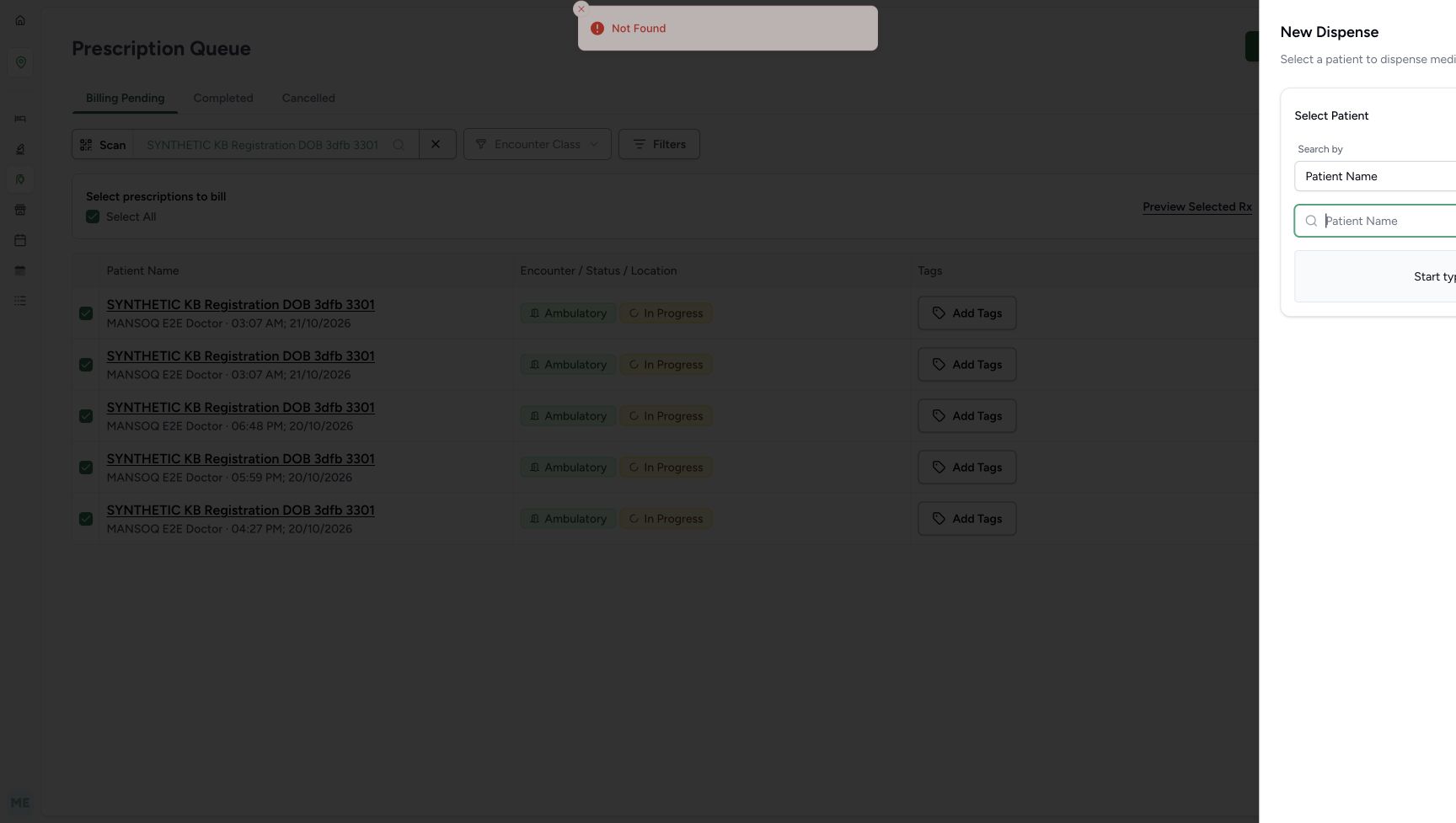
This is a separate starting point at the existing patient-filtered Prescription Queue, rather than a return-link sequence from Patient Home. With the fictional patient still selected in the queue, choosing New Dispense produces Not Found in this example and opens the original patient selector. The notification screenshot records the message; the following settled screenshot shows the usable selector controls. This is not a successful direct patient lookup and does not prove that the existing patient is missing or needs registration.
1234Distinguish the patient-filtered queue from normal New Dispense entry
Capture details
New Dispense patient selection, local close-and-reopen behavior, existing encounter handoff and unsaved preview recovery. No patient, encounter, medicine bill, stock or payment is created or changed in this example.
Image SHA-256 086f9c8e76c350377b1767b4caaea6767724c2ea03bd5df9eb50f072ef55f6a8
- Verify the selected queue patient: This patient filter belongs to the queue, before the separate New Dispense selector is opened.
- Clear the queue patient for normal entry: Use this X before opening the normal no-preselected-patient route.
- Open New Dispense: With the queue patient cleared, this control opens the patient selector.
- Keep the queue context: Billing Pending is the illustrated starting tab; do not use its billing or prescription actions here.
 1
1Recognise Not Found after the separate preselected-patient entry
Capture details
New Dispense patient selection, local close-and-reopen behavior, existing encounter handoff and unsaved preview recovery. No patient, encounter, medicine bill, stock or payment is created or changed in this example.
Image SHA-256 722b028e4898d28f002daf4bdd4392c82e825856eeb5d86e26ff9f35bc555e35
- Read Not Found: The explicit patient lookup did not succeed. Do not treat this notification as proof that the patient does not exist or that a new patient must be registered.
 123
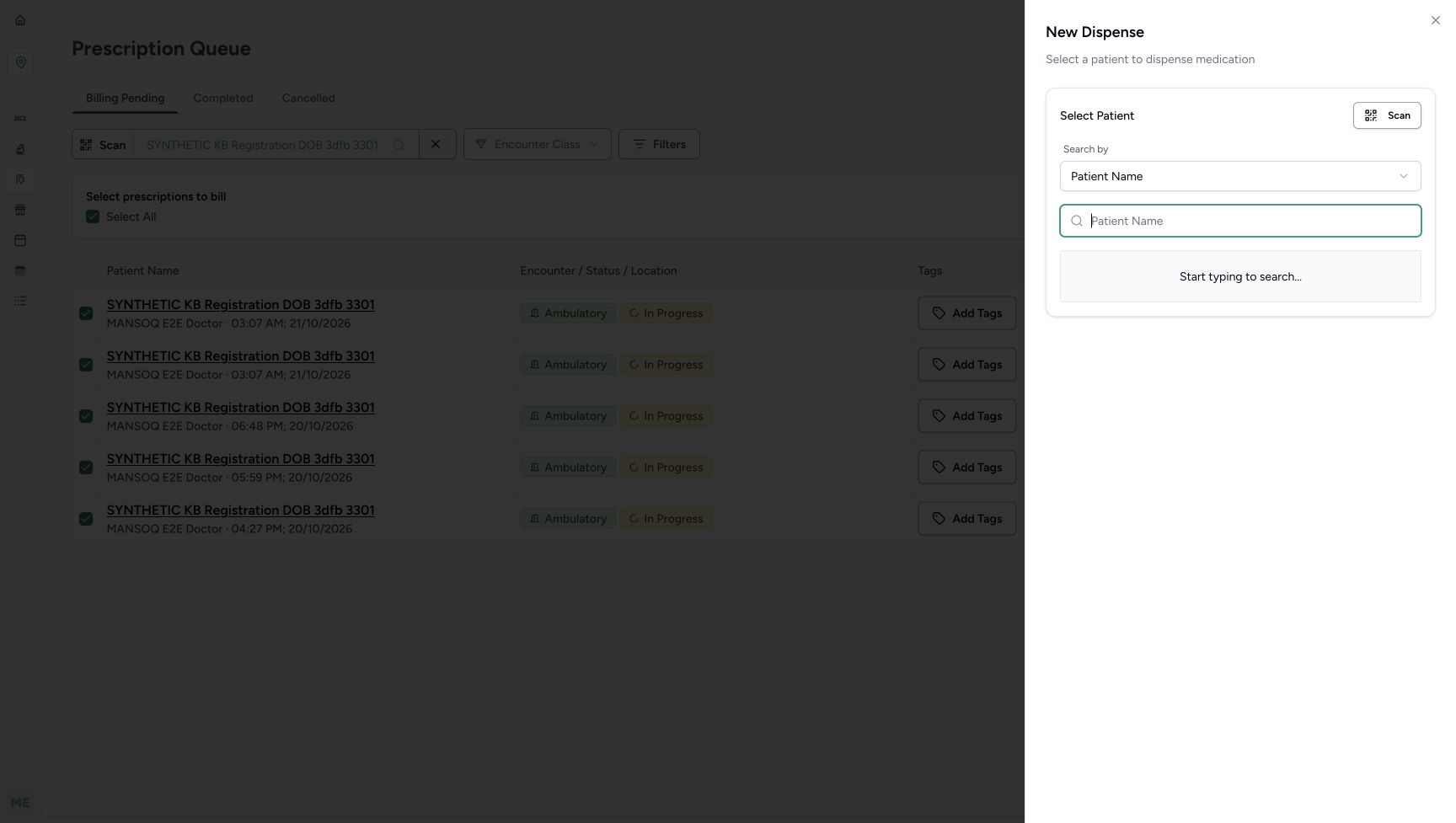
123Close the settled fallback selector without creating a patient
Capture details
New Dispense patient selection, local close-and-reopen behavior, existing encounter handoff and unsaved preview recovery. No patient, encounter, medicine bill, stock or payment is created or changed in this example.
Image SHA-256 eedd7a3c16607d37cc82030429a9d811ec3093b00db5c22f4b2fbc626ec5d224
- Recognise the original selector fallback: The selector is available after the failed lookup; no successful direct patient navigation is shown.
- Close the fallback with the Sheet X: The illustrated recovery closes here without search, registration or Proceed.
- Locate the original queue patient behind the Sheet: Close the Sheet before using queue controls; preserve the existing patient identity.
9. Close the fallback and confirm the unchanged queue
For the illustrated failed-lookup route, close the settled selector with its top-right X without searching, registering a patient or choosing Proceed. Reload the current patient-filtered queue normally and wait for it to settle. The same full patient name and five original Billing Pending entries remain. End at this readback. A disappearing notification alone does not establish that the failed lookup later succeeded; ask approved support staff to review a persistent access or lookup problem.
123Close the settled fallback selector without creating a patient
Capture details
New Dispense patient selection, local close-and-reopen behavior, existing encounter handoff and unsaved preview recovery. No patient, encounter, medicine bill, stock or payment is created or changed in this example.
Image SHA-256 eedd7a3c16607d37cc82030429a9d811ec3093b00db5c22f4b2fbc626ec5d224
- Recognise the original selector fallback: The selector is available after the failed lookup; no successful direct patient navigation is shown.
- Close the fallback with the Sheet X: The illustrated recovery closes here without search, registration or Proceed.
- Locate the original queue patient behind the Sheet: Close the Sheet before using queue controls; preserve the existing patient identity.
1234Distinguish the patient-filtered queue from normal New Dispense entry
Capture details
New Dispense patient selection, local close-and-reopen behavior, existing encounter handoff and unsaved preview recovery. No patient, encounter, medicine bill, stock or payment is created or changed in this example.
Image SHA-256 086f9c8e76c350377b1767b4caaea6767724c2ea03bd5df9eb50f072ef55f6a8
- Verify the selected queue patient: This patient filter belongs to the queue, before the separate New Dispense selector is opened.
- Clear the queue patient for normal entry: Use this X before opening the normal no-preselected-patient route.
- Open New Dispense: With the queue patient cleared, this control opens the patient selector.
- Keep the queue context: Billing Pending is the illustrated starting tab; do not use its billing or prescription actions here.
Keep identity selection separate from encounter selection
The queue patient filter, the New Dispense selected-patient card and verified Patient Home are different stages. Check the full name at each stage. On Patient Home, compare the encounter date, time and facility before choosing Dispense Medicine; two cards can share Ambulatory and In Progress while representing different encounters. The absence of a birth-year dialog here describes this full-result search only and does not remove other configured identity checks.
1234Distinguish the patient-filtered queue from normal New Dispense entry
Capture details
New Dispense patient selection, local close-and-reopen behavior, existing encounter handoff and unsaved preview recovery. No patient, encounter, medicine bill, stock or payment is created or changed in this example.
Image SHA-256 086f9c8e76c350377b1767b4caaea6767724c2ea03bd5df9eb50f072ef55f6a8
- Verify the selected queue patient: This patient filter belongs to the queue, before the separate New Dispense selector is opened.
- Clear the queue patient for normal entry: Use this X before opening the normal no-preselected-patient route.
- Open New Dispense: With the queue patient cleared, this control opens the patient selector.
- Keep the queue context: Billing Pending is the illustrated starting tab; do not use its billing or prescription actions here.
12Select the full existing patient result
Capture details
New Dispense patient selection, local close-and-reopen behavior, existing encounter handoff and unsaved preview recovery. No patient, encounter, medicine bill, stock or payment is created or changed in this example.
Image SHA-256 729071aaf57d4cd5583bfeaddaa64cd7f9fda82e75d9cab7910e0b5d3fdddf67
- Check the example search text: 3301 is the fragment used to find this fictional name in the configured search.
- Select the full matching name: Verify SYNTHETIC KB Registration DOB 3dfb 3301 before selecting this row.
12345Verify the selected patient and locate Change, Cancel and Proceed
Capture details
New Dispense patient selection, local close-and-reopen behavior, existing encounter handoff and unsaved preview recovery. No patient, encounter, medicine bill, stock or payment is created or changed in this example.
Image SHA-256 0d3dd672c81ceb7c42b7003cb3ead383e1fd2f1c5379903c013a224391aef269
- Verify the selected full name: Check the intended patient before continuing or comparing the local close controls.
- Use Change to clear the selection: Change returns to the selector and clears this local selection and its search text.
- Use footer Cancel to close without proceeding: In this version the selected patient is retained when this footer-cancelled selector is reopened.
- Proceed only for the verified patient: Proceed to Dispense opens the verified patient home; it does not submit a medicine bill.
- Locate the separate Sheet X: This top-right close control clears the local selection when the Sheet is reopened.
1234567Verify patient home and choose the correct active encounter
Capture details
New Dispense patient selection, local close-and-reopen behavior, existing encounter handoff and unsaved preview recovery. No patient, encounter, medicine bill, stock or payment is created or changed in this example.
Image SHA-256 44b479a7d3efbd617d57d21692b6293e1f55d0e2254cdce7c9e63490447650cc
- Verify the patient home identity: Compare the full name with the patient selected in New Dispense.
- Read Active encounters: These are the existing active encounters for the verified patient.
- Compare the Completed tab: The following view checks that separate list without changing encounter status.
- Identify Oct 20, 2026, 03:19 PM: Use this start date and time for the intended existing encounter.
- Confirm MANSOQ Demo Polyclinic: Check the facility on the intended encounter card.
- Click this encounter’s Dispense Medicine link: Choose the link on the Oct 20 card to open its new-dispense preparation screen.
- Distinguish the older Oct 19 encounter: The second Ambulatory card is a different existing encounter; do not choose it merely because the class matches.
123Read the separate empty Completed-encounters list
Capture details
New Dispense patient selection, local close-and-reopen behavior, existing encounter handoff and unsaved preview recovery. No patient, encounter, medicine bill, stock or payment is created or changed in this example.
Image SHA-256 a85096eadadc9e3413cb523bb5f4fc2e43be36800439c50615c5aabdf1f00557
- Read Completed selected: This encounter-list tab is different from a prescription or medicine completion control.
- Read No completed encounters found: The current Completed list is empty; the Active encounters still exist.
- Return to Active: Return to the existing active encounter cards before choosing the intended Oct 20 link.
A prepared screen and an estimate are not a submitted bill
The empty preparation screen and the included prescription preview are both left without submission in this example. Include all opens existing groups; it is not a stock issue, clinical authorisation, saved dispense or payment. The SAR 0.00 and SAR 2.00 values are the displayed estimates in these two states. Review the separate instructions in Include active prescriptions, select groups and cancel before making deliberate prescription-group selections in a real authorised workflow. This guide stops at navigation and recovery.
12345678Inspect the empty new-dispense preparation screen
Capture details
New Dispense patient selection, local close-and-reopen behavior, existing encounter handoff and unsaved preview recovery. No patient, encounter, medicine bill, stock or payment is created or changed in this example.
Image SHA-256 6a02e203d96273ee71722f2ab321be8cf24888e452d8ed26bdde169a877cb71a
- Verify the patient before preparation: The same full name must be shown after choosing the encounter.
- Read five other unbilled prescriptions: This notice offers a separate route to the existing prescription groups.
- Choose Include all only for the illustrated preview: The next screen loads existing groups; it does not submit a bill.
- Read No Medications: New Dispense begins without a manually added medicine in this example.
- Leave Add Medication unused: Medicine entry and saving are outside this patient-and-encounter handoff.
- Read the SAR 0.00 estimate: An empty preparation estimate is not an issued invoice or a recorded payment.
- Use Cancel to leave the preparation screen: In the illustrated entry route this returns to the verified Patient Home.
- Leave Bill Selected unused: Do not submit a bill in this navigation exercise.
12345Inspect the included prescription preview without submitting it
Capture details
New Dispense patient selection, local close-and-reopen behavior, existing encounter handoff and unsaved preview recovery. No patient, encounter, medicine bill, stock or payment is created or changed in this example.
Image SHA-256 b141ee681463a27742a708879c4937cee904d30fec4555528a63822ff3615bf8
- Read the first fictional purpose note: The existing notes identify status and preview exercises; inclusion is not an instruction to dispense them.
- Read the automatically selected FEVADOL lot: This lot appeared after loading settled; no lot selection was edited here.
- Read the unchanged quantity 2: The field is populated by the existing preview; this example does not change or fulfil that request.
- Read the SAR 2.00 estimate: This remains an unsaved preparation estimate, not an invoice total or payment.
- Cancel the included preview: In this witnessed route Cancel returns directly to Patient Home; it does not return to the empty form first.
1234567Verify patient home and choose the correct active encounter
Capture details
New Dispense patient selection, local close-and-reopen behavior, existing encounter handoff and unsaved preview recovery. No patient, encounter, medicine bill, stock or payment is created or changed in this example.
Image SHA-256 44b479a7d3efbd617d57d21692b6293e1f55d0e2254cdce7c9e63490447650cc
- Verify the patient home identity: Compare the full name with the patient selected in New Dispense.
- Read Active encounters: These are the existing active encounters for the verified patient.
- Compare the Completed tab: The following view checks that separate list without changing encounter status.
- Identify Oct 20, 2026, 03:19 PM: Use this start date and time for the intended existing encounter.
- Confirm MANSOQ Demo Polyclinic: Check the facility on the intended encounter card.
- Click this encounter’s Dispense Medicine link: Choose the link on the Oct 20 card to open its new-dispense preparation screen.
- Distinguish the older Oct 19 encounter: The second Ambulatory card is a different existing encounter; do not choose it merely because the class matches.
Troubleshooting
The configured search shows No matches found
Check Search by and the entered text. In this example the intended existing patient is found with Patient Name and 3301. Replace a mistaken search or use its clear X before searching again. Add New Patient is visible but unused; do not create a duplicate merely because the current search returns no match.
12345Read a no-match search without creating a patient
Capture details
New Dispense patient selection, local close-and-reopen behavior, existing encounter handoff and unsaved preview recovery. No patient, encounter, medicine bill, stock or payment is created or changed in this example.
Image SHA-256 ffe1d06b5c451307a93fbe0403cbcd1f199010a9c086d036662c5050e9702abe
- Read the configured Patient Name choice: Use the search mode actually offered in this facility.
- Replace the no-match search text: For the existing fictional record, enter 3301 instead of the deliberate no-match term.
- Locate the search-field clear X: This X clears search text inside the selector, not a saved patient record.
- Read No matches found: This result describes the current search, not proof that an existing patient was deleted.
- Leave Add New Patient unused: This example reuses an existing record and does not register a duplicate.
12Select the full existing patient result
Capture details
New Dispense patient selection, local close-and-reopen behavior, existing encounter handoff and unsaved preview recovery. No patient, encounter, medicine bill, stock or payment is created or changed in this example.
Image SHA-256 729071aaf57d4cd5583bfeaddaa64cd7f9fda82e75d9cab7910e0b5d3fdddf67
- Check the example search text: 3301 is the fragment used to find this fictional name in the configured search.
- Select the full matching name: Verify SYNTHETIC KB Registration DOB 3dfb 3301 before selecting this row.
1234Use the fully settled empty New Dispense selector
Capture details
New Dispense patient selection, local close-and-reopen behavior, existing encounter handoff and unsaved preview recovery. No patient, encounter, medicine bill, stock or payment is created or changed in this example.
Image SHA-256 161a2d1510f8df52df7cad1a7e5b56b74344a73636a5c0dd5926a6d401f9c726
- Confirm the offered search mode: Patient Name is the configured mode used in this example.
- Enter the existing patient’s search text: Use 3301 for the illustrated fictional record after checking the intended identity.
- Read Start typing to search: There is no current search or selected patient card.
- Use the Sheet X when you need to clear and close: After this top-right close control, reopening returns to an empty selector in this example.
The previously selected patient reappears after Cancel
The footer Cancel closes this selector but retains its local selected patient when reopened in the illustrated version. Recheck the full name. Use Change to choose another result, or close with the top-right Sheet X and reopen to start with an empty selector. Do not proceed because a previous name happens to remain selected.
12345Verify the selected patient and locate Change, Cancel and Proceed
Capture details
New Dispense patient selection, local close-and-reopen behavior, existing encounter handoff and unsaved preview recovery. No patient, encounter, medicine bill, stock or payment is created or changed in this example.
Image SHA-256 0d3dd672c81ceb7c42b7003cb3ead383e1fd2f1c5379903c013a224391aef269
- Verify the selected full name: Check the intended patient before continuing or comparing the local close controls.
- Use Change to clear the selection: Change returns to the selector and clears this local selection and its search text.
- Use footer Cancel to close without proceeding: In this version the selected patient is retained when this footer-cancelled selector is reopened.
- Proceed only for the verified patient: Proceed to Dispense opens the verified patient home; it does not submit a medicine bill.
- Locate the separate Sheet X: This top-right close control clears the local selection when the Sheet is reopened.
123Read the empty selector returned by Change
Capture details
New Dispense patient selection, local close-and-reopen behavior, existing encounter handoff and unsaved preview recovery. No patient, encounter, medicine bill, stock or payment is created or changed in this example.
Image SHA-256 89e5a9d7a0263fc500e87655a3db630250d59db3adab57028d6d47d43ee7b0d9
- Confirm the search mode remains: Change does not change this configured Patient Name choice.
- Search again after Change: The previous search text and selected card have been cleared.
- Read the returned empty search state: This is the empty selector after Change; no patient record was removed.
123Verify footer Cancel retained the patient, then distinguish the Sheet X
Capture details
New Dispense patient selection, local close-and-reopen behavior, existing encounter handoff and unsaved preview recovery. No patient, encounter, medicine bill, stock or payment is created or changed in this example.
Image SHA-256 311e663ddb4a6977dcc74327131e4355d0f6ad5f656571cdc5abc1ab9bd2f86d
- Verify the retained selected patient: Footer Cancel did not clear this local selection; recheck the full name before continuing.
- Use Change if the selection is wrong: Return to the configured search instead of proceeding with the wrong person.
- Close with the top-right Sheet X to clear: Reopen New Dispense and compare the empty selector, then select the intended patient again.
1234Use the fully settled empty New Dispense selector
Capture details
New Dispense patient selection, local close-and-reopen behavior, existing encounter handoff and unsaved preview recovery. No patient, encounter, medicine bill, stock or payment is created or changed in this example.
Image SHA-256 161a2d1510f8df52df7cad1a7e5b56b74344a73636a5c0dd5926a6d401f9c726
- Confirm the offered search mode: Patient Name is the configured mode used in this example.
- Enter the existing patient’s search text: Use 3301 for the illustrated fictional record after checking the intended identity.
- Read Start typing to search: There is no current search or selected patient card.
- Use the Sheet X when you need to clear and close: After this top-right close control, reopening returns to an empty selector in this example.
New Dispense shows Not Found with a queue patient already selected
Treat the notification as a failed lookup, not a reason to register a new patient or assume the saved record was deleted. The original selector is available after the failure, but this example closes it without further selection or Proceed. Confirm the settled queue after reload. If the intended patient or access cannot be verified, stop and contact the facility’s approved support staff; do not change accounts or permissions to force the route.
1Recognise Not Found after the separate preselected-patient entry
Capture details
New Dispense patient selection, local close-and-reopen behavior, existing encounter handoff and unsaved preview recovery. No patient, encounter, medicine bill, stock or payment is created or changed in this example.
Image SHA-256 722b028e4898d28f002daf4bdd4392c82e825856eeb5d86e26ff9f35bc555e35
- Read Not Found: The explicit patient lookup did not succeed. Do not treat this notification as proof that the patient does not exist or that a new patient must be registered.
123Close the settled fallback selector without creating a patient
Capture details
New Dispense patient selection, local close-and-reopen behavior, existing encounter handoff and unsaved preview recovery. No patient, encounter, medicine bill, stock or payment is created or changed in this example.
Image SHA-256 eedd7a3c16607d37cc82030429a9d811ec3093b00db5c22f4b2fbc626ec5d224
- Recognise the original selector fallback: The selector is available after the failed lookup; no successful direct patient navigation is shown.
- Close the fallback with the Sheet X: The illustrated recovery closes here without search, registration or Proceed.
- Locate the original queue patient behind the Sheet: Close the Sheet before using queue controls; preserve the existing patient identity.
1234Distinguish the patient-filtered queue from normal New Dispense entry
Capture details
New Dispense patient selection, local close-and-reopen behavior, existing encounter handoff and unsaved preview recovery. No patient, encounter, medicine bill, stock or payment is created or changed in this example.
Image SHA-256 086f9c8e76c350377b1767b4caaea6767724c2ea03bd5df9eb50f072ef55f6a8
- Verify the selected queue patient: This patient filter belongs to the queue, before the separate New Dispense selector is opened.
- Clear the queue patient for normal entry: Use this X before opening the normal no-preselected-patient route.
- Open New Dispense: With the queue patient cleared, this control opens the patient selector.
- Keep the queue context: Billing Pending is the illustrated starting tab; do not use its billing or prescription actions here.
Source evidence
Every citation uses this exact committed version. The private source repository requires access.
- repositories/platform/mansoq-web/src/atoms/pharmacy.ts:9 ·
3f4f9e19edc89abc8949a2dddd13a84a458ff149Source file checksum
8156cb4c68c9b6196716d0d74094739a921ffcd70487b5ba41b96e4f0969033f - repositories/platform/mansoq-web/src/common/Permissions.tsx:321 ·
3f4f9e19edc89abc8949a2dddd13a84a458ff149Source file checksum
4b85506ece137dd8d361795440c8c69403b8805bf69aabaaa0f876017fc30e07 - repositories/platform/mansoq-web/src/components/Common/BackButton.tsx:21 ·
3f4f9e19edc89abc8949a2dddd13a84a458ff149Source file checksum
56a741eff730a7b18a5fae594374068bab2d5413993c32dbbaf3625e14743ca3 - repositories/platform/mansoq-web/src/components/Facility/EncounterCard.tsx:38 ·
3f4f9e19edc89abc8949a2dddd13a84a458ff149Source file checksum
5e9572f88aba61bd917500b1cd0e6fbb8f46dde4123639d935ee0d80a5c71068 - repositories/platform/mansoq-web/src/components/Patient/PatientIdentifierSelector.tsx:74 ·
3f4f9e19edc89abc8949a2dddd13a84a458ff149Source file checksum
285cb0ed78d92cabc7e614d5c15b5a5f719edb8a1dd77e263398d772dbea6ef5 - repositories/platform/mansoq-web/src/pages/Facility/locations/LocationLayout.tsx:82 ·
3f4f9e19edc89abc8949a2dddd13a84a458ff149Source file checksum
9df47e84f488e3982b7684b08e5aab8124a51444094140f17d4583001a1de20f - repositories/platform/mansoq-web/src/pages/Facility/services/HealthcareServiceShow.tsx:38 ·
3f4f9e19edc89abc8949a2dddd13a84a458ff149Source file checksum
4d7356b19adcc37d5f521e343ce7b35cafe1f5f04e1ec05683b5f84915e27d19 - repositories/platform/mansoq-web/src/pages/Facility/services/pharmacy/CreateDispenseSheet.tsx:48 ·
3f4f9e19edc89abc8949a2dddd13a84a458ff149Source file checksum
e2fe364de8ec30690107aee52d154bddeefefe1d2595609c377050646853dc6b - repositories/platform/mansoq-web/src/pages/Facility/services/pharmacy/billMedications/BillMedicationsFooter.tsx:80 ·
3f4f9e19edc89abc8949a2dddd13a84a458ff149Source file checksum
5a2167f3e4ae3c332f8da9b7076d6339c891543cb41fa43534256c826300c048 - repositories/platform/mansoq-web/src/pages/Facility/services/pharmacy/billMedications/BillMedicationsForm.tsx:36 ·
3f4f9e19edc89abc8949a2dddd13a84a458ff149Source file checksum
0afc24e60d930e46a370e183f90837fd77897335e784ad42b1617c8d6dfff97f - repositories/platform/mansoq-web/src/pages/Facility/services/pharmacy/billMedications/UnbilledPrescriptionsCard.tsx:56 ·
3f4f9e19edc89abc8949a2dddd13a84a458ff149Source file checksum
ef931ab35c361c6a2c21c470e464f7aac23141a1ab4cfdf3ec3d704535a62a8c - repositories/platform/mansoq-web/src/pages/Facility/services/pharmacy/billMedications/modes/useNewDispenseMode.ts:17 ·
3f4f9e19edc89abc8949a2dddd13a84a458ff149Source file checksum
d6265b72f0885e44fa94c88ac7b8053d715c4aea310a9bb8c61c2ff636884545 - repositories/platform/mansoq-web/src/pages/Facility/services/pharmacy/billMedications/utils/useBillMedications.ts:44 ·
3f4f9e19edc89abc8949a2dddd13a84a458ff149Source file checksum
b0a5426e5fea291e3dabb6a3b682b10223af0ff7d8c02591b040792e7329a534 - repositories/platform/mansoq-web/src/pages/Patient/PatientHome.tsx:63 ·
3f4f9e19edc89abc8949a2dddd13a84a458ff149Source file checksum
6da895751c6b651d03a005224258b61fb3dea2b443333783a0939295eb3305e6 - repositories/platform/mansoq-web/src/pages/Patient/home/PatientHomeEncounters.tsx:32 ·
3f4f9e19edc89abc8949a2dddd13a84a458ff149Source file checksum
f4f1fd98dea402a515f179d36aacdae46a1aab6fe29aa94d6c4609217c588444 - repositories/platform/mansoq-web/src/pages/Patient/home/PatientHomeTabs.tsx:39 ·
3f4f9e19edc89abc8949a2dddd13a84a458ff149Source file checksum
531a67089fd8585ee22ce51fcee28c729ba7bd7185a5ac21bcfad81c1eb1dfc5 - repositories/platform/mansoq-web/src/types/billing/account/accountApi.ts:11 ·
3f4f9e19edc89abc8949a2dddd13a84a458ff149Source file checksum
813c11615f7d7127b7c1eeff869f431c1505d26d435b1e73801f58ef10c582db - repositories/platform/mansoq-web/src/types/billing/account/hooks/useDefaultBillingAccount.ts:20 ·
3f4f9e19edc89abc8949a2dddd13a84a458ff149Source file checksum
9d5bd7a6162b35eb8065590afc2591b557068ae0f65586d3d0790c4854d6762e - repositories/platform/mansoq-web/src/types/emr/encounter/encounterApi.ts:12 ·
3f4f9e19edc89abc8949a2dddd13a84a458ff149Source file checksum
dc3397b24f1343b3d39f1b8ee3b01da8b3b9c16011d53427d118e6f48a674eaf - repositories/platform/mansoq-web/src/types/emr/patient/patientApi.ts:21 ·
3f4f9e19edc89abc8949a2dddd13a84a458ff149Source file checksum
a4753ed5f4f627fd85b2b01f2cb3d67a494fc8b8c3c5212ae627f8ba834bcb4c