 MANSOQ
 Pharmacy · VERSION b4d19c70
Filter the prescription queue by encounter class
Keep one patient selected in Prescription Queue, compare an Ambulatory match with an Inpatient empty result, and clear only Encounter Class before verifying the restored rows after reload.
Pharmacist
 1234
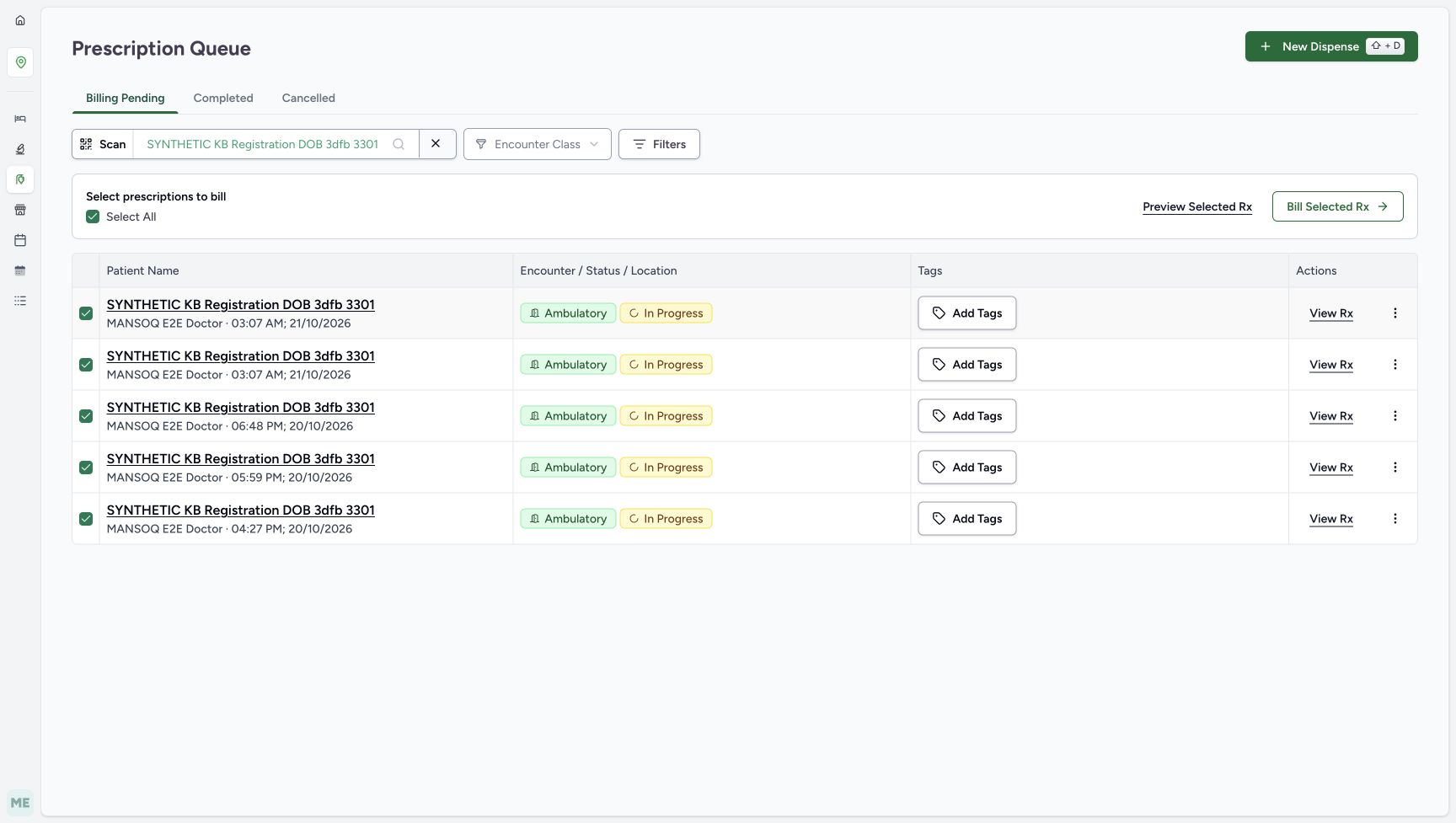
1234Read the settled patient-scoped queue
Capture details
Existing patient-scoped Prescription Queue filtering: Ambulatory match, Inpatient empty result, class-only X reset and settled reload. No prescription, encounter or billing action.
Image SHA-256 daec04e1721c80c247699ba1e6aee66de79664146d4cb355ced03574f1066a11
- Verify the full selected patient: Keep this selection while changing Encounter Class.
- Verify Billing Pending remains: Class filtering does not switch the prescription lifecycle tab.
- Notice the automatic selection: Select All and the current rows are checked; do not toggle or bill them in this exercise.
- Compare all five existing rows: The two 03:07 AM entries and the three older entries form the baseline list.
 12345
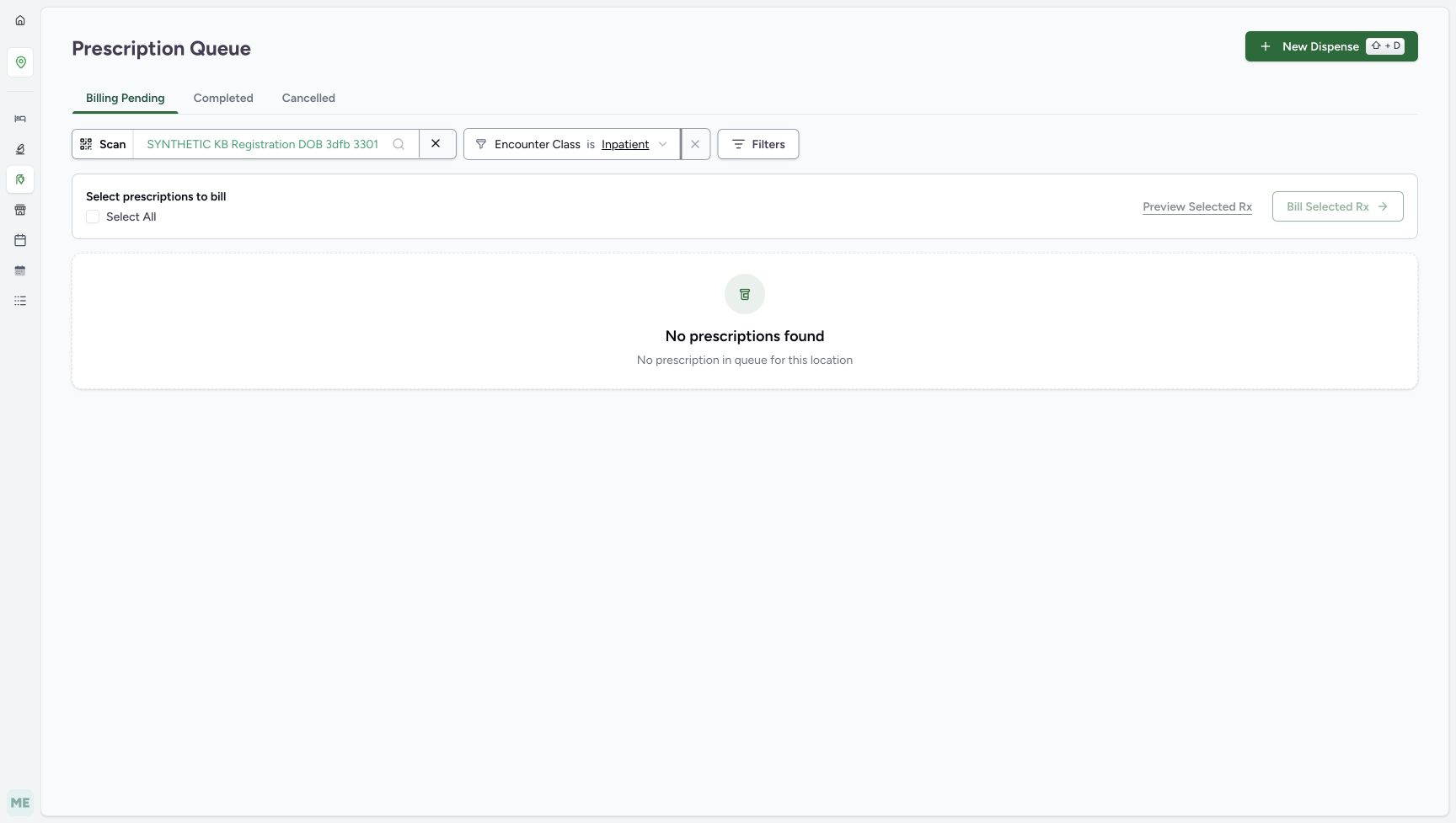
12345Recognise the combined-filter empty result and the correct X
Capture details
Existing patient-scoped Prescription Queue filtering: Ambulatory match, Inpatient empty result, class-only X reset and settled reload. No prescription, encounter or billing action.
Image SHA-256 daafc79a59aa8b3137f87d9ef9c2b6b54fd1b487076d99d7bc8c2f10a29bde1e
- Read Inpatient selected: This patient’s illustrated Ambulatory encounters do not match Inpatient.
- Read No prescriptions found: Interpret this as the current combined-filter result, not deletion or cancellation.
- Clear only Encounter Class: Use the X immediately to the right of the Inpatient class field.
- Leave the patient X unused: This separate X clears the selected patient; it is not the class reset.
- Keep Billing Pending in view: The lifecycle tab remains selected even when no rows match.
 123
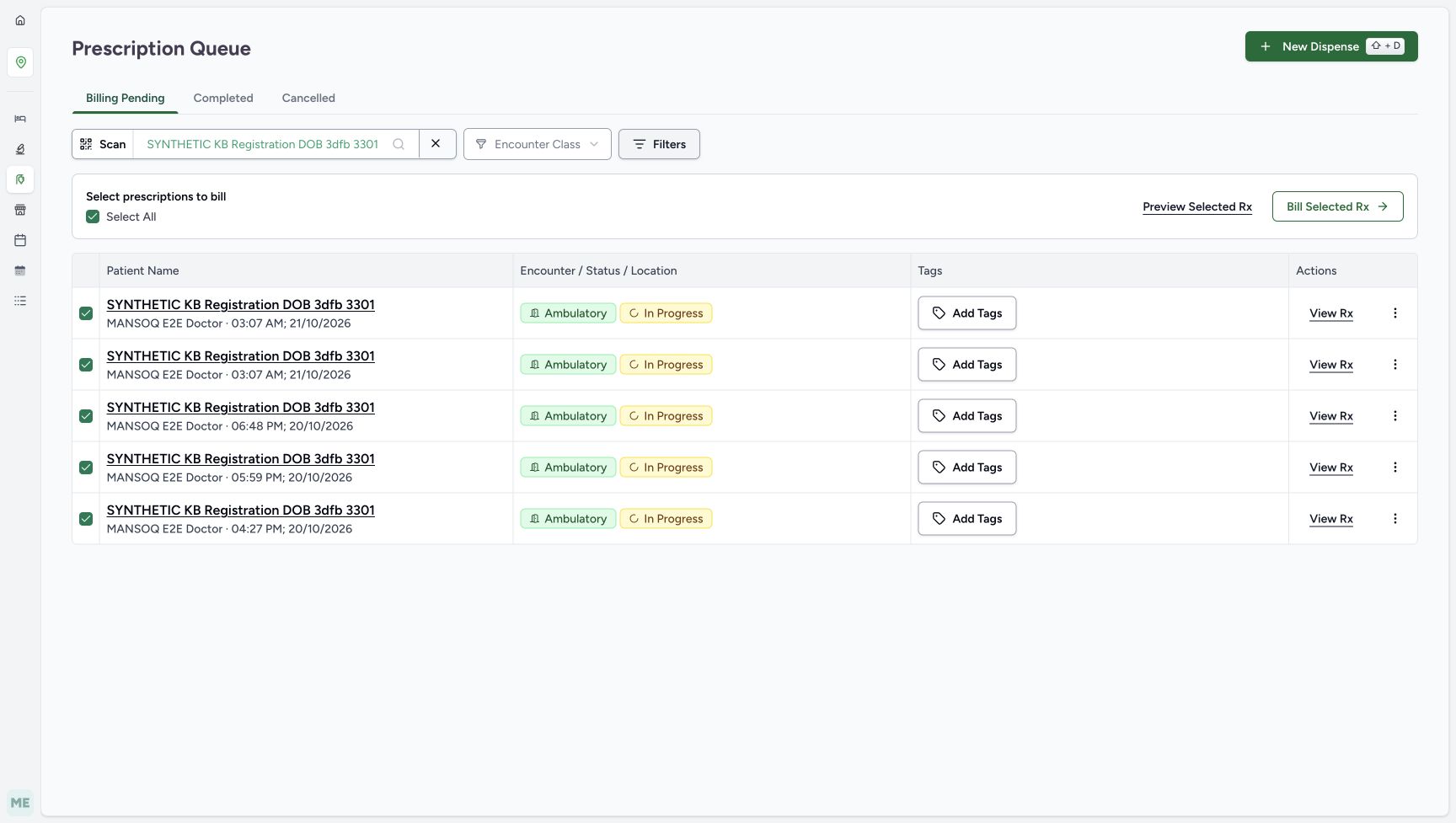
123Verify class-only reset restores the five rows
Capture details
Existing patient-scoped Prescription Queue filtering: Ambulatory match, Inpatient empty result, class-only X reset and settled reload. No prescription, encounter or billing action.
Image SHA-256 5c560b895e01d7c1071953b8f80be60a323e7cd2d7928724550c5e81d4a2bfa6
- Verify the class restriction is cleared: The field shows Encounter Class again; this menu has no All option to select.
- Verify the patient remains selected: Only the class restriction was removed.
- Compare the restored baseline list: The same two 03:07 AM entries and three older prescriptions return.
14 of 14 content blocks have reviewed image alignment.
Before you begin
- Use your existing assigned Pharmacist access and the established Prescription Queue. The pictured account is qa-pharmacist. This example uses only the existing fictional patient SYNTHETIC KB Registration DOB 3dfb 3301; it does not create a patient, encounter or prescription, change access, or provide treatment advice. For the established queue and patient-search entry, see Find the pharmacy queue and review an unsaved billing draft.
 1234
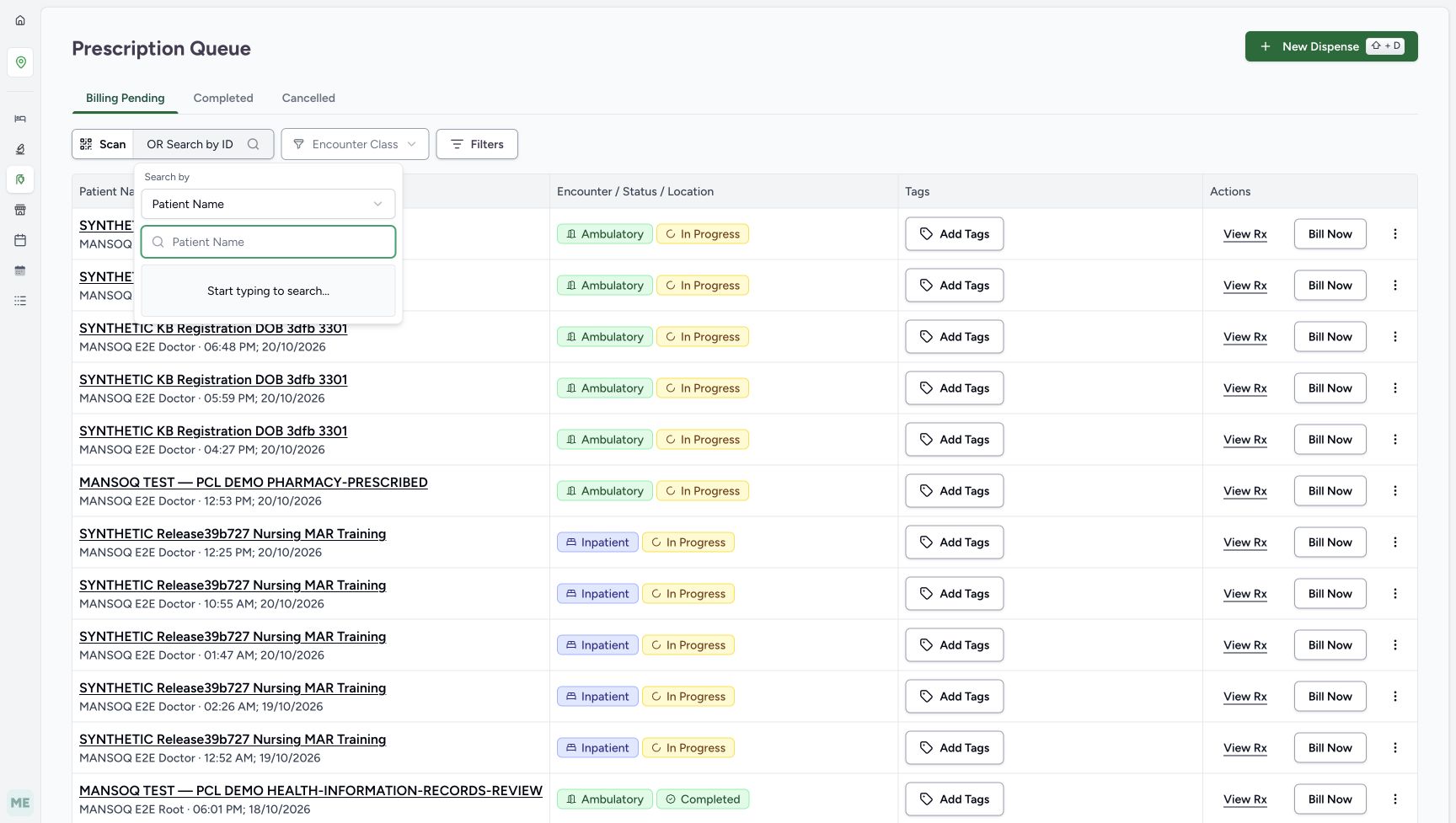
1234Recorded release b4d19c70 · 2026-10-21T01:55:07.722531+00:00 · 1728 × 977 Confirm Patient Name search in Billing Pending
Capture details
Existing patient-scoped Prescription Queue filtering: Ambulatory match, Inpatient empty result, class-only X reset and settled reload. No prescription, encounter or billing action.
Image SHA-256
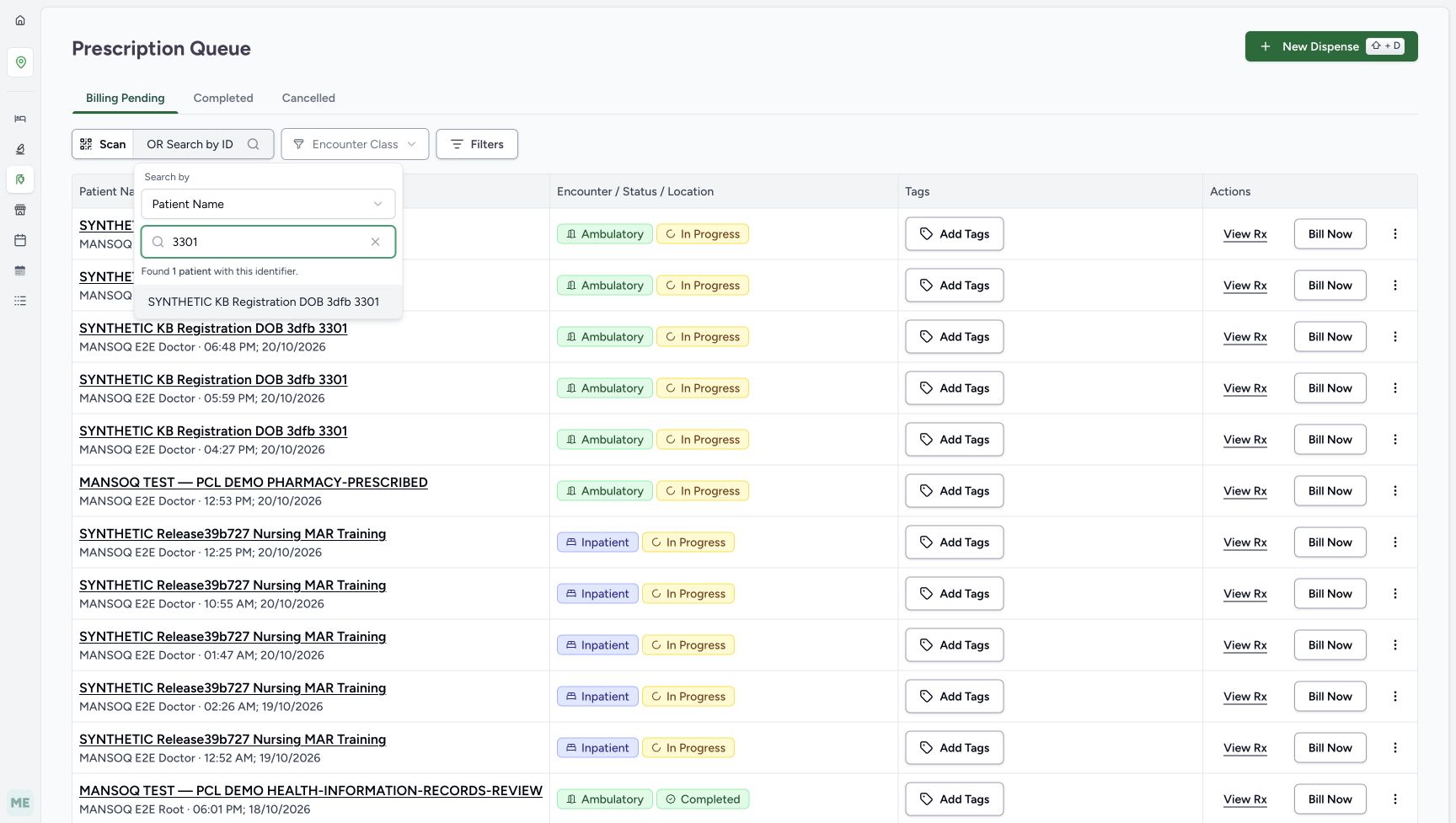
093bb2eb463df2be8ac712c595c42a89eeaf1e60cbcf5321c1416f70ad3889c9- Keep Billing Pending selected: This lifecycle tab stays selected throughout the class-filter exercise.
- Open the patient search control: Use the search control beside Scan; the popup is already open in this picture.
- Check Search by Patient Name: This is the actual selected mode in the example, not a universal default.
- Enter the name fragment 3301: The example searches a fragment of the fictional patient’s name.
 12
12Recorded release b4d19c70 · 2026-10-21T01:55:52.134801+00:00 · 1728 × 977 Select the exact fictional patient result
Capture details
Existing patient-scoped Prescription Queue filtering: Ambulatory match, Inpatient empty result, class-only X reset and settled reload. No prescription, encounter or billing action.
Image SHA-256
3b3cfe62fc65f6b8b7c21dfa263cf7f8aff140a8324d4529950e9a1437535065- Check the entered fragment: 3301 is search text within this fictional name, not proof of an official patient identifier.
- Select the full matching name: Verify SYNTHETIC KB Registration DOB 3dfb 3301 before selecting the result.
 1
1Recorded release b4d19c70 · 2026-10-21T01:56:50.034888+00:00 · 1728 × 977 Verify the existing assigned Pharmacist
Capture details
Existing patient-scoped Prescription Queue filtering: Ambulatory match, Inpatient empty result, class-only X reset and settled reload. No prescription, encounter or billing action.
Image SHA-256
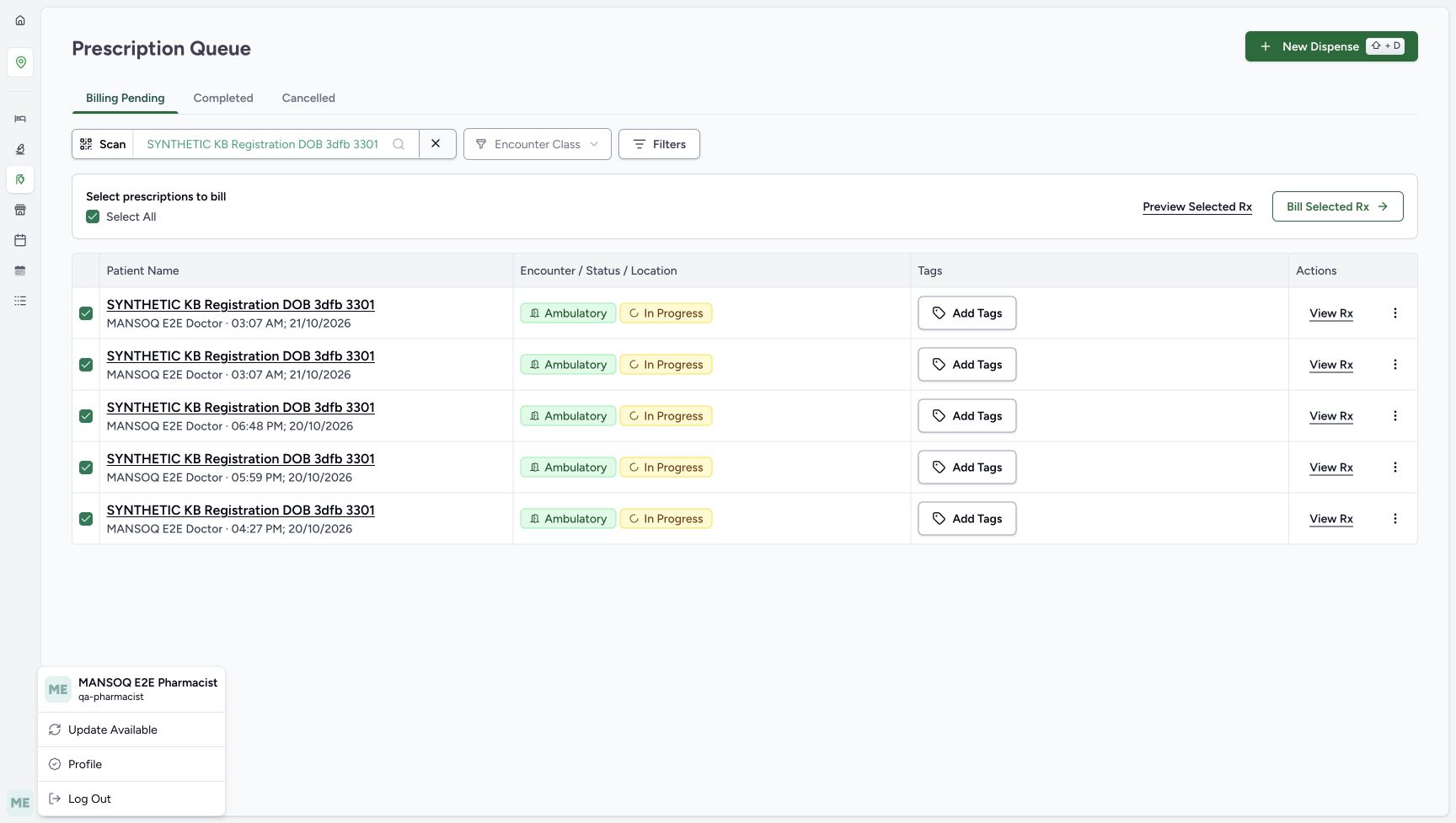
3ab11554a0878a30ddc938dfe678022c4a5621496a3d2817adc85e73cecea03e- Verify qa-pharmacist: Use the already assigned Pharmacist account, then close the menu with Escape before using the class controls.
- Keep this a queue-filter exercise. Do not select Scan, New Dispense, Preview Selected Rx, Bill Selected Rx, Bill Now, row action menus, checkboxes, Add Tags or Filters. Billing Pending is the lifecycle tab used here. Use the classes offered in your configured queue. The example below compares Ambulatory with Inpatient.1234
Recorded release b4d19c70 · 2026-10-21T01:56:49.633774+00:00 · 1728 × 977 Read the settled patient-scoped queue
Capture details
Existing patient-scoped Prescription Queue filtering: Ambulatory match, Inpatient empty result, class-only X reset and settled reload. No prescription, encounter or billing action.
Image SHA-256
daec04e1721c80c247699ba1e6aee66de79664146d4cb355ced03574f1066a11- Verify the full selected patient: Keep this selection while changing Encounter Class.
- Verify Billing Pending remains: Class filtering does not switch the prescription lifecycle tab.
- Notice the automatic selection: Select All and the current rows are checked; do not toggle or bill them in this exercise.
- Compare all five existing rows: The two 03:07 AM entries and the three older entries form the baseline list.
 123
123Recorded release b4d19c70 · 2026-10-21T01:57:24.587029+00:00 · 1728 × 977 Locate the two class choices used in this lesson
Capture details
Existing patient-scoped Prescription Queue filtering: Ambulatory match, Inpatient empty result, class-only X reset and settled reload. No prescription, encounter or billing action.
Image SHA-256
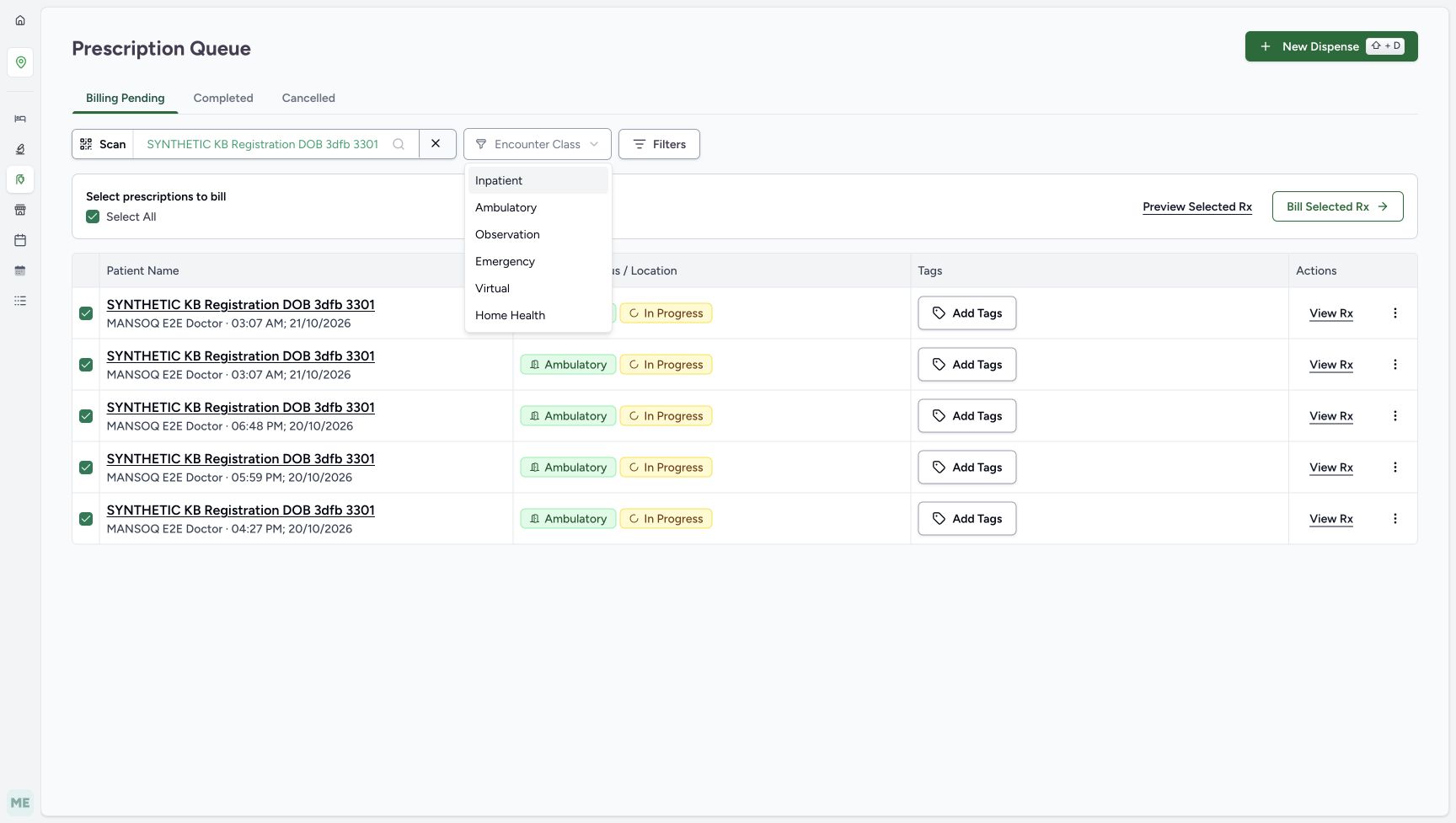
fe4789f59d84421bd8cfb9cb1dcb5091cac8615ce5cf1e60fab7b1ba3bf366c9- Open Encounter Class: This is the queue filter above the prescription rows.
- Choose Ambulatory: The next view retains the five existing prescriptions for this patient.
- Locate Inpatient: Reopen this same control after reviewing Ambulatory to choose the contrasting class.
12345Recorded release b4d19c70 · 2026-10-21T01:57:58.498056+00:00 · 1728 × 977 Recognise the combined-filter empty result and the correct X
Capture details
Existing patient-scoped Prescription Queue filtering: Ambulatory match, Inpatient empty result, class-only X reset and settled reload. No prescription, encounter or billing action.
Image SHA-256
daafc79a59aa8b3137f87d9ef9c2b6b54fd1b487076d99d7bc8c2f10a29bde1e- Read Inpatient selected: This patient’s illustrated Ambulatory encounters do not match Inpatient.
- Read No prescriptions found: Interpret this as the current combined-filter result, not deletion or cancellation.
- Clear only Encounter Class: Use the X immediately to the right of the Inpatient class field.
- Leave the patient X unused: This separate X clears the selected patient; it is not the class reset.
- Keep Billing Pending in view: The lifecycle tab remains selected even when no rows match.
1. Find the exact patient using the pictured name-search mode
Keep Billing Pending selected. Open the patient search control beside Scan and confirm Search by reads Patient Name. Enter 3301, then verify and select the full SYNTHETIC KB Registration DOB 3dfb 3301 result. In this example 3301 is a fragment of the fictional name, not a claim about an official patient identifier. The wider queue behind the popup is not yet narrowed to that result.
1234Confirm Patient Name search in Billing Pending
Capture details
Existing patient-scoped Prescription Queue filtering: Ambulatory match, Inpatient empty result, class-only X reset and settled reload. No prescription, encounter or billing action.
Image SHA-256 093bb2eb463df2be8ac712c595c42a89eeaf1e60cbcf5321c1416f70ad3889c9
- Keep Billing Pending selected: This lifecycle tab stays selected throughout the class-filter exercise.
- Open the patient search control: Use the search control beside Scan; the popup is already open in this picture.
- Check Search by Patient Name: This is the actual selected mode in the example, not a universal default.
- Enter the name fragment 3301: The example searches a fragment of the fictional patient’s name.
12Select the exact fictional patient result
Capture details
Existing patient-scoped Prescription Queue filtering: Ambulatory match, Inpatient empty result, class-only X reset and settled reload. No prescription, encounter or billing action.
Image SHA-256 3b3cfe62fc65f6b8b7c21dfa263cf7f8aff140a8324d4529950e9a1437535065
- Check the entered fragment: 3301 is search text within this fictional name, not proof of an official patient identifier.
- Select the full matching name: Verify SYNTHETIC KB Registration DOB 3dfb 3301 before selecting the result.
2. Establish the settled five-row baseline
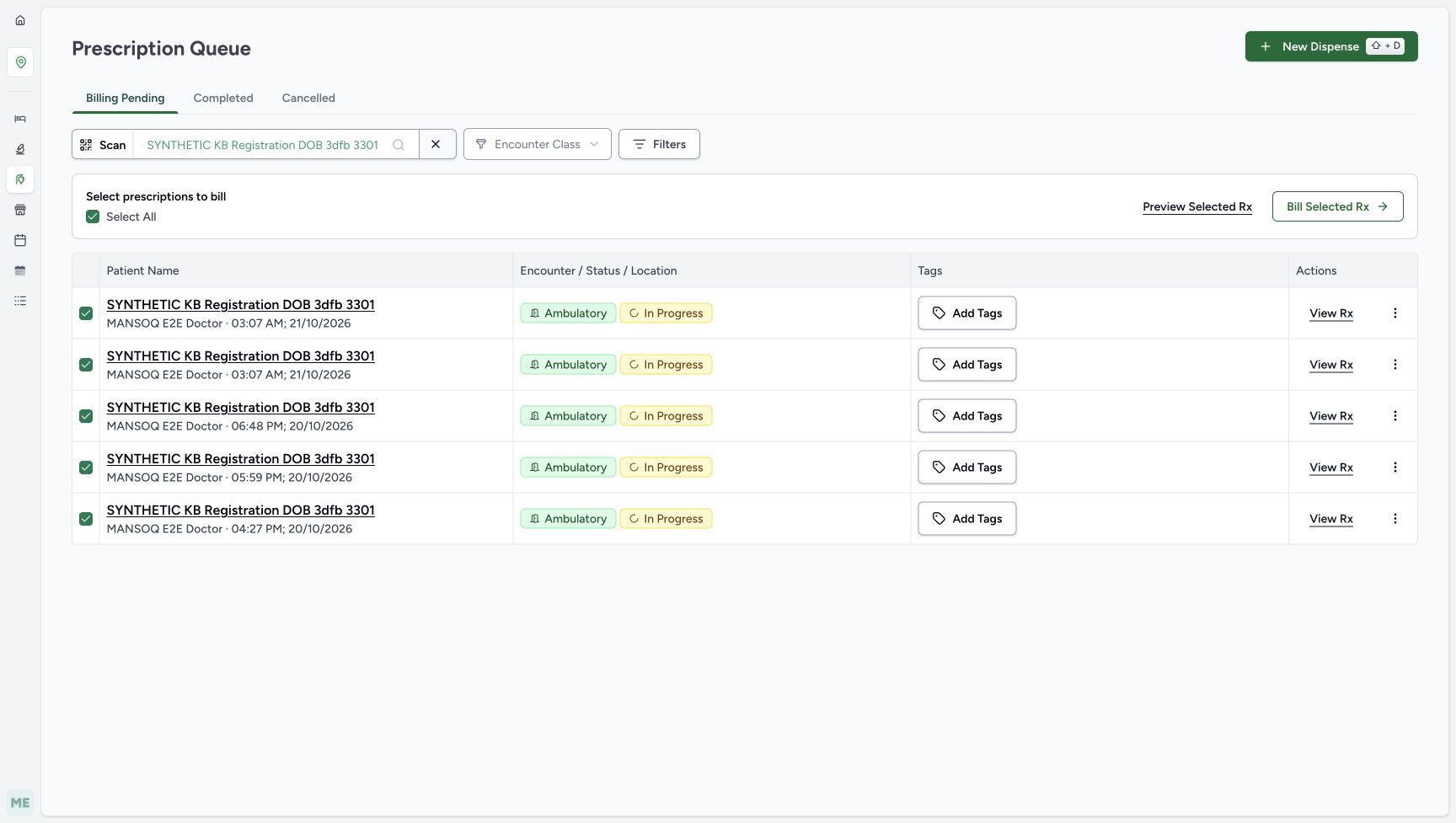
Wait for the queue to settle after selecting the patient. Verify the full patient chip, Billing Pending tab and five existing rows. The first two entries share 03:07 AM on 21/10/2026; the three older entries show 06:48 PM, 05:59 PM and 04:27 PM on 20/10/2026. Their encounter badges read Ambulatory and In Progress. The current results are checked automatically; leave those checks and billing links unused. If checking the account menu as pictured, close it with Escape before continuing.
1234Read the settled patient-scoped queue
Capture details
Existing patient-scoped Prescription Queue filtering: Ambulatory match, Inpatient empty result, class-only X reset and settled reload. No prescription, encounter or billing action.
Image SHA-256 daec04e1721c80c247699ba1e6aee66de79664146d4cb355ced03574f1066a11
- Verify the full selected patient: Keep this selection while changing Encounter Class.
- Verify Billing Pending remains: Class filtering does not switch the prescription lifecycle tab.
- Notice the automatic selection: Select All and the current rows are checked; do not toggle or bill them in this exercise.
- Compare all five existing rows: The two 03:07 AM entries and the three older entries form the baseline list.
1Verify the existing assigned Pharmacist
Capture details
Existing patient-scoped Prescription Queue filtering: Ambulatory match, Inpatient empty result, class-only X reset and settled reload. No prescription, encounter or billing action.
Image SHA-256 3ab11554a0878a30ddc938dfe678022c4a5621496a3d2817adc85e73cecea03e
- Verify qa-pharmacist: Use the already assigned Pharmacist account, then close the menu with Escape before using the class controls.
3. Choose Ambulatory and compare the matching rows
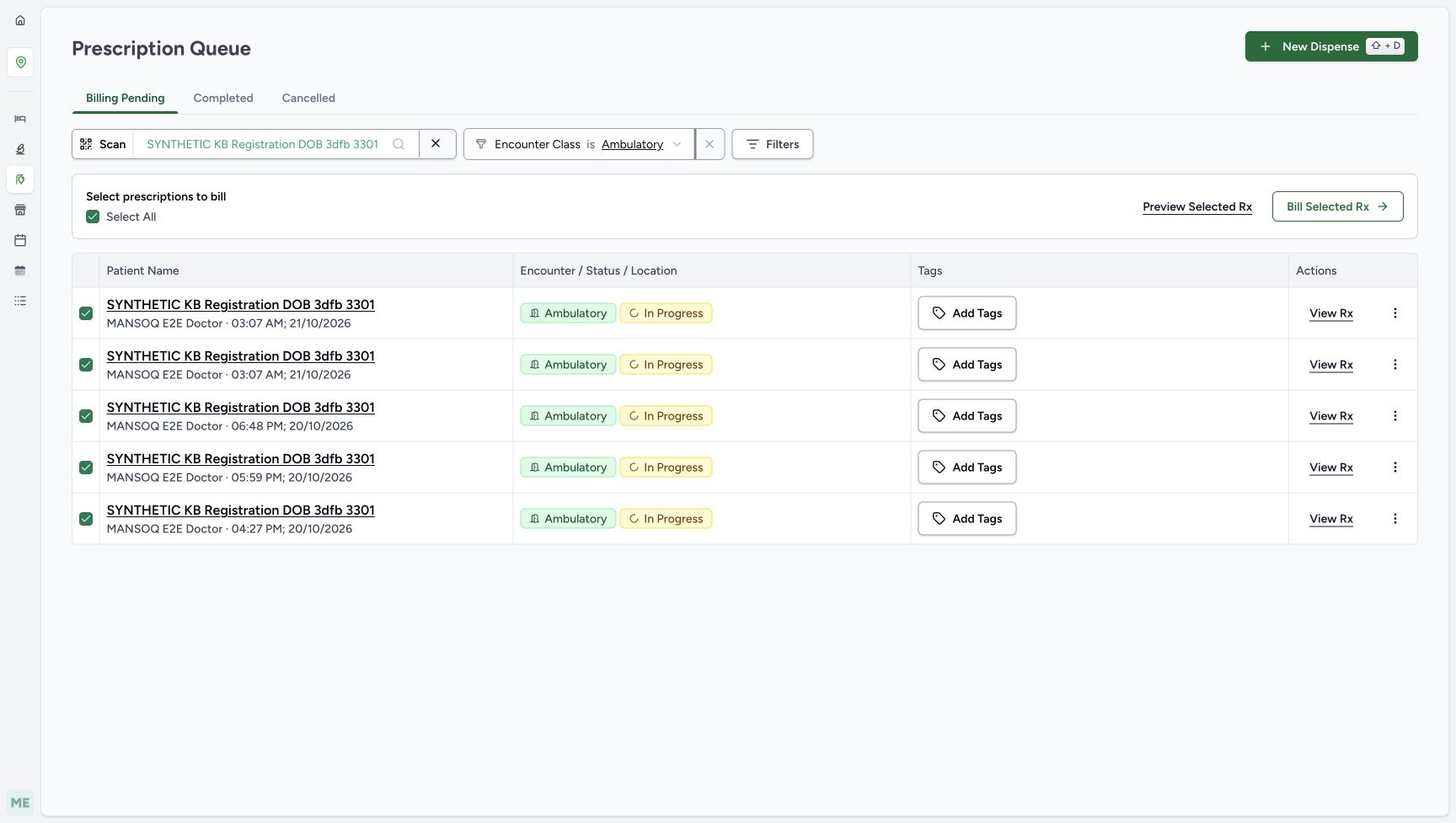
Open Encounter Class. The pictured menu offers Inpatient, Ambulatory, Observation, Emergency, Virtual and Home Health, with no All item. Choose Ambulatory. The same five rows remain, and both the selected patient and Billing Pending tab are preserved. This matches the encounter badges already shown; it does not change an encounter’s class.
123Locate the two class choices used in this lesson
Capture details
Existing patient-scoped Prescription Queue filtering: Ambulatory match, Inpatient empty result, class-only X reset and settled reload. No prescription, encounter or billing action.
Image SHA-256 fe4789f59d84421bd8cfb9cb1dcb5091cac8615ce5cf1e60fab7b1ba3bf366c9
- Open Encounter Class: This is the queue filter above the prescription rows.
- Choose Ambulatory: The next view retains the five existing prescriptions for this patient.
- Locate Inpatient: Reopen this same control after reviewing Ambulatory to choose the contrasting class.
 123
123Read the Ambulatory match
Capture details
Existing patient-scoped Prescription Queue filtering: Ambulatory match, Inpatient empty result, class-only X reset and settled reload. No prescription, encounter or billing action.
Image SHA-256 dc0be68f8f7518eaa8b4f6048efe0af0c4732cc9c945c7f27378549ffaa9fdce
- Read Ambulatory selected: The filter matches the encounter class already shown on these rows.
- Keep the same selected patient: Changing class has not cleared this patient selection.
- Compare the same five rows: The baseline entries remain; choosing a filter does not edit their encounter badges.
4. Compare the Inpatient empty result
Reopen Encounter Class and choose Inpatient. Wait for the settled No prescriptions found result. Keep the patient chip and Billing Pending tab in view: the combined patient, lifecycle and class filters now match no rows. The empty result does not mean this patient or their prescriptions were deleted, cancelled or moved, and it does not establish that no prescriptions exist elsewhere in the facility.
123Locate the two class choices used in this lesson
Capture details
Existing patient-scoped Prescription Queue filtering: Ambulatory match, Inpatient empty result, class-only X reset and settled reload. No prescription, encounter or billing action.
Image SHA-256 fe4789f59d84421bd8cfb9cb1dcb5091cac8615ce5cf1e60fab7b1ba3bf366c9
- Open Encounter Class: This is the queue filter above the prescription rows.
- Choose Ambulatory: The next view retains the five existing prescriptions for this patient.
- Locate Inpatient: Reopen this same control after reviewing Ambulatory to choose the contrasting class.
12345Recognise the combined-filter empty result and the correct X
Capture details
Existing patient-scoped Prescription Queue filtering: Ambulatory match, Inpatient empty result, class-only X reset and settled reload. No prescription, encounter or billing action.
Image SHA-256 daafc79a59aa8b3137f87d9ef9c2b6b54fd1b487076d99d7bc8c2f10a29bde1e
- Read Inpatient selected: This patient’s illustrated Ambulatory encounters do not match Inpatient.
- Read No prescriptions found: Interpret this as the current combined-filter result, not deletion or cancellation.
- Clear only Encounter Class: Use the X immediately to the right of the Inpatient class field.
- Leave the patient X unused: This separate X clears the selected patient; it is not the class reset.
- Keep Billing Pending in view: The lifecycle tab remains selected even when no rows match.
5. Clear only Encounter Class with its X
Choose the X immediately to the right of the Inpatient class field. Leave the separate X beside the patient selection untouched. The class field returns to the Encounter Class placeholder, while the full patient chip and Billing Pending tab remain. Compare the restored five rows with the baseline. No All option or prescription status action is required to remove this class restriction.
12345Recognise the combined-filter empty result and the correct X
Capture details
Existing patient-scoped Prescription Queue filtering: Ambulatory match, Inpatient empty result, class-only X reset and settled reload. No prescription, encounter or billing action.
Image SHA-256 daafc79a59aa8b3137f87d9ef9c2b6b54fd1b487076d99d7bc8c2f10a29bde1e
- Read Inpatient selected: This patient’s illustrated Ambulatory encounters do not match Inpatient.
- Read No prescriptions found: Interpret this as the current combined-filter result, not deletion or cancellation.
- Clear only Encounter Class: Use the X immediately to the right of the Inpatient class field.
- Leave the patient X unused: This separate X clears the selected patient; it is not the class reset.
- Keep Billing Pending in view: The lifecycle tab remains selected even when no rows match.
123Verify class-only reset restores the five rows
Capture details
Existing patient-scoped Prescription Queue filtering: Ambulatory match, Inpatient empty result, class-only X reset and settled reload. No prescription, encounter or billing action.
Image SHA-256 5c560b895e01d7c1071953b8f80be60a323e7cd2d7928724550c5e81d4a2bfa6
- Verify the class restriction is cleared: The field shows Encounter Class again; this menu has no All option to select.
- Verify the patient remains selected: Only the class restriction was removed.
- Compare the restored baseline list: The same two 03:07 AM entries and three older prescriptions return.
6. Reload and finish at the same settled queue
Reload the current patient-filtered queue normally and wait for the settled result. Verify the same full patient name, Billing Pending tab, clear Encounter Class field and five original rows. End here without opening or submitting a bill, toggling selections, changing a lifecycle status or editing an encounter.
 123
123Verify the settled queue after reload
Capture details
Existing patient-scoped Prescription Queue filtering: Ambulatory match, Inpatient empty result, class-only X reset and settled reload. No prescription, encounter or billing action.
Image SHA-256 086f9c8e76c350377b1767b4caaea6767724c2ea03bd5df9eb50f072ef55f6a8
- Verify the patient after reload: Keep the full name as the identity check.
- Verify the class field remains clear: No encounter-class restriction is selected.
- Verify Billing Pending after reload: End at the settled readback without a billing or prescription action.
Read Encounter Class as one part of the combined queue filter
Encounter Class narrows the facility queue by the associated encounter’s class, together with the selected patient and lifecycle tab. It does not choose a Pharmacy location, admit or discharge the patient, or change a prescription’s lifecycle. Even when an empty message mentions a location, use the visible patient, tab and class to interpret this bounded result. Only Ambulatory and Inpatient are selected in this example; offered options can differ in another configuration.
1234Read the settled patient-scoped queue
Capture details
Existing patient-scoped Prescription Queue filtering: Ambulatory match, Inpatient empty result, class-only X reset and settled reload. No prescription, encounter or billing action.
Image SHA-256 daec04e1721c80c247699ba1e6aee66de79664146d4cb355ced03574f1066a11
- Verify the full selected patient: Keep this selection while changing Encounter Class.
- Verify Billing Pending remains: Class filtering does not switch the prescription lifecycle tab.
- Notice the automatic selection: Select All and the current rows are checked; do not toggle or bill them in this exercise.
- Compare all five existing rows: The two 03:07 AM entries and the three older entries form the baseline list.
123Locate the two class choices used in this lesson
Capture details
Existing patient-scoped Prescription Queue filtering: Ambulatory match, Inpatient empty result, class-only X reset and settled reload. No prescription, encounter or billing action.
Image SHA-256 fe4789f59d84421bd8cfb9cb1dcb5091cac8615ce5cf1e60fab7b1ba3bf366c9
- Open Encounter Class: This is the queue filter above the prescription rows.
- Choose Ambulatory: The next view retains the five existing prescriptions for this patient.
- Locate Inpatient: Reopen this same control after reviewing Ambulatory to choose the contrasting class.
123Read the Ambulatory match
Capture details
Existing patient-scoped Prescription Queue filtering: Ambulatory match, Inpatient empty result, class-only X reset and settled reload. No prescription, encounter or billing action.
Image SHA-256 dc0be68f8f7518eaa8b4f6048efe0af0c4732cc9c945c7f27378549ffaa9fdce
- Read Ambulatory selected: The filter matches the encounter class already shown on these rows.
- Keep the same selected patient: Changing class has not cleared this patient selection.
- Compare the same five rows: The baseline entries remain; choosing a filter does not edit their encounter badges.
12345Recognise the combined-filter empty result and the correct X
Capture details
Existing patient-scoped Prescription Queue filtering: Ambulatory match, Inpatient empty result, class-only X reset and settled reload. No prescription, encounter or billing action.
Image SHA-256 daafc79a59aa8b3137f87d9ef9c2b6b54fd1b487076d99d7bc8c2f10a29bde1e
- Read Inpatient selected: This patient’s illustrated Ambulatory encounters do not match Inpatient.
- Read No prescriptions found: Interpret this as the current combined-filter result, not deletion or cancellation.
- Clear only Encounter Class: Use the X immediately to the right of the Inpatient class field.
- Leave the patient X unused: This separate X clears the selected patient; it is not the class reset.
- Keep Billing Pending in view: The lifecycle tab remains selected even when no rows match.
Keep queue filtering separate from medicine filtering and billing selection
The checked selection bar follows the currently loaded patient-scoped Billing Pending results. It is checked with the five matching rows and empty with the Inpatient result; no checkbox is clicked here. Those local checks are not a submitted bill or a clinical decision. For Search Medications and Dispense Status inside Prescription Preview, use Search and filter prescription medicines. Those medicine-row display filters are different from this queue’s Encounter Class control.
1234Read the settled patient-scoped queue
Capture details
Existing patient-scoped Prescription Queue filtering: Ambulatory match, Inpatient empty result, class-only X reset and settled reload. No prescription, encounter or billing action.
Image SHA-256 daec04e1721c80c247699ba1e6aee66de79664146d4cb355ced03574f1066a11
- Verify the full selected patient: Keep this selection while changing Encounter Class.
- Verify Billing Pending remains: Class filtering does not switch the prescription lifecycle tab.
- Notice the automatic selection: Select All and the current rows are checked; do not toggle or bill them in this exercise.
- Compare all five existing rows: The two 03:07 AM entries and the three older entries form the baseline list.
12345Recognise the combined-filter empty result and the correct X
Capture details
Existing patient-scoped Prescription Queue filtering: Ambulatory match, Inpatient empty result, class-only X reset and settled reload. No prescription, encounter or billing action.
Image SHA-256 daafc79a59aa8b3137f87d9ef9c2b6b54fd1b487076d99d7bc8c2f10a29bde1e
- Read Inpatient selected: This patient’s illustrated Ambulatory encounters do not match Inpatient.
- Read No prescriptions found: Interpret this as the current combined-filter result, not deletion or cancellation.
- Clear only Encounter Class: Use the X immediately to the right of the Inpatient class field.
- Leave the patient X unused: This separate X clears the selected patient; it is not the class reset.
- Keep Billing Pending in view: The lifecycle tab remains selected even when no rows match.
123Verify class-only reset restores the five rows
Capture details
Existing patient-scoped Prescription Queue filtering: Ambulatory match, Inpatient empty result, class-only X reset and settled reload. No prescription, encounter or billing action.
Image SHA-256 5c560b895e01d7c1071953b8f80be60a323e7cd2d7928724550c5e81d4a2bfa6
- Verify the class restriction is cleared: The field shows Encounter Class again; this menu has no All option to select.
- Verify the patient remains selected: Only the class restriction was removed.
- Compare the restored baseline list: The same two 03:07 AM entries and three older prescriptions return.
Troubleshooting
No prescriptions found appears for this patient
Check the selected patient, Billing Pending tab and Encounter Class together. In the illustrated Inpatient result the patient remains selected, but the class does not match the existing Ambulatory encounters. Clear only Encounter Class with its X and compare the restored rows. Do not change a prescription’s status, create another encounter or switch roles to make the list match an expectation.
123Read the Ambulatory match
Capture details
Existing patient-scoped Prescription Queue filtering: Ambulatory match, Inpatient empty result, class-only X reset and settled reload. No prescription, encounter or billing action.
Image SHA-256 dc0be68f8f7518eaa8b4f6048efe0af0c4732cc9c945c7f27378549ffaa9fdce
- Read Ambulatory selected: The filter matches the encounter class already shown on these rows.
- Keep the same selected patient: Changing class has not cleared this patient selection.
- Compare the same five rows: The baseline entries remain; choosing a filter does not edit their encounter badges.
12345Recognise the combined-filter empty result and the correct X
Capture details
Existing patient-scoped Prescription Queue filtering: Ambulatory match, Inpatient empty result, class-only X reset and settled reload. No prescription, encounter or billing action.
Image SHA-256 daafc79a59aa8b3137f87d9ef9c2b6b54fd1b487076d99d7bc8c2f10a29bde1e
- Read Inpatient selected: This patient’s illustrated Ambulatory encounters do not match Inpatient.
- Read No prescriptions found: Interpret this as the current combined-filter result, not deletion or cancellation.
- Clear only Encounter Class: Use the X immediately to the right of the Inpatient class field.
- Leave the patient X unused: This separate X clears the selected patient; it is not the class reset.
- Keep Billing Pending in view: The lifecycle tab remains selected even when no rows match.
123Verify class-only reset restores the five rows
Capture details
Existing patient-scoped Prescription Queue filtering: Ambulatory match, Inpatient empty result, class-only X reset and settled reload. No prescription, encounter or billing action.
Image SHA-256 5c560b895e01d7c1071953b8f80be60a323e7cd2d7928724550c5e81d4a2bfa6
- Verify the class restriction is cleared: The field shows Encounter Class again; this menu has no All option to select.
- Verify the patient remains selected: Only the class restriction was removed.
- Compare the restored baseline list: The same two 03:07 AM entries and three older prescriptions return.
There are two X controls near the filters
The X beside the patient name clears the patient selection. The other X immediately beside the selected class clears only Encounter Class. For this exercise use the class X, then confirm the same full patient name and lifecycle tab remain before interpreting the restored list.
12345Recognise the combined-filter empty result and the correct X
Capture details
Existing patient-scoped Prescription Queue filtering: Ambulatory match, Inpatient empty result, class-only X reset and settled reload. No prescription, encounter or billing action.
Image SHA-256 daafc79a59aa8b3137f87d9ef9c2b6b54fd1b487076d99d7bc8c2f10a29bde1e
- Read Inpatient selected: This patient’s illustrated Ambulatory encounters do not match Inpatient.
- Read No prescriptions found: Interpret this as the current combined-filter result, not deletion or cancellation.
- Clear only Encounter Class: Use the X immediately to the right of the Inpatient class field.
- Leave the patient X unused: This separate X clears the selected patient; it is not the class reset.
- Keep Billing Pending in view: The lifecycle tab remains selected even when no rows match.
123Verify class-only reset restores the five rows
Capture details
Existing patient-scoped Prescription Queue filtering: Ambulatory match, Inpatient empty result, class-only X reset and settled reload. No prescription, encounter or billing action.
Image SHA-256 5c560b895e01d7c1071953b8f80be60a323e7cd2d7928724550c5e81d4a2bfa6
- Verify the class restriction is cleared: The field shows Encounter Class again; this menu has no All option to select.
- Verify the patient remains selected: Only the class restriction was removed.
- Compare the restored baseline list: The same two 03:07 AM entries and three older prescriptions return.
The queue has not settled or an error persists
The screenshots show settled queue results. Wait for loading to finish before treating an empty area as the result. If an error persists or the intended settled rows cannot be verified, stop and ask the facility’s approved support staff to review it. Do not change accounts or access, create a patient or start billing as a workaround.
1234Read the settled patient-scoped queue
Capture details
Existing patient-scoped Prescription Queue filtering: Ambulatory match, Inpatient empty result, class-only X reset and settled reload. No prescription, encounter or billing action.
Image SHA-256 daec04e1721c80c247699ba1e6aee66de79664146d4cb355ced03574f1066a11
- Verify the full selected patient: Keep this selection while changing Encounter Class.
- Verify Billing Pending remains: Class filtering does not switch the prescription lifecycle tab.
- Notice the automatic selection: Select All and the current rows are checked; do not toggle or bill them in this exercise.
- Compare all five existing rows: The two 03:07 AM entries and the three older entries form the baseline list.
12345Recognise the combined-filter empty result and the correct X
Capture details
Existing patient-scoped Prescription Queue filtering: Ambulatory match, Inpatient empty result, class-only X reset and settled reload. No prescription, encounter or billing action.
Image SHA-256 daafc79a59aa8b3137f87d9ef9c2b6b54fd1b487076d99d7bc8c2f10a29bde1e
- Read Inpatient selected: This patient’s illustrated Ambulatory encounters do not match Inpatient.
- Read No prescriptions found: Interpret this as the current combined-filter result, not deletion or cancellation.
- Clear only Encounter Class: Use the X immediately to the right of the Inpatient class field.
- Leave the patient X unused: This separate X clears the selected patient; it is not the class reset.
- Keep Billing Pending in view: The lifecycle tab remains selected even when no rows match.
123Verify the settled queue after reload
Capture details
Existing patient-scoped Prescription Queue filtering: Ambulatory match, Inpatient empty result, class-only X reset and settled reload. No prescription, encounter or billing action.
Image SHA-256 086f9c8e76c350377b1767b4caaea6767724c2ea03bd5df9eb50f072ef55f6a8
- Verify the patient after reload: Keep the full name as the identity check.
- Verify the class field remains clear: No encounter-class restriction is selected.
- Verify Billing Pending after reload: End at the settled readback without a billing or prescription action.
Source evidence
Every citation uses this exact committed version. The private source repository requires access.
- repositories/platform/mansoq-core/mansoq/emr/api/viewsets/medication_request_prescription.py:121 ·
b4d19c7030d9c20bae96890bac404ad8988197d0Source file checksum
dcdfc280892db246723468be3498b5ff080764b7270b5428cef828b293a384ec - repositories/platform/mansoq-web/mansoq.config.ts:105 ·
b4d19c7030d9c20bae96890bac404ad8988197d0Source file checksum
6dfbc14c545d178f584364adfb57ce67d9914e1e612612b78173ae20913a80ff - repositories/platform/mansoq-web/src/components/Patient/PatientIdentifierFilter.tsx:57 ·
b4d19c7030d9c20bae96890bac404ad8988197d0Source file checksum
50d2cc2acbb414040148b30d6664ccdcae33df64bc7b19953fe34ee6afd3eed7 - repositories/platform/mansoq-web/src/components/ui/filter-select.tsx:45 ·
b4d19c7030d9c20bae96890bac404ad8988197d0Source file checksum
ad2ddcd4a98ef25e6246ac6925208f756e4ea9f1163e515a68892e1d989aa7a5 - repositories/platform/mansoq-web/src/hooks/useFilters.tsx:41 ·
b4d19c7030d9c20bae96890bac404ad8988197d0Source file checksum
1232d595155598f30aa80df9ac3b044c618f1b445d4ae03a8ceccc68b3684392 - repositories/platform/mansoq-web/src/pages/Facility/services/pharmacy/PrescriptionQueue.tsx:84 ·
b4d19c7030d9c20bae96890bac404ad8988197d0Source file checksum
20c2f3e573ae315ec5ff79b19575c1a6e3b2f7ca76b5e98bad319ef595b11d04 - repositories/platform/mansoq-web/src/types/emr/encounter/encounter.ts:48 ·
b4d19c7030d9c20bae96890bac404ad8988197d0Source file checksum
178ad4319d92bef379a78ed07c74d87d4c185774b3cdf989affc0f7e06ac08db