 MANSOQ
 Pharmacy · VERSION b4d19c70
Search and filter prescription medicines
Find medicines using Search Medications and Dispense Status, recover from empty results, and check Incomplete, Partial and Complete examples while keeping prescription totals and billing selection separate.
Pharmacist
 1234
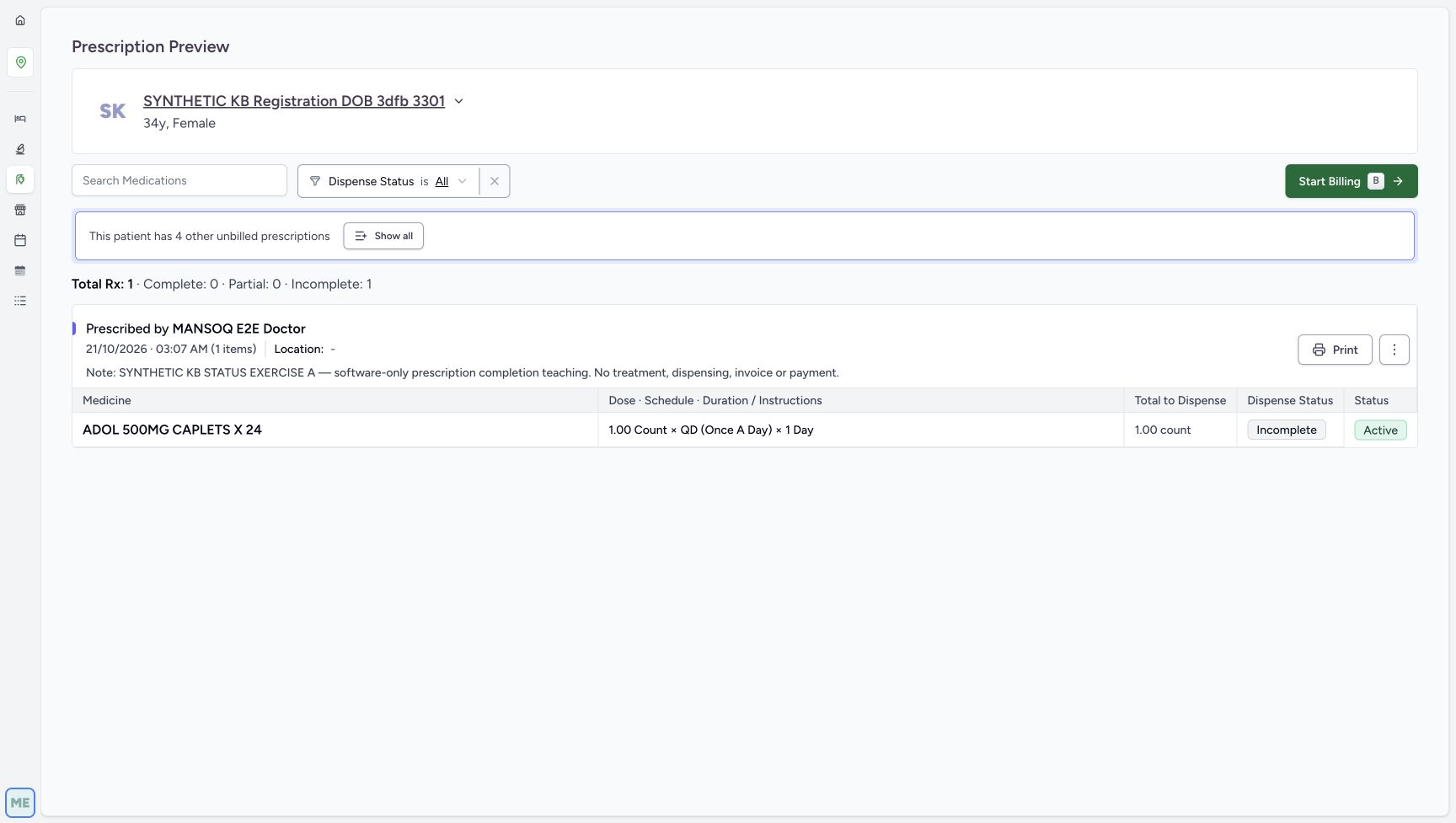
1234Identify A before filtering
Capture details
Search and Dispense Status change the displayed medicine rows in existing fictional prescriptions. No billing or prescription status action is performed.
Image SHA-256 17732bea43cfd79d2f75f576d876642e7c8bdbeac5f869d6b2d1c4697d7416a5
- Verify the synthetic patient: Keep this patient and the intended existing prescription in view.
- Identify the full A note: A and B share 03:07 AM; the purpose note distinguishes A.
- Read the original overview: Total Rx 1 has Complete 0, Partial 0 and Incomplete 1.
- Read medicine Incomplete: This is the medicine fulfilment label used by Dispense Status.
 123
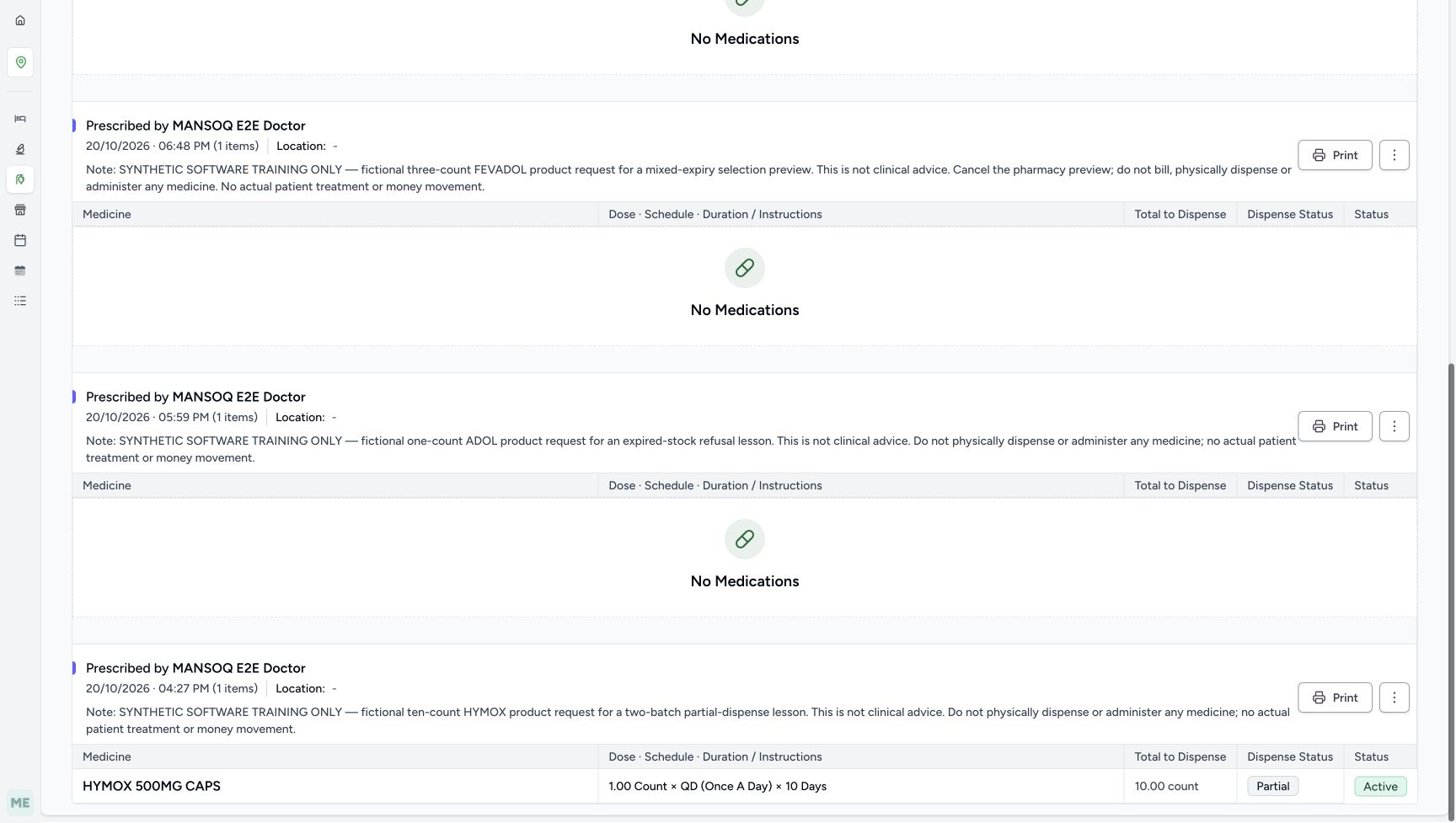
123Find the positive Partial match
Capture details
Search and Dispense Status change the displayed medicine rows in existing fictional prescriptions. No billing or prescription status action is performed.
Image SHA-256 a24bc4fb3966308e6d17f3112ef80acde11da73d92373ad386e4cffb27521d1c
- Identify the HYMOX purpose note: This is the earlier fictional two-batch partial-dispense example.
- Read the matching Partial badge: HYMOX is retained by this display filter.
- Read the separate Active status: The medicine’s clinical status is distinct from its dispense status.
 1234
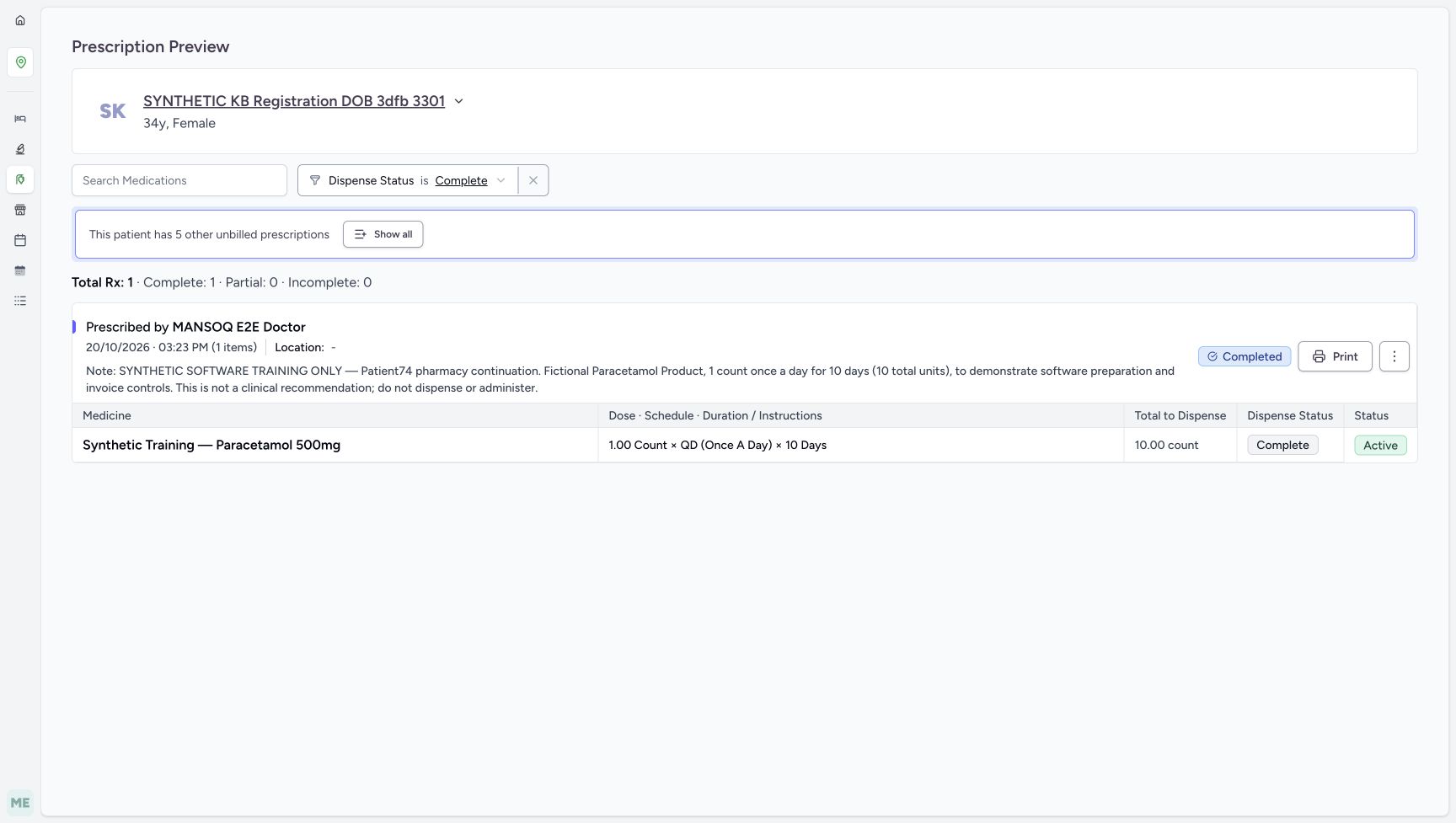
1234Retain the positive Complete medicine match
Capture details
Search and Dispense Status change the displayed medicine rows in existing fictional prescriptions. No billing or prescription status action is performed.
Image SHA-256 8609cac0cab080c6fffefa2da96813ba26e9fe01aa1513bc757c05eb261df345
- Verify Complete selected: The existing medicine matches this dispense-status filter.
- Read the retained Complete badge: The filter displays the saved fulfilment state; it does not create one.
- Keep parent Completed separate: No lifecycle action is needed to inspect this result.
- Read the unchanged overview: Total Rx 1 has Complete 1, Partial 0 and Incomplete 0.
20 of 20 content blocks have reviewed image alignment.
Before you begin
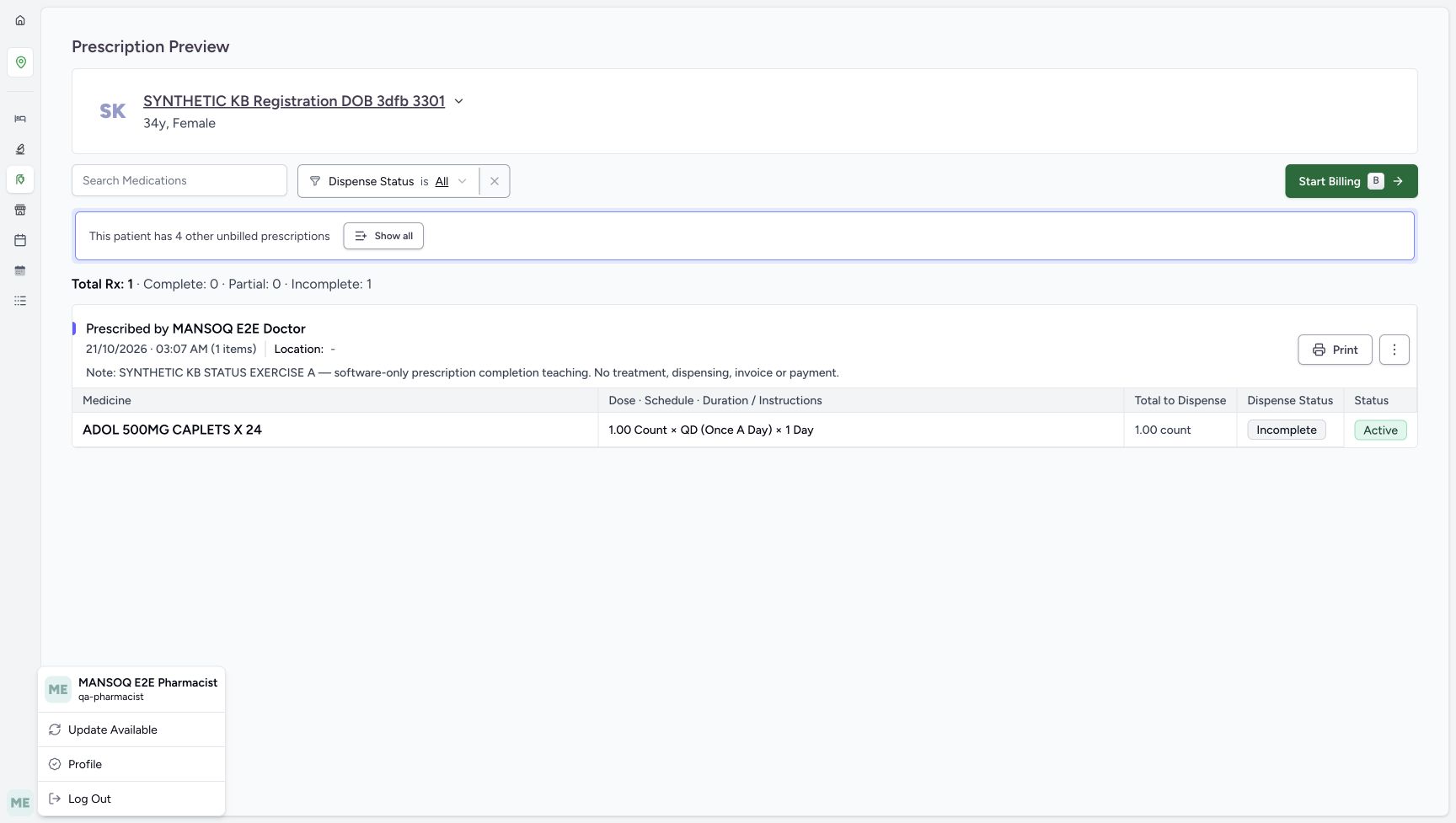
- Use your existing assigned Pharmacist access at Main Pharmacy. Start from the existing A preview for SYNTHETIC KB Registration DOB 3dfb 3301 and confirm its full SYNTHETIC KB STATUS EXERCISE A note. A and B have the same 03:07 AM time, so the patient or time alone does not identify A. Close the account menu with Escape before using the preview controls.
 1
1Recorded release b4d19c70 · 2026-10-21T01:19:02.047664+00:00 · 1728 × 977 Verify the existing Pharmacist account
Capture details
Search and Dispense Status change the displayed medicine rows in existing fictional prescriptions. No billing or prescription status action is performed.
Image SHA-256
7567f09170dc44a94361a004c0a2420b10d43d9601d15f3a219e2bfac44928f4- Verify qa-pharmacist: Use the already assigned Pharmacist account, then close this menu with Escape before using the preview controls.
1234Recorded release b4d19c70 · 2026-10-21T01:19:02.295880+00:00 · 1728 × 977 Identify A before filtering
Capture details
Search and Dispense Status change the displayed medicine rows in existing fictional prescriptions. No billing or prescription status action is performed.
Image SHA-256
17732bea43cfd79d2f75f576d876642e7c8bdbeac5f869d6b2d1c4697d7416a5- Verify the synthetic patient: Keep this patient and the intended existing prescription in view.
- Identify the full A note: A and B share 03:07 AM; the purpose note distinguishes A.
- Read the original overview: Total Rx 1 has Complete 0, Partial 0 and Incomplete 1.
- Read medicine Incomplete: This is the medicine fulfilment label used by Dispense Status.
- These existing prescriptions are software-only examples. Preserve their purpose notes, including FEVADOL’s instruction not to bill or physically dispense. The illustrated medicine names, doses and fulfilment labels are for learning the interface, not treatment advice. This lesson only changes the displayed rows: leave Start Billing, prescription action menus and Print unused.
 123
123Recorded release b4d19c70 · 2026-10-21T01:19:58.006999+00:00 · 1728 × 977 Review the expanded five-prescription preview
Capture details
Search and Dispense Status change the displayed medicine rows in existing fictional prescriptions. No billing or prescription status action is performed.
Image SHA-256
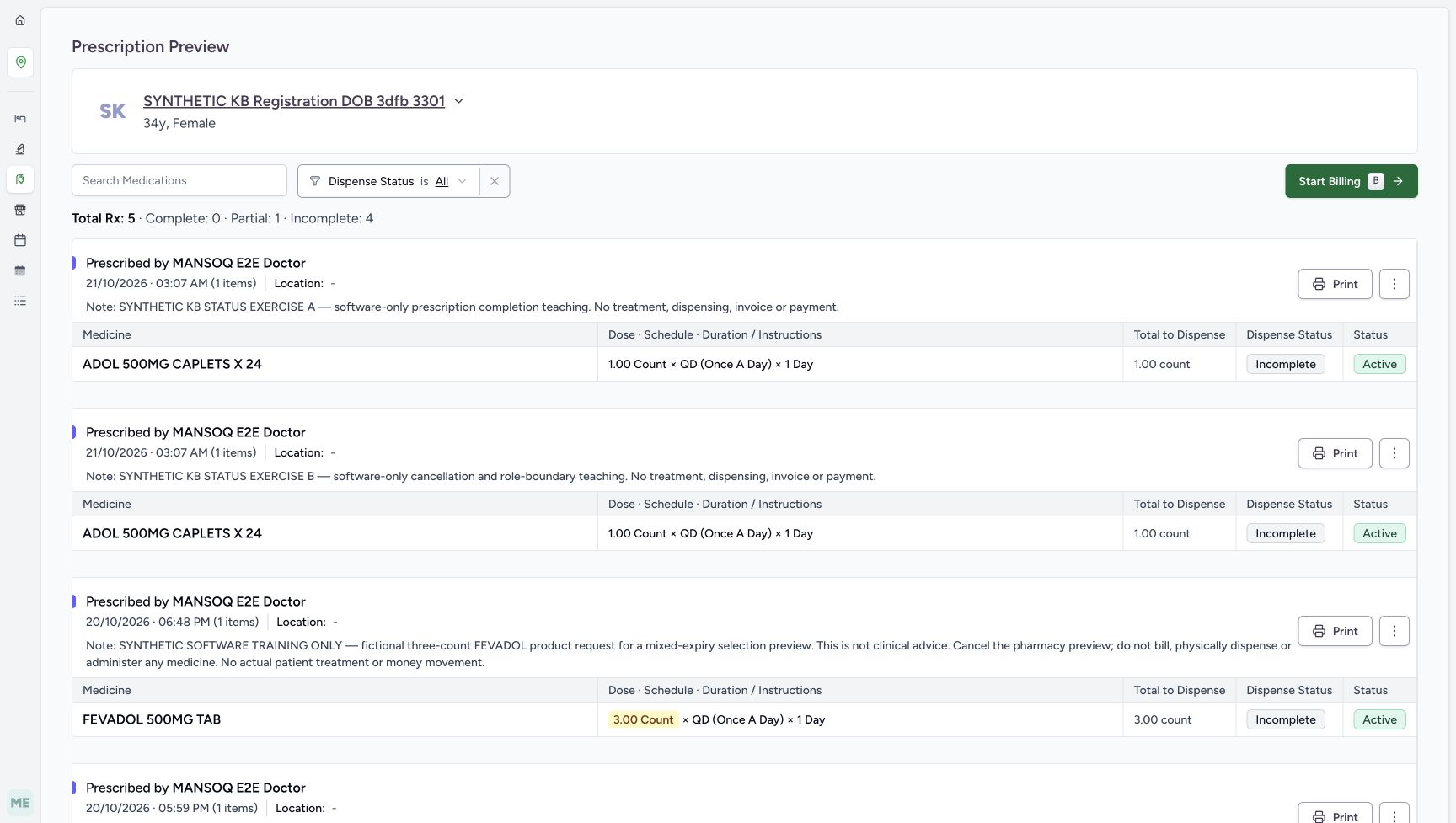
d1f0b58335be454ce25f3162b6882f4116ddfba97e3fcd2b99a144c9a7206c81- Read the five-prescription overview: These are totals for the selected prescriptions before and after display filtering.
- Identify A’s existing note: Do not confuse A with B at the same minute.
- Keep the FEVADOL instruction: Its fictional note says to cancel the pharmacy preview and not bill or physically dispense.
 123
123Recorded release b4d19c70 · 2026-10-21T01:20:48.509498+00:00 · 1728 × 977 Inspect the lower original medicines
Capture details
Search and Dispense Status change the displayed medicine rows in existing fictional prescriptions. No billing or prescription status action is performed.
Image SHA-256
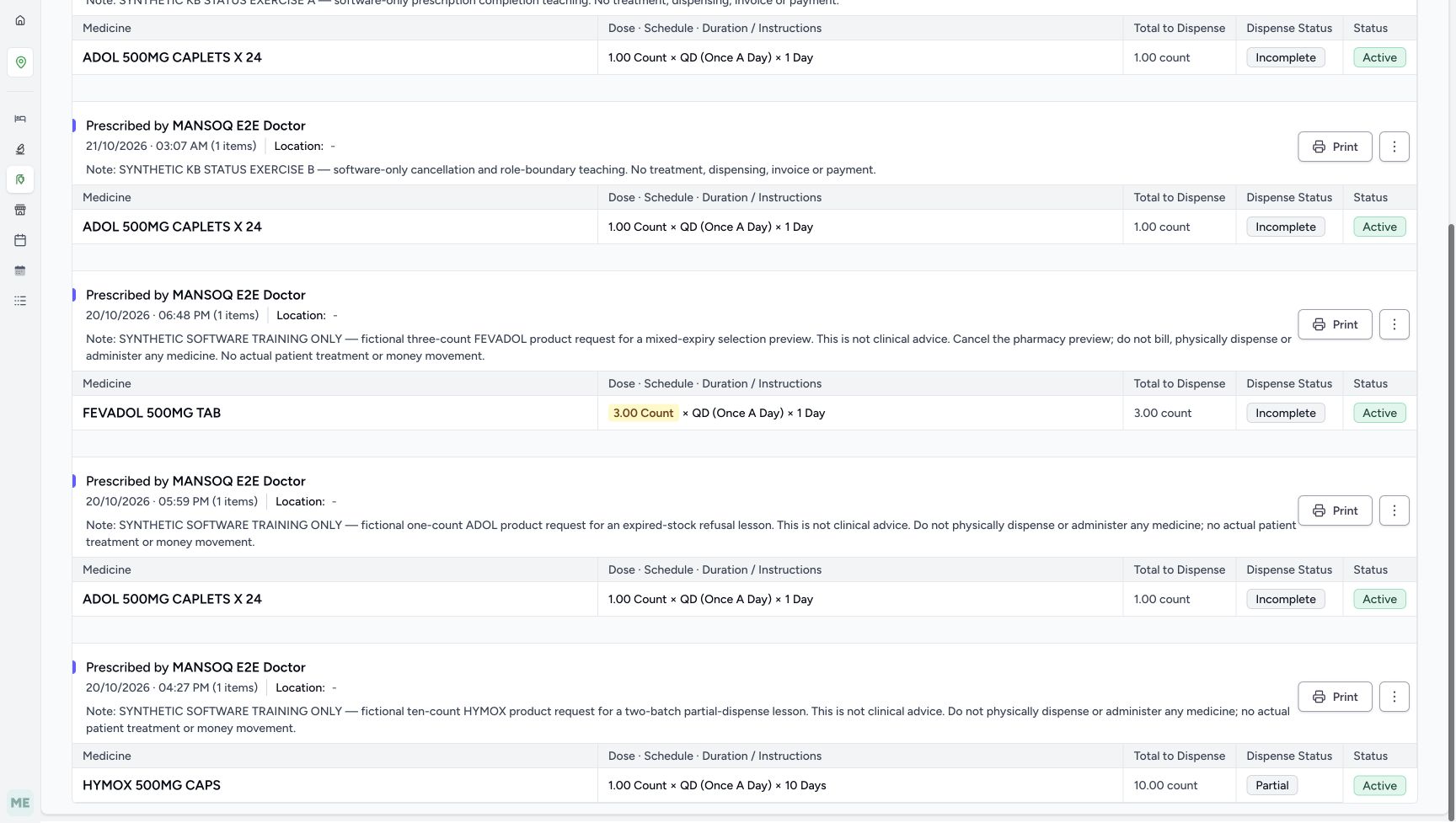
9b8848f535c5bad29ac82223d124667219fdd7e9c5dc1cbf494d81721bb65ece- Read the FEVADOL name: This name also contains the letters ADOL.
- Read older ADOL Incomplete: This is another existing request, not A or B.
- Read HYMOX Partial: This existing partial example will match the Partial filter.
 12345
12345Recorded release b4d19c70 · 2026-10-21T01:25:13.773773+00:00 · 1728 × 977 Distinguish the completed parent and medicine labels
Capture details
Search and Dispense Status change the displayed medicine rows in existing fictional prescriptions. No billing or prescription status action is performed.
Image SHA-256
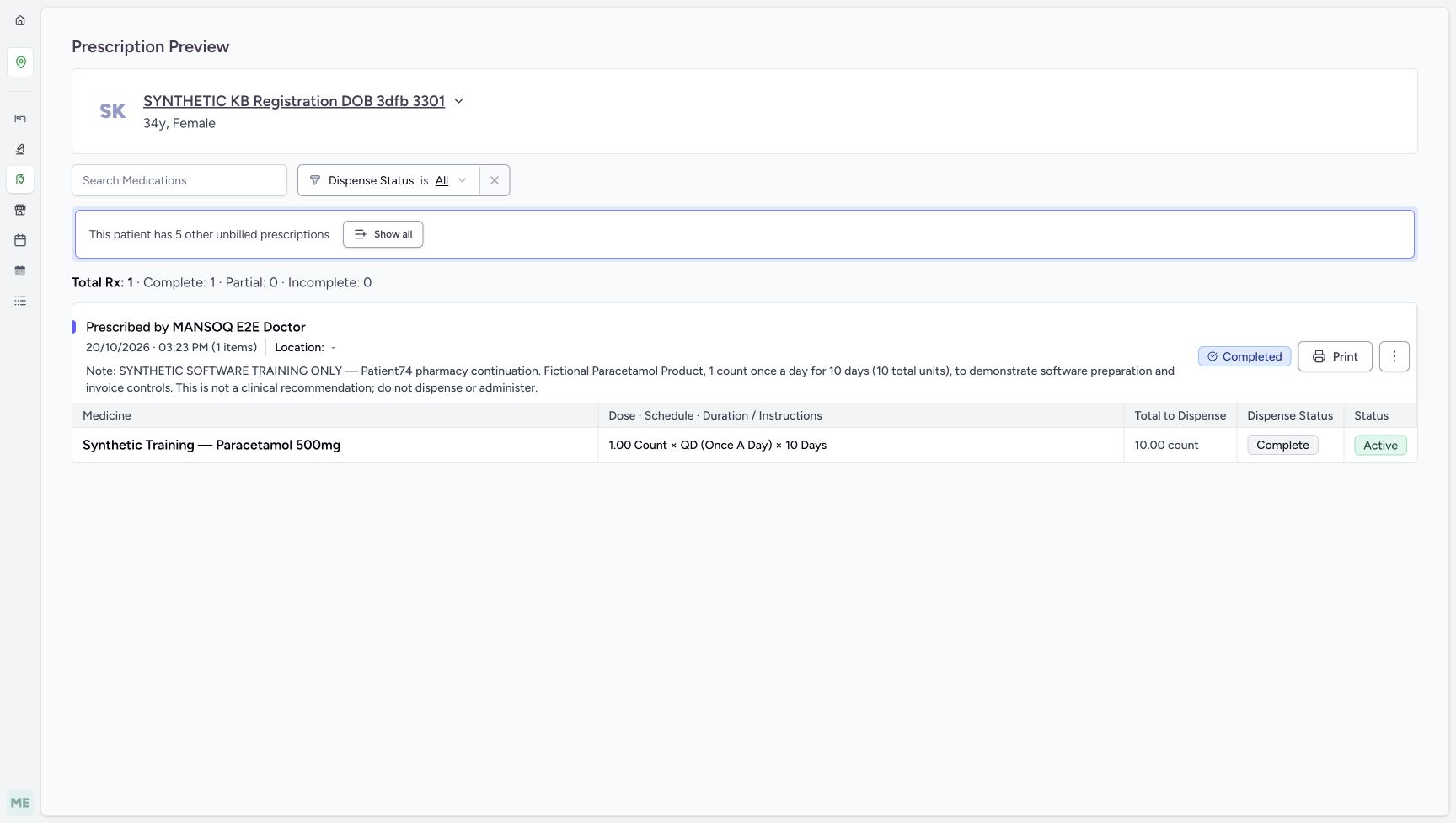
b56263a8a102960ba05f2a674f5ad30b24c9f27ac4730c3a4c79d1699f9e3bf4- Read parent Completed: This badge is the prescription lifecycle label.
- Read medicine Complete: This separate badge is the medicine fulfilment label used by the filter.
- Read medicine Active: Clinical status can remain Active beside Complete dispense status.
- Read Total Rx 1 and Complete 1: This overview belongs to the selected existing completed prescription.
- Open Dispense Status: Choose Complete to inspect its positive medicine match next.
1. Read the original A preview
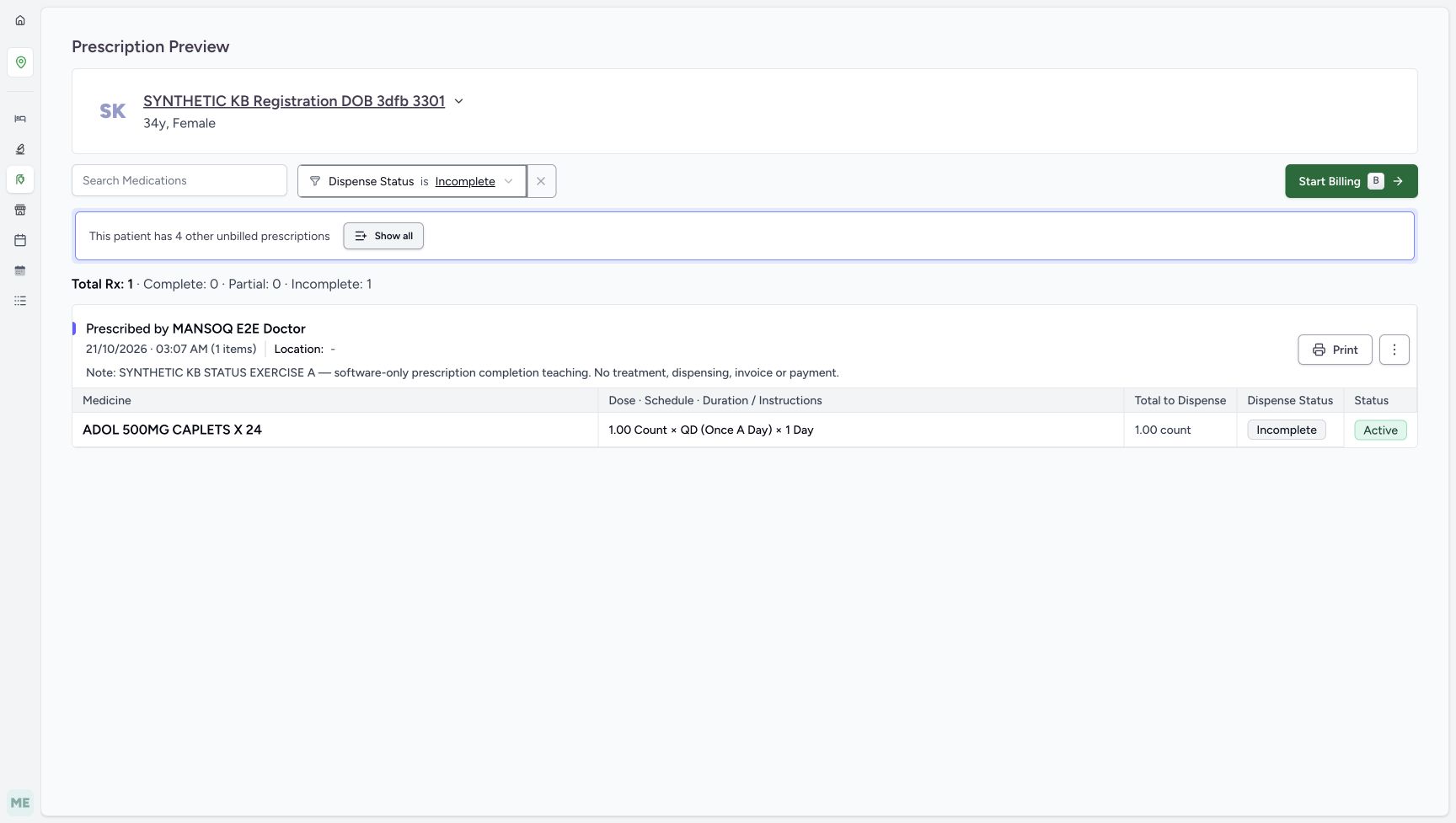
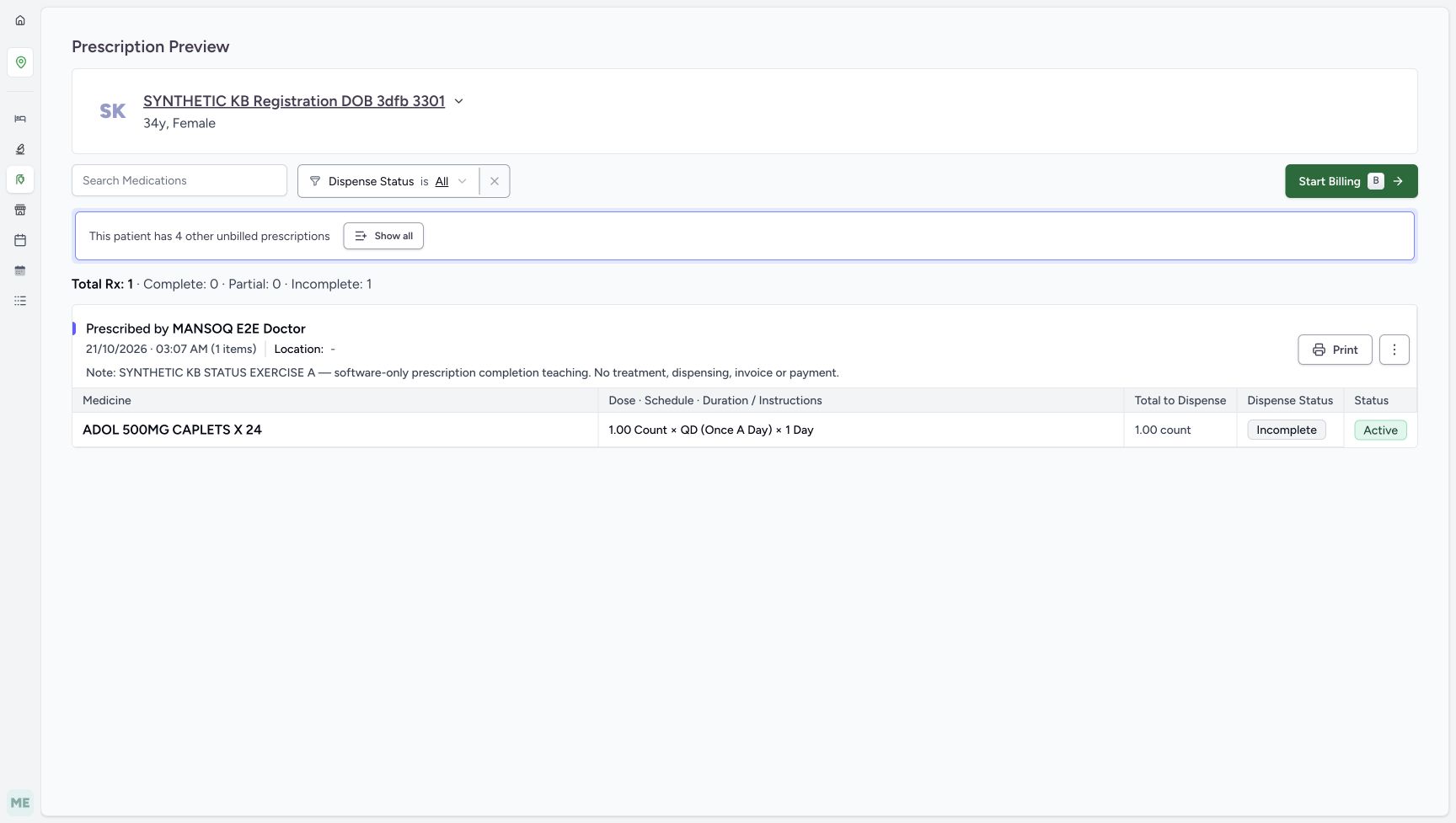
With Search Medications empty and Dispense Status set to All, read A’s full purpose note and its ADOL row. The medicine is Incomplete and Active. The overview reads Total Rx 1, Complete 0, Partial 0 and Incomplete 1. Keep these original values in mind as the displayed rows change.
1Verify the existing Pharmacist account
Capture details
Search and Dispense Status change the displayed medicine rows in existing fictional prescriptions. No billing or prescription status action is performed.
Image SHA-256 7567f09170dc44a94361a004c0a2420b10d43d9601d15f3a219e2bfac44928f4
- Verify qa-pharmacist: Use the already assigned Pharmacist account, then close this menu with Escape before using the preview controls.
1234Identify A before filtering
Capture details
Search and Dispense Status change the displayed medicine rows in existing fictional prescriptions. No billing or prescription status action is performed.
Image SHA-256 17732bea43cfd79d2f75f576d876642e7c8bdbeac5f869d6b2d1c4697d7416a5
- Verify the synthetic patient: Keep this patient and the intended existing prescription in view.
- Identify the full A note: A and B share 03:07 AM; the purpose note distinguishes A.
- Read the original overview: Total Rx 1 has Complete 0, Partial 0 and Incomplete 1.
- Read medicine Incomplete: This is the medicine fulfilment label used by Dispense Status.
2. Choose Incomplete and keep the matching medicine
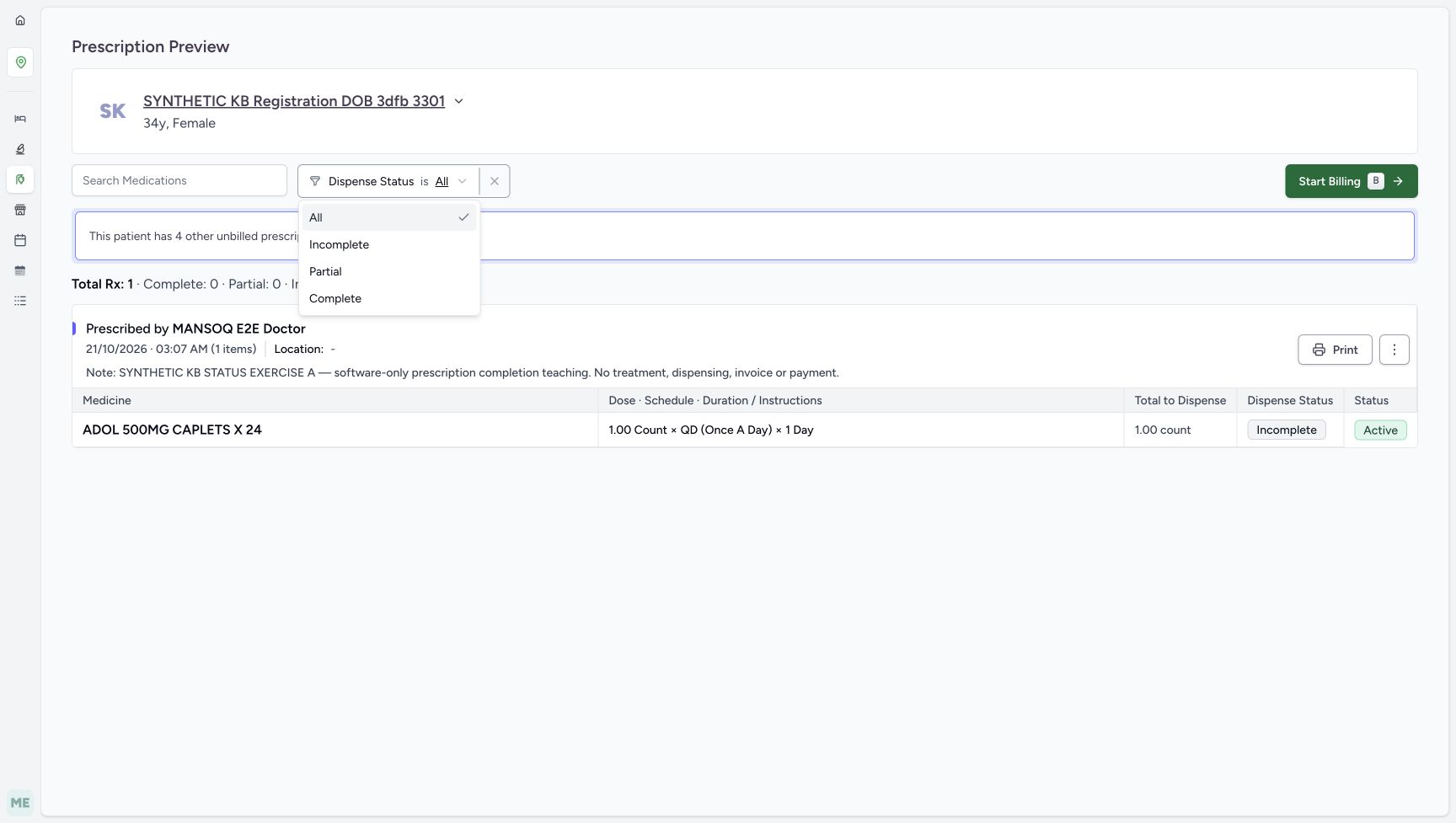
Open Dispense Status and choose Incomplete from the list. A’s ADOL row remains visible with its Incomplete badge and separate Active status. The overview still describes the same one prescription. Choosing this display filter does not complete or cancel it.
 1234
1234Choose a Dispense Status
Capture details
Search and Dispense Status change the displayed medicine rows in existing fictional prescriptions. No billing or prescription status action is performed.
Image SHA-256 793d8b6707775e64289be30078e4d0ff7203144e08afc4c585eb0a16a067421e
- Open Dispense Status: Use this display filter above the prescription cards.
- Choose Incomplete: The next view retains A’s matching medicine.
- Choose Partial: Show medicines whose dispense status is Partial; the selected prescription headers and original overview remain.
- Locate Complete: Complete is a medicine display-filter choice, separate from a prescription status action.
 123
123Retain the matching incomplete medicine
Capture details
Search and Dispense Status change the displayed medicine rows in existing fictional prescriptions. No billing or prescription status action is performed.
Image SHA-256 5339a8a316f3688027d877b1b822b5211113cb5658bd2c28cdc6862be88a4ded
- Read Incomplete selected: The status control and the matching row agree.
- Verify the matching Incomplete row: The display filter retains the existing medicine.
- Compare the original overview: The overview continues to describe the selected prescription.
3. Search within the selected status and recover from no match
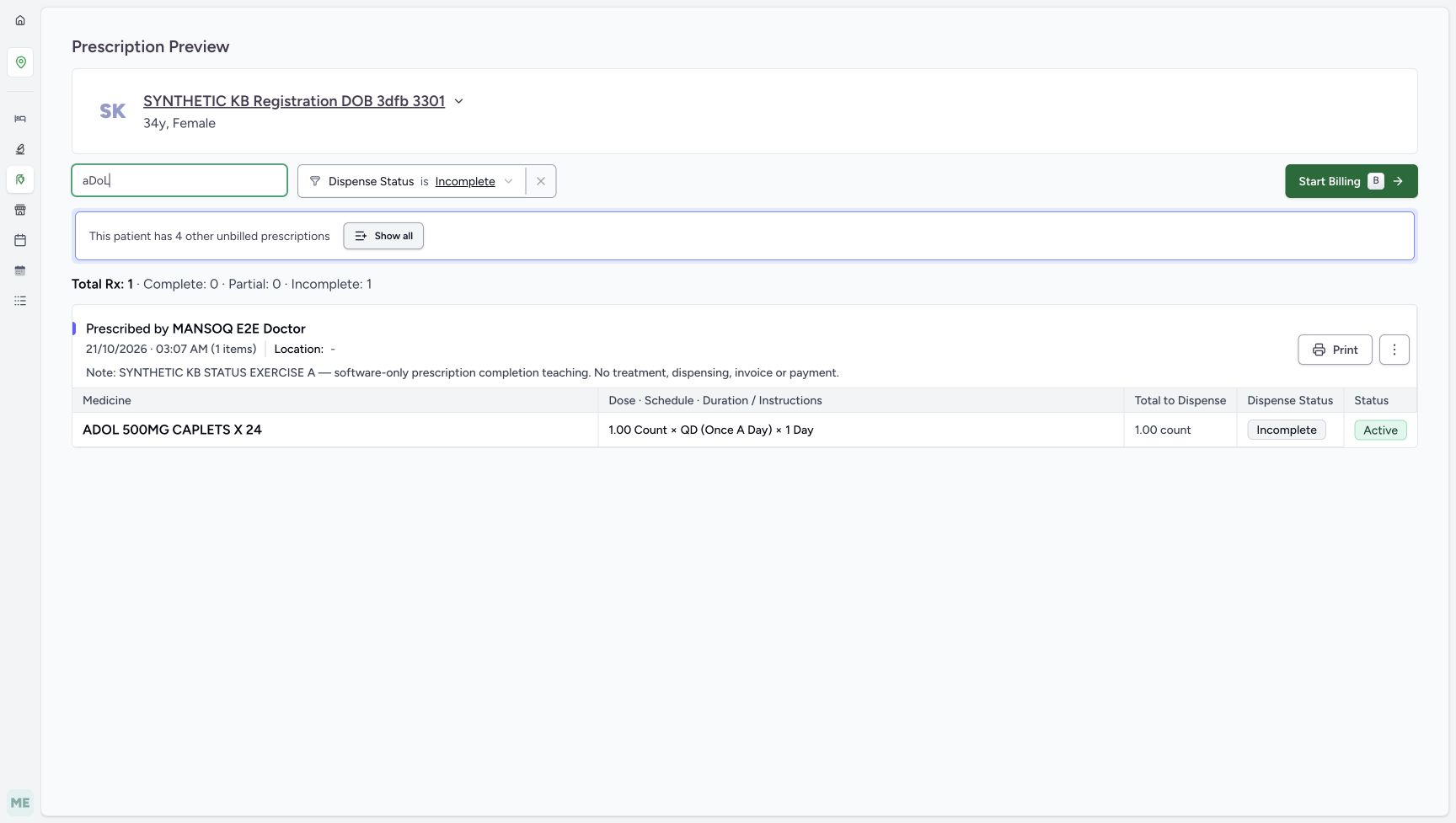
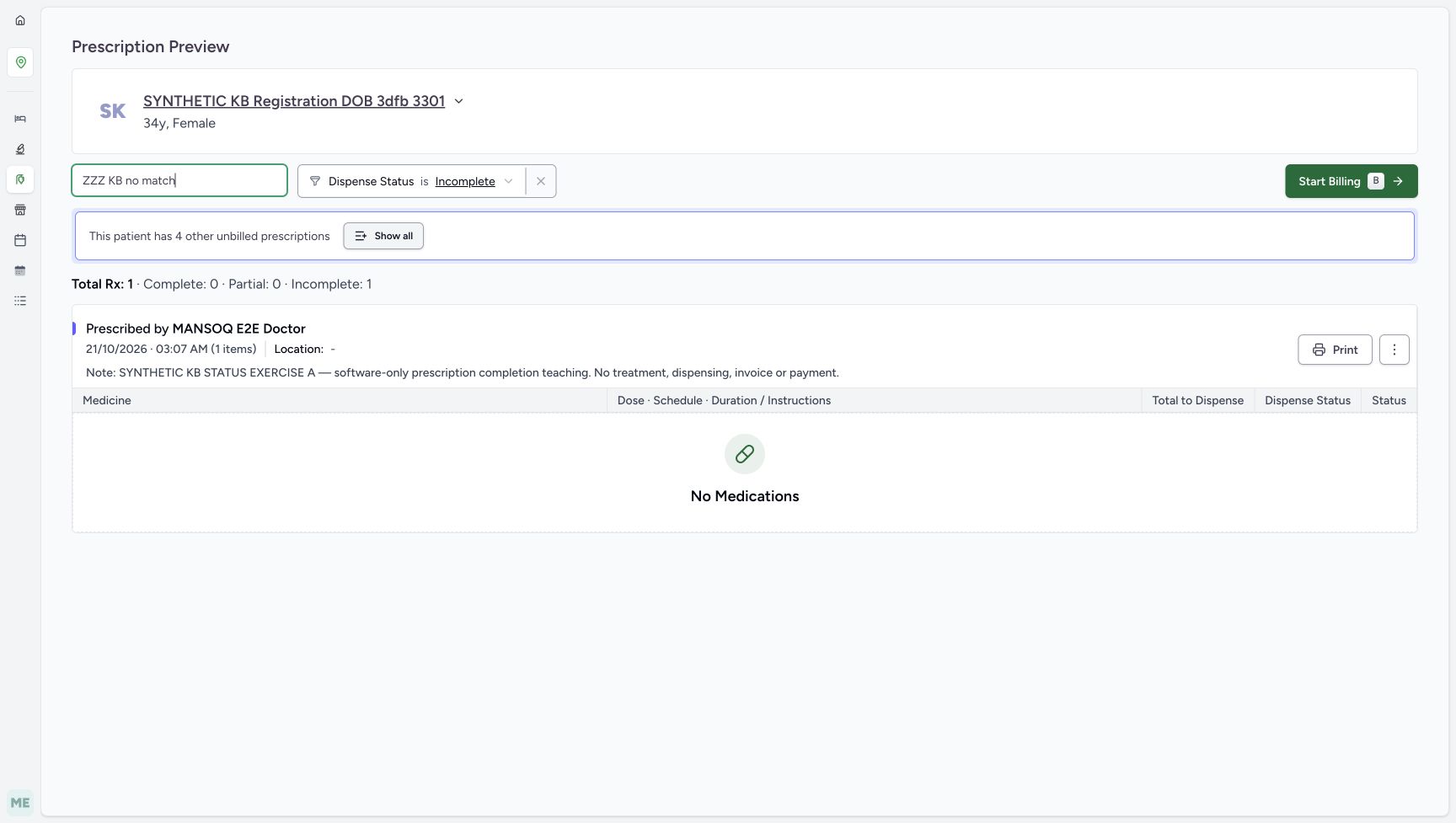
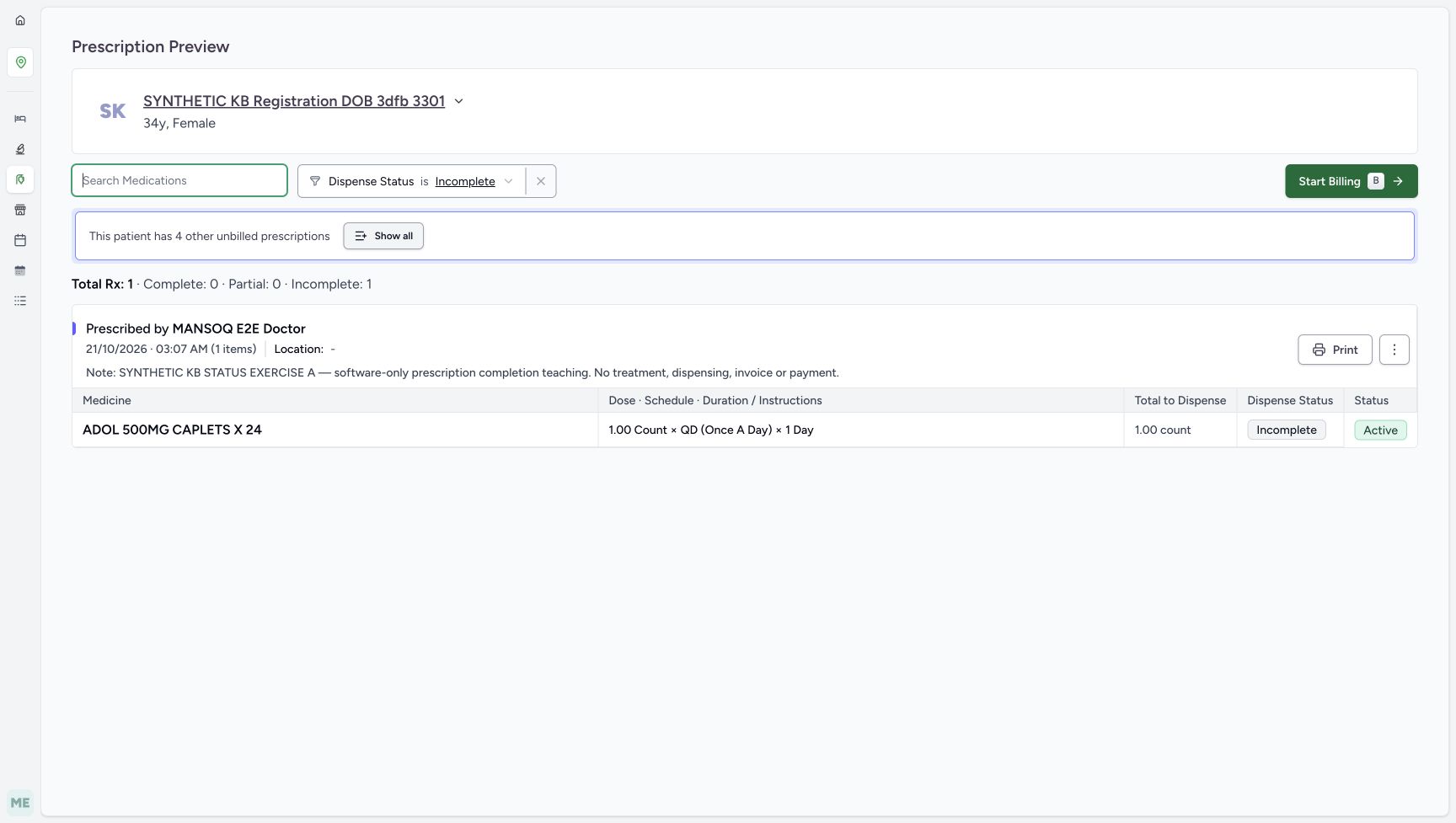
Enter aDoL in Search Medications. The ADOL row remains, and Incomplete stays selected. Replace the search with ZZZ KB no match: No Medications appears, but A’s header, note and Incomplete 1 overview remain. Delete only the search text to restore ADOL while keeping Incomplete selected.
 123
123Combine mixed-case search and status
Capture details
Search and Dispense Status change the displayed medicine rows in existing fictional prescriptions. No billing or prescription status action is performed.
Image SHA-256 05b7c4d28d9c7957f2616ab7042f47216f34392578a1eba922eded89e019145b
- Enter aDoL: Search accepts a case-insensitive part of the displayed medicine name.
- Keep Incomplete selected: Changing the search preserves the selected Dispense Status.
- Read the ADOL match: The existing medicine matches both controls.
 1234
1234Recognise an empty display result
Capture details
Search and Dispense Status change the displayed medicine rows in existing fictional prescriptions. No billing or prescription status action is performed.
Image SHA-256 41c5ecb0021e29762aa1b49b8e23bc6fa2a2c3d9a738c9e92520fa15376f0814
- Replace search with ZZZ KB no match: Use this harmless text to inspect an empty display result.
- Notice Incomplete is retained: Both search and status are still applied.
- Read No Medications: No medicine matches the current controls; the prescription is still present.
- Keep the original overview separate: Incomplete 1 is not recalculated from the empty displayed rows.
 123
123Clear search without clearing status
Capture details
Search and Dispense Status change the displayed medicine rows in existing fictional prescriptions. No billing or prescription status action is performed.
Image SHA-256 2262c07ef78a8a5e2385735fb82f233fd33eea2a460044ce3252d35bd7b33459
- Delete the search text: Clear only Search Medications.
- Verify Incomplete remains: Clearing search does not clear the status restriction.
- Verify ADOL returns: The same matching medicine is displayed again.
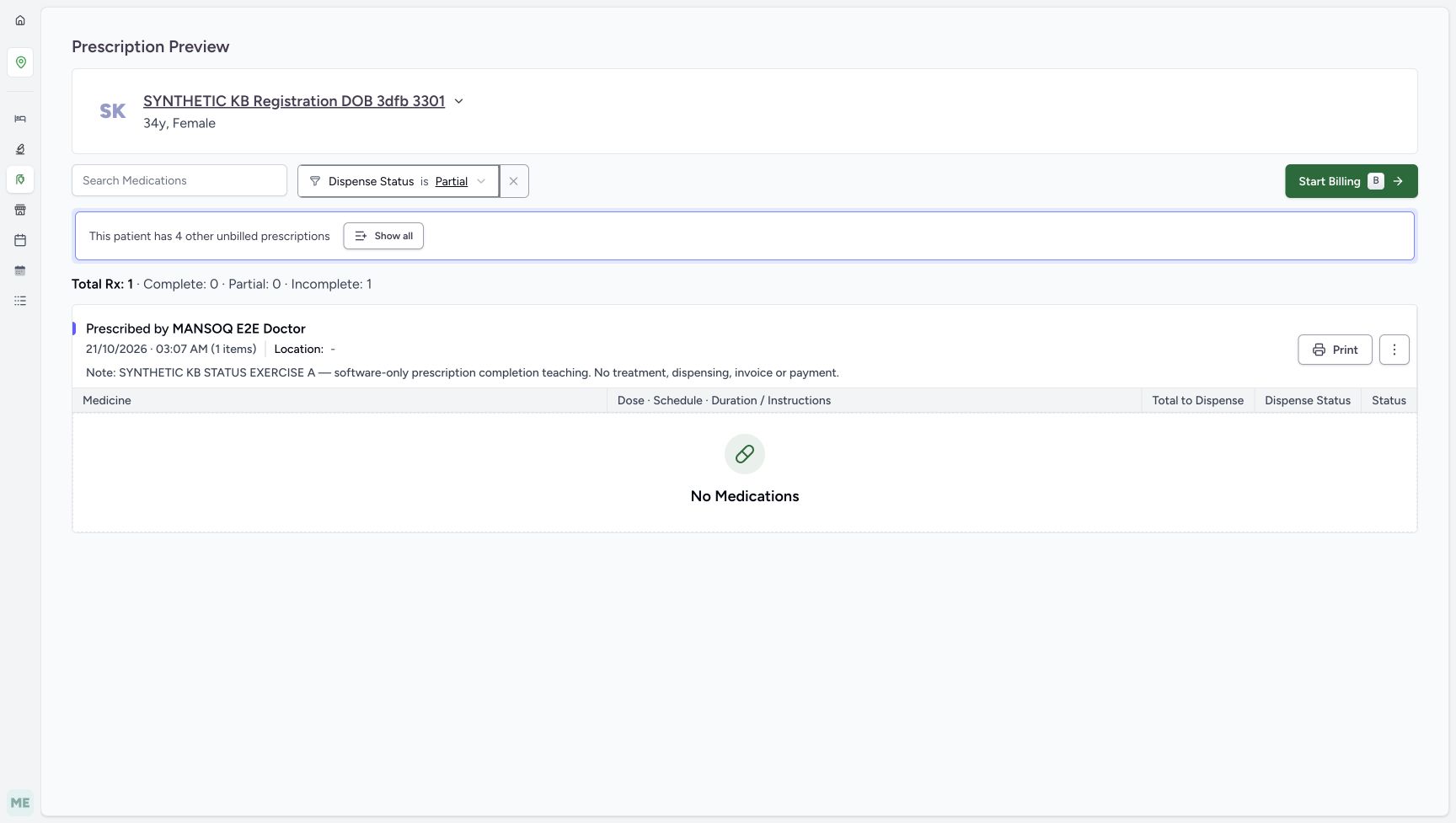
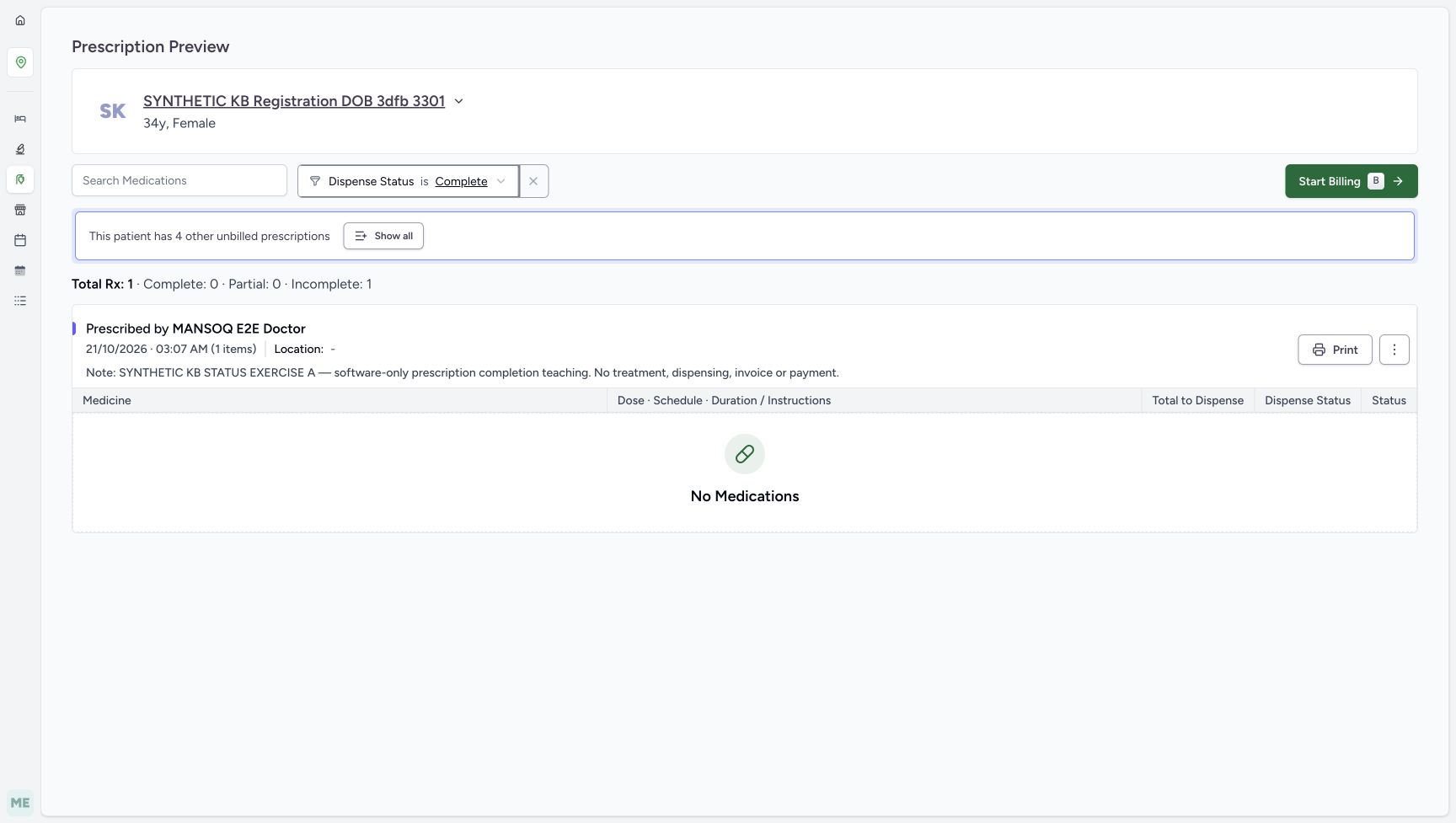
4. Compare empty Partial and Complete results on A
With search empty, choose Partial, then Complete in the same Dispense Status control. A has no matching medicine for either choice, so its card shows No Medications. Its header and original Incomplete 1 overview remain. Choose the X beside the status selector to return to All and restore the ADOL row.
1234Choose a Dispense Status
Capture details
Search and Dispense Status change the displayed medicine rows in existing fictional prescriptions. No billing or prescription status action is performed.
Image SHA-256 793d8b6707775e64289be30078e4d0ff7203144e08afc4c585eb0a16a067421e
- Open Dispense Status: Use this display filter above the prescription cards.
- Choose Incomplete: The next view retains A’s matching medicine.
- Choose Partial: Show medicines whose dispense status is Partial; the selected prescription headers and original overview remain.
- Locate Complete: Complete is a medicine display-filter choice, separate from a prescription status action.
 123
123Review Partial on the single A prescription
Capture details
Search and Dispense Status change the displayed medicine rows in existing fictional prescriptions. No billing or prescription status action is performed.
Image SHA-256 d0c54135c8898f67c17b3a0006bbbcb987535098aad257195c4b89bb114e966d
- Choose Partial: Only matching medicine rows are displayed.
- Read the empty Partial result: A’s medicine is Incomplete, so it does not match Partial.
- Read the unchanged overview: The original selected prescription still counts as Incomplete.
 123
123Review Complete on the single A prescription
Capture details
Search and Dispense Status change the displayed medicine rows in existing fictional prescriptions. No billing or prescription status action is performed.
Image SHA-256 13da026bfef9ff8aa10a4f80decf68709b6efbb1eb76a964ab9799992a9f8e07
- Choose Complete: This filters medicine fulfilment rather than completing a prescription.
- Read the empty Complete result: This A has no matching Complete medicine.
- Clear only Dispense Status: Use the X beside the selector to return to All.
 123
123Restore All and locate Show all
Capture details
Search and Dispense Status change the displayed medicine rows in existing fictional prescriptions. No billing or prescription status action is performed.
Image SHA-256 7ab877102e533a850a86405c8ed18184e41492e7598d91cc7fa6eb03bba3f718
- Verify All is restored: The status restriction has been cleared.
- Read the restored medicine: A’s existing ADOL row is visible again.
- Choose Show all: Expand this patient’s preview to the other listed prescriptions without starting billing.
5. Use Show all and review the original five prescriptions
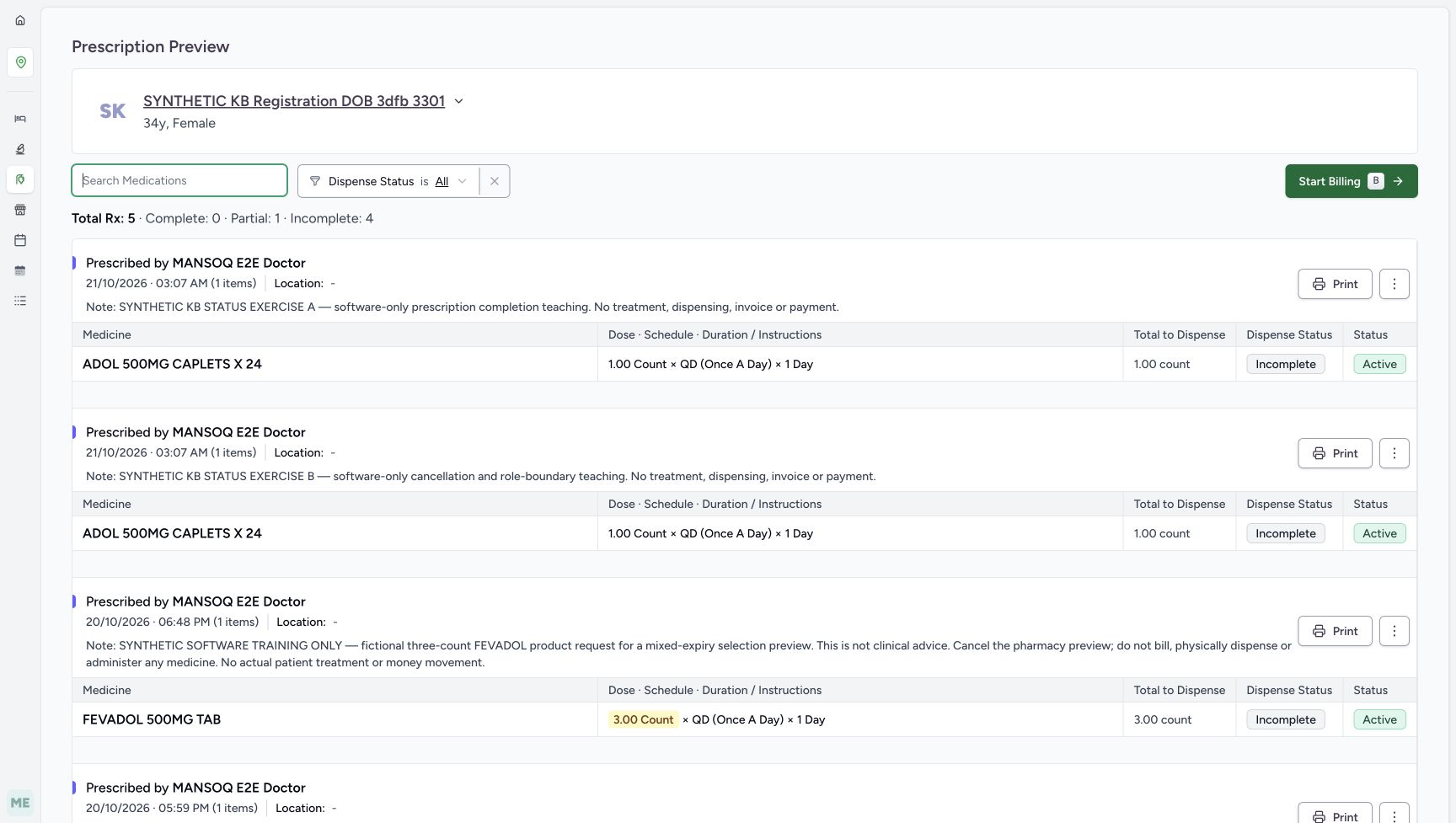
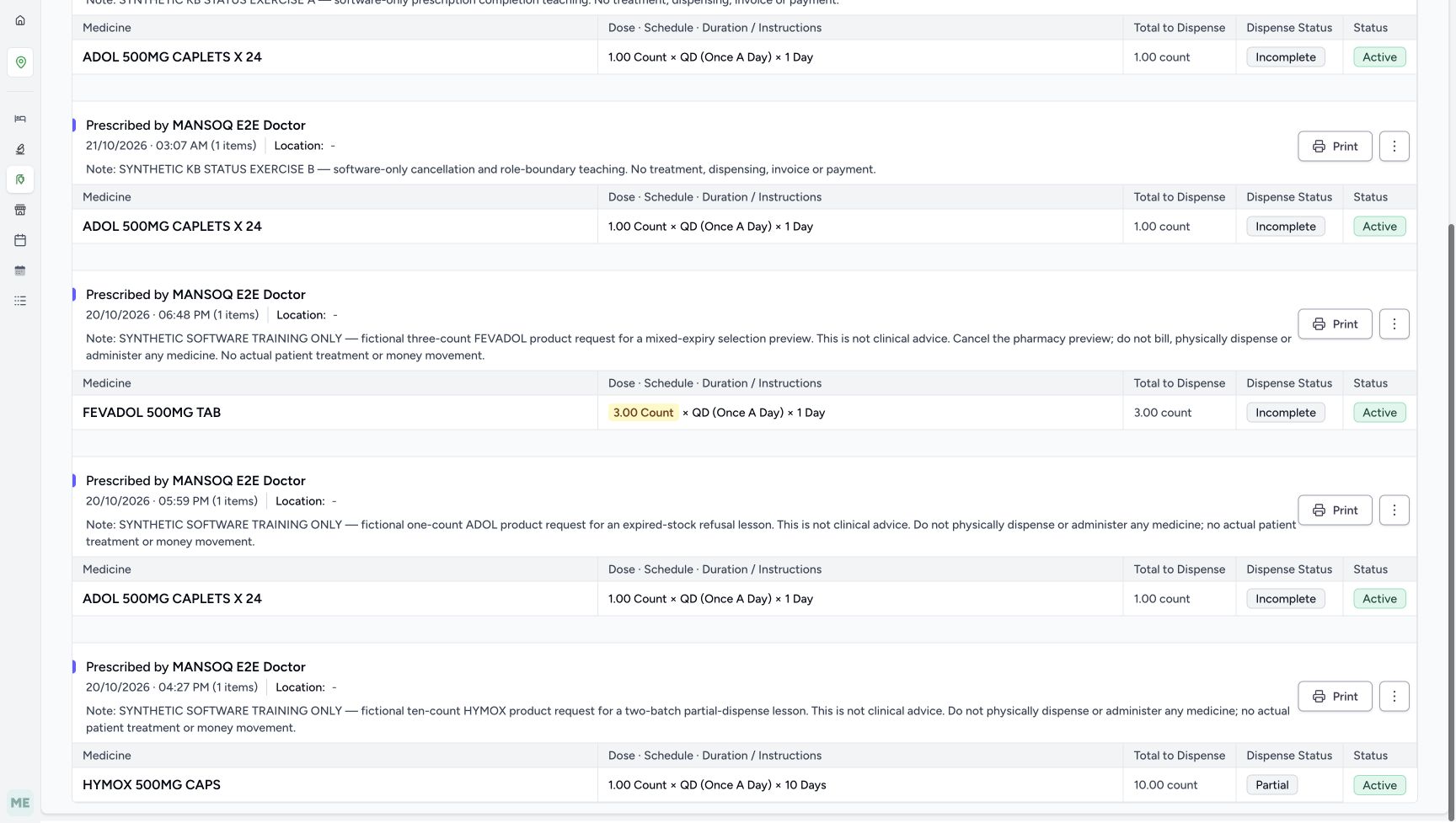
Choose Show all in the notice about four other unbilled prescriptions. The preview expands to five existing active prescriptions. Read Total Rx 5, Complete 0, Partial 1 and Incomplete 4, then scroll down to inspect the lower groups. A and B have their separate notes, FEVADOL retains its no-bill instruction, the older ADOL is Incomplete and HYMOX is Partial. Show all expands the preview; leave Start Billing unused.
123Restore All and locate Show all
Capture details
Search and Dispense Status change the displayed medicine rows in existing fictional prescriptions. No billing or prescription status action is performed.
Image SHA-256 7ab877102e533a850a86405c8ed18184e41492e7598d91cc7fa6eb03bba3f718
- Verify All is restored: The status restriction has been cleared.
- Read the restored medicine: A’s existing ADOL row is visible again.
- Choose Show all: Expand this patient’s preview to the other listed prescriptions without starting billing.
123Review the expanded five-prescription preview
Capture details
Search and Dispense Status change the displayed medicine rows in existing fictional prescriptions. No billing or prescription status action is performed.
Image SHA-256 d1f0b58335be454ce25f3162b6882f4116ddfba97e3fcd2b99a144c9a7206c81
- Read the five-prescription overview: These are totals for the selected prescriptions before and after display filtering.
- Identify A’s existing note: Do not confuse A with B at the same minute.
- Keep the FEVADOL instruction: Its fictional note says to cancel the pharmacy preview and not bill or physically dispense.
123Inspect the lower original medicines
Capture details
Search and Dispense Status change the displayed medicine rows in existing fictional prescriptions. No billing or prescription status action is performed.
Image SHA-256 9b8848f535c5bad29ac82223d124667219fdd7e9c5dc1cbf494d81721bb65ece
- Read the FEVADOL name: This name also contains the letters ADOL.
- Read older ADOL Incomplete: This is another existing request, not A or B.
- Read HYMOX Partial: This existing partial example will match the Partial filter.
6. Find the positive Partial match
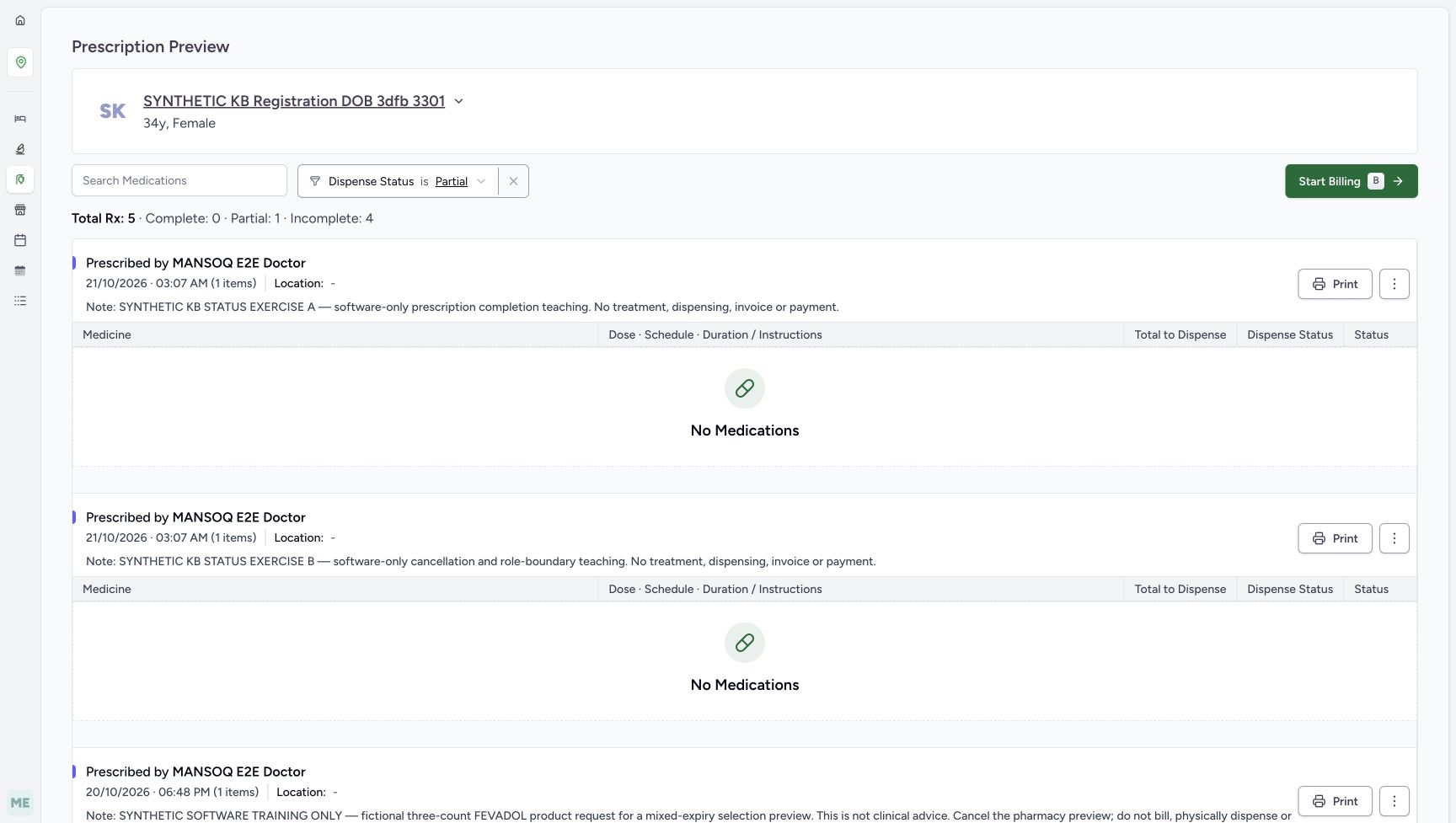
Return to the top and choose Partial. The original five-prescription totals stay visible, and A and B keep their headers even though their matching areas say No Medications. Scroll down: HYMOX remains with a Partial dispense badge and a separate Active status. The other four medicines do not match this filter.
 123
123Apply Partial across the expanded preview
Capture details
Search and Dispense Status change the displayed medicine rows in existing fictional prescriptions. No billing or prescription status action is performed.
Image SHA-256 303cc96312ba33f4f539c941d59fc746d80959053f43a33076759bcd6ce16bf3
- Choose Partial for the expanded preview: Apply the same medicine filter across the selected prescription cards.
- Read the original five-prescription totals: Partial 1 and Incomplete 4 still describe the full selected set.
- Read A’s empty matching area: A’s header remains even though its medicine does not match Partial.
123Find the positive Partial match
Capture details
Search and Dispense Status change the displayed medicine rows in existing fictional prescriptions. No billing or prescription status action is performed.
Image SHA-256 a24bc4fb3966308e6d17f3112ef80acde11da73d92373ad386e4cffb27521d1c
- Identify the HYMOX purpose note: This is the earlier fictional two-batch partial-dispense example.
- Read the matching Partial badge: HYMOX is retained by this display filter.
- Read the separate Active status: The medicine’s clinical status is distinct from its dispense status.
7. Compare the four Incomplete matches
Return to the top and choose Incomplete. A, B, FEVADOL and the older ADOL match; scroll down to check the lower rows. HYMOX’s header remains but its matching area now says No Medications. Total Rx 5, Partial 1 and Incomplete 4 continue to describe the original selected prescriptions.
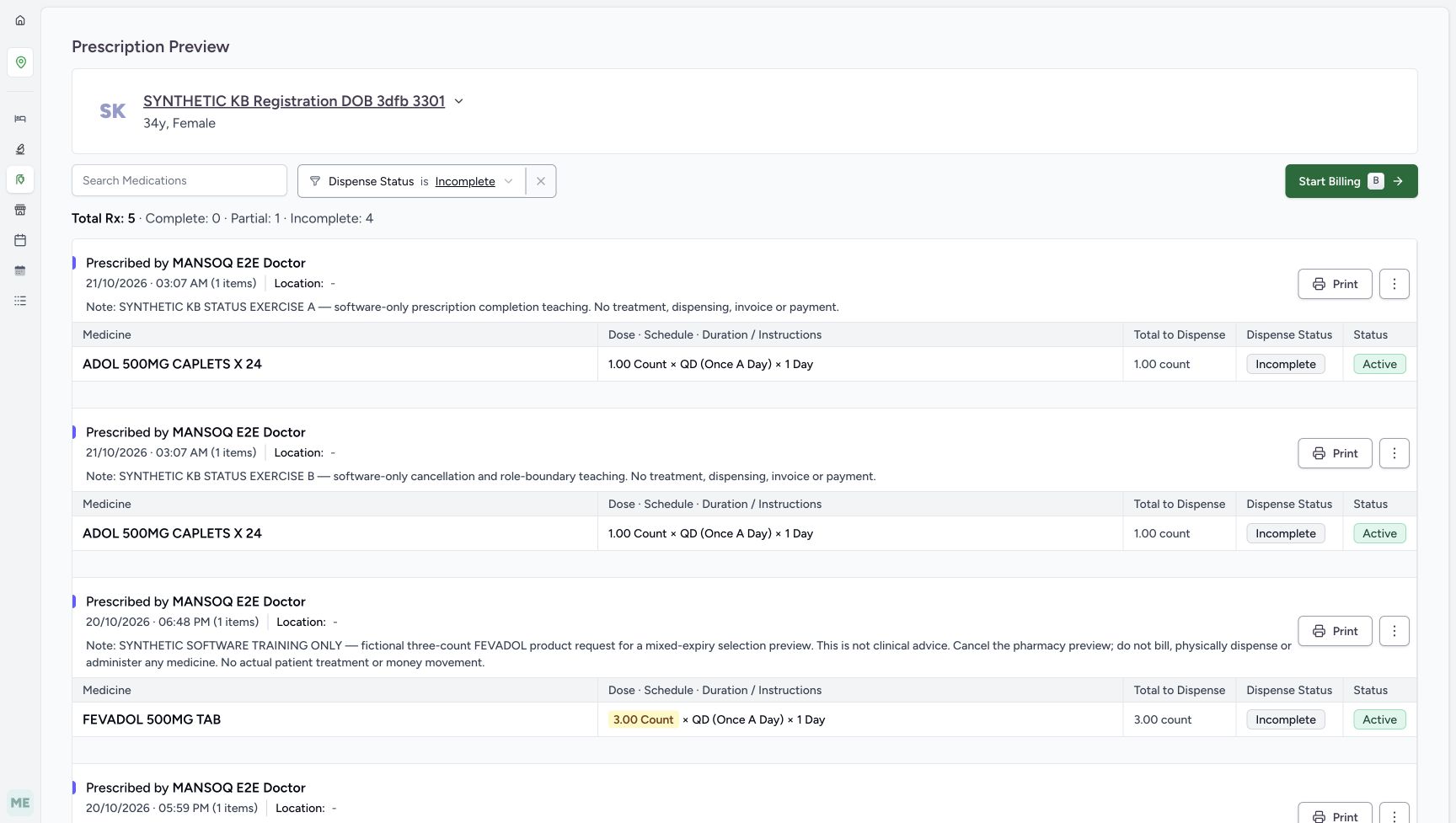 123
123Apply Incomplete across the expanded preview
Capture details
Search and Dispense Status change the displayed medicine rows in existing fictional prescriptions. No billing or prescription status action is performed.
Image SHA-256 f5d9628de844101ade33a097492277edf740631c73c18752f9e5d998fe1682bd
- Choose Incomplete: Review the medicines matching this fulfilment label.
- Read A’s matching Incomplete badge: The same A medicine remains in the expanded preview.
- Keep the full overview in view: The original five-prescription totals do not shrink to the visible rows.
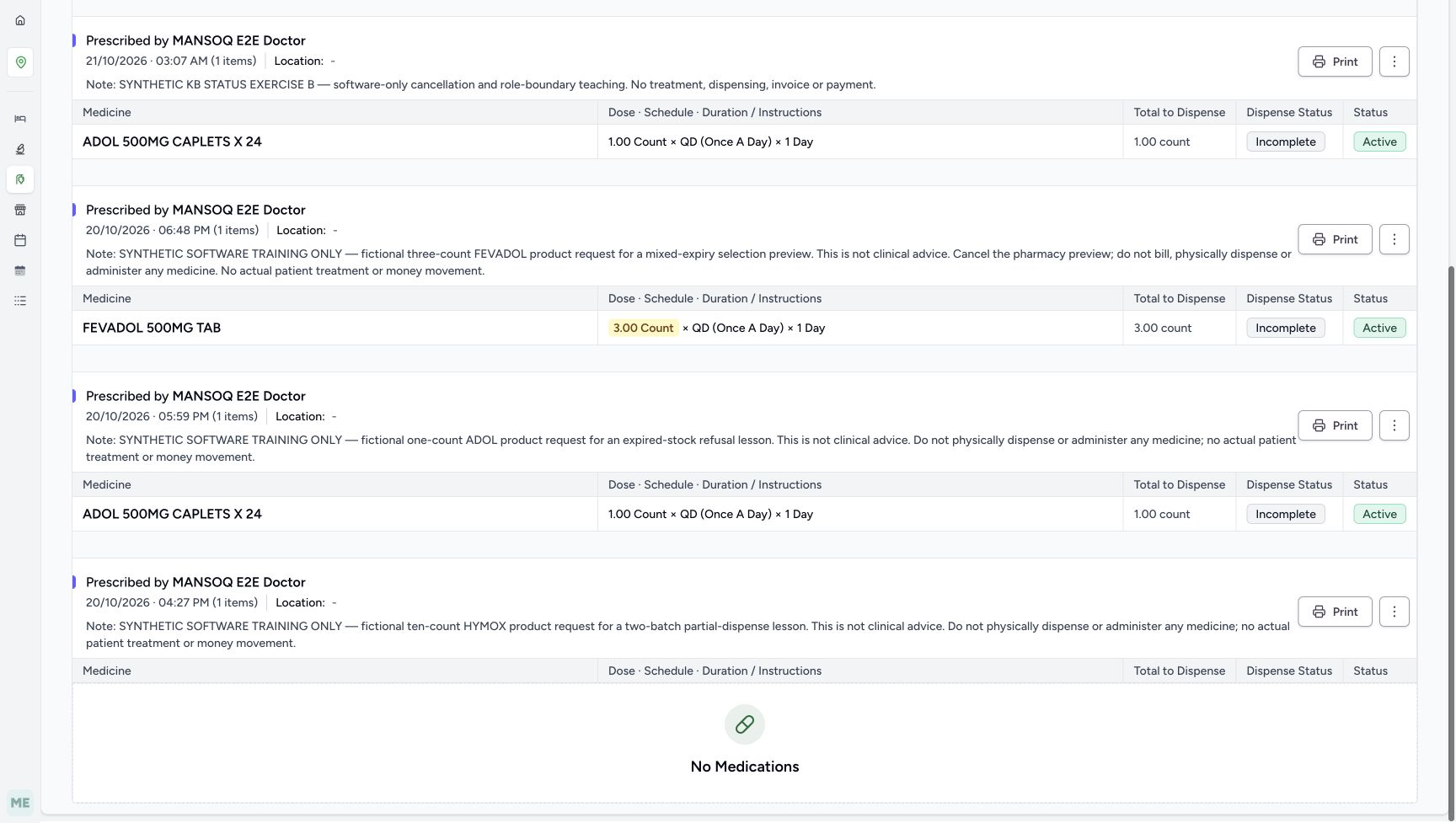 123
123Compare the lower matching rows and empty card
Capture details
Search and Dispense Status change the displayed medicine rows in existing fictional prescriptions. No billing or prescription status action is performed.
Image SHA-256 91d3f52bff5406e0a3ca87c15fa39605ab99a92c6a563495fbdc7036193b48cf
- Read the visible FEVADOL row: Compare this lower result with the controls shown in the paired upper screenshot.
- Read the older ADOL Incomplete badge: A matching existing medicine remains visible.
- Read HYMOX No Medications: The empty matching area leaves the original prescription header intact.
8. Combine Partial and aDoL, then clear only status
At the top, choose Partial and enter aDoL. Both controls remain selected, and no medicine matches both. Choose the X beside Dispense Status: status returns to All while aDoL stays in Search Medications. Four rows match this substring search: three ADOL rows and FEVADOL, whose name also contains ADOL. HYMOX does not match. Use the paired lower view to compare the retained FEVADOL and older ADOL rows with HYMOX’s empty matching area.
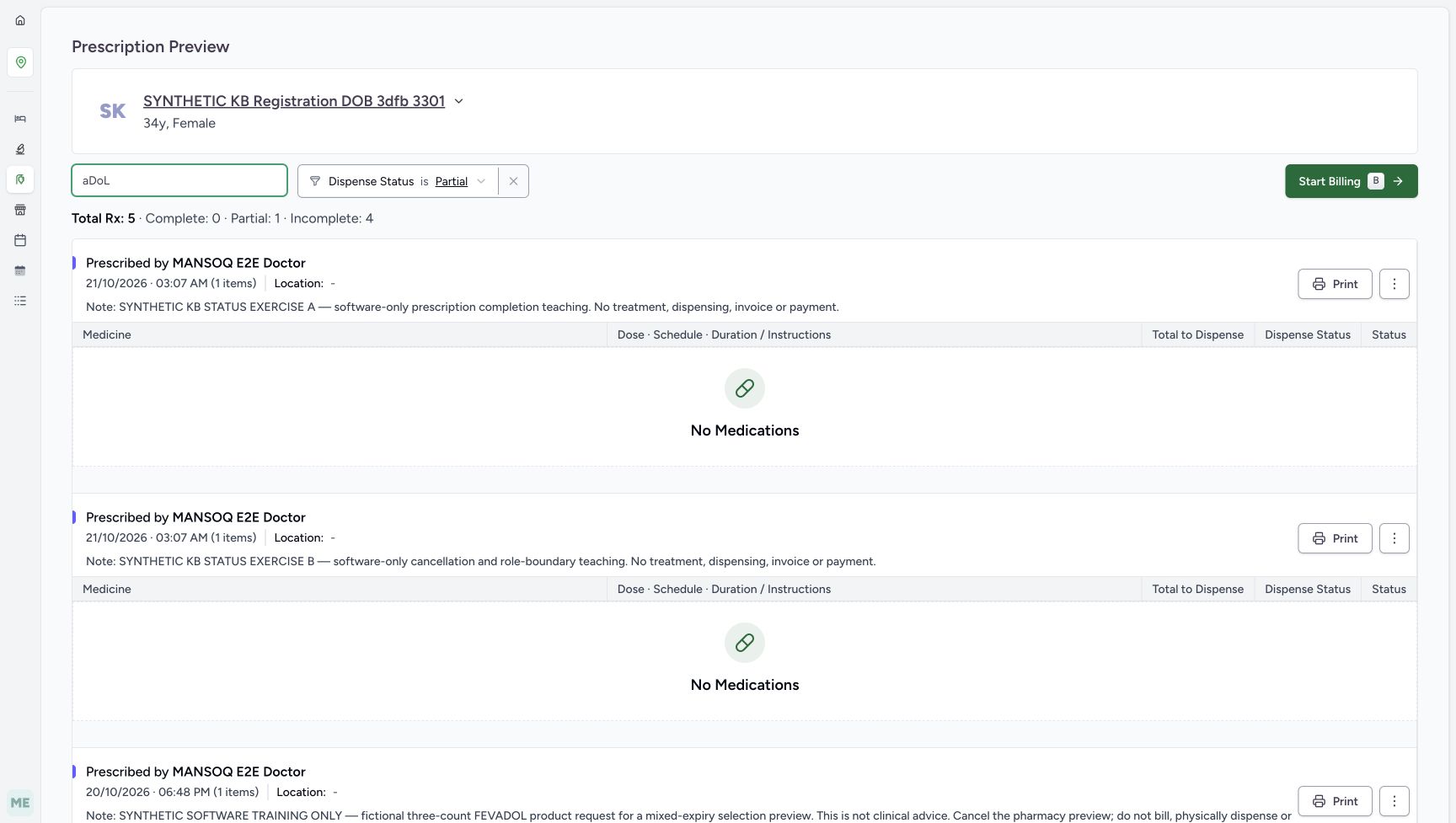 1234
1234Combine Partial and aDoL
Capture details
Search and Dispense Status change the displayed medicine rows in existing fictional prescriptions. No billing or prescription status action is performed.
Image SHA-256 eafe7bdb5fd78d37399d7b7b3cc4b6574f8c4b8120b0ce3dd9c60f2f3326ab98
- Enter aDoL with Partial selected: A medicine must match both the name search and Dispense Status.
- Verify Partial remains selected: Changing the search keeps this status restriction.
- Read the combined empty result: None of the selected medicines matches both controls.
- Clear only the status filter: Choose this X to keep the typed aDoL search and return status to All.
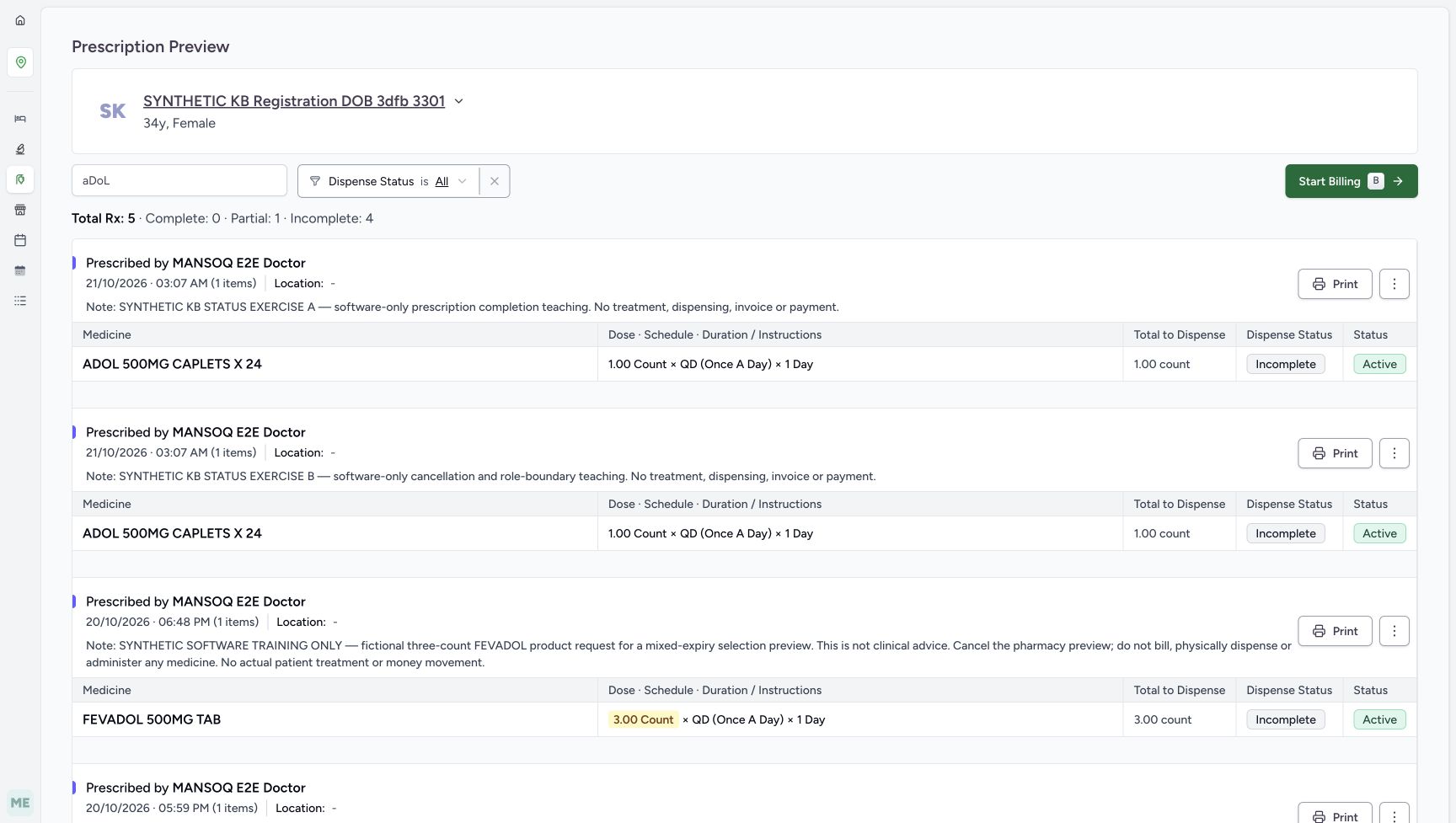 123
123Keep the search while clearing status
Capture details
Search and Dispense Status change the displayed medicine rows in existing fictional prescriptions. No billing or prescription status action is performed.
Image SHA-256 becb3f3cd16f31cee81333d6abc319a6ef6591284de4c6002244f7e452fd090c
- Verify aDoL is retained: Clearing Dispense Status leaves the medicine search unchanged.
- Verify status is All: Only the status restriction was removed.
- Read FEVADOL as a substring match: FEVADOL contains ADOL, so this search is not an exact-name filter.
123Compare the lower matching rows and empty card
Capture details
Search and Dispense Status change the displayed medicine rows in existing fictional prescriptions. No billing or prescription status action is performed.
Image SHA-256 91d3f52bff5406e0a3ca87c15fa39605ab99a92c6a563495fbdc7036193b48cf
- Read the visible FEVADOL row: Compare this lower result with the controls shown in the paired upper screenshot.
- Read the older ADOL Incomplete badge: A matching existing medicine remains visible.
- Read HYMOX No Medications: The empty matching area leaves the original prescription header intact.
9. Clear search and verify the full preview after reload
Delete the remaining search text while leaving status All. All five medicines return. Reload the preview normally and scroll down again: the original overview remains Total Rx 5, Complete 0, Partial 1 and Incomplete 4; the older ADOL remains Incomplete and HYMOX remains Partial and Active. The unchanged All screenshot illustrates the same settled upper view before and after reload.
 123
123Clear search and restore all five medicines
Capture details
Search and Dispense Status change the displayed medicine rows in existing fictional prescriptions. No billing or prescription status action is performed.
Image SHA-256 3be8bb03a94804a3488aafac180b9a7f45a79c764ba480900420ee8586f157e7
- Delete the remaining search text: Clear only the name restriction.
- Keep status All: The other control remains as selected.
- Read the restored full overview: Scroll to review the lower medicines as well; Total Rx remains 5.
123Review the expanded five-prescription preview
Capture details
Search and Dispense Status change the displayed medicine rows in existing fictional prescriptions. No billing or prescription status action is performed.
Image SHA-256 d1f0b58335be454ce25f3162b6882f4116ddfba97e3fcd2b99a144c9a7206c81
- Read the five-prescription overview: These are totals for the selected prescriptions before and after display filtering.
- Identify A’s existing note: Do not confuse A with B at the same minute.
- Keep the FEVADOL instruction: Its fictional note says to cancel the pharmacy preview and not bill or physically dispense.
 123
123Verify the lower medicines after reload
Capture details
Search and Dispense Status change the displayed medicine rows in existing fictional prescriptions. No billing or prescription status action is performed.
Image SHA-256 4889fc1af547d7aa292a0774706a9a7ec2e904694546720b789dc4187a8d6494
- Verify FEVADOL Incomplete after reload: The display exercise has not changed this medicine’s saved status.
- Verify older ADOL Incomplete: The existing lower request remains intact.
- Verify HYMOX Partial after reload: The earlier partial result remains unchanged.
10. Open a separate existing completed prescription
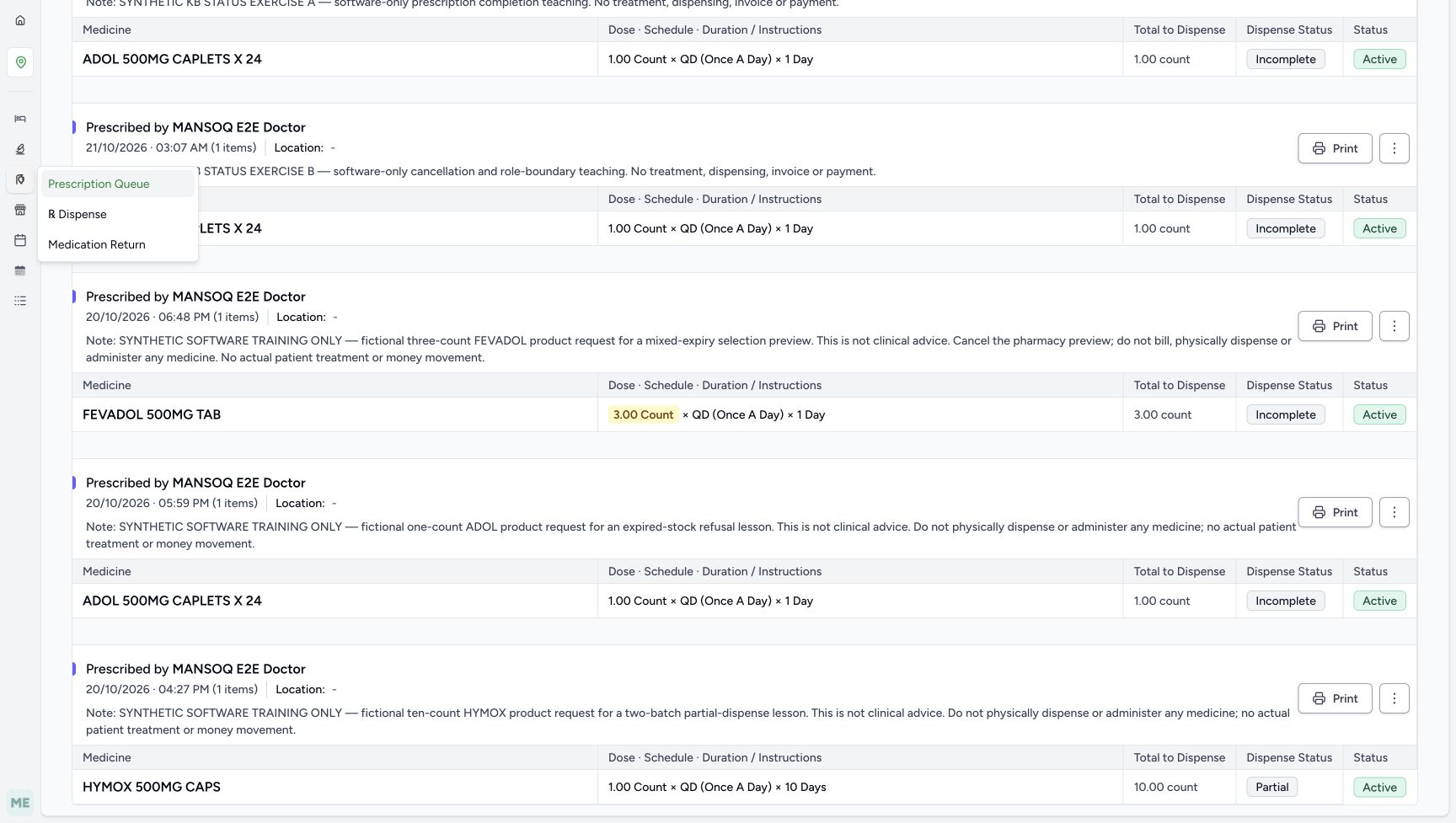
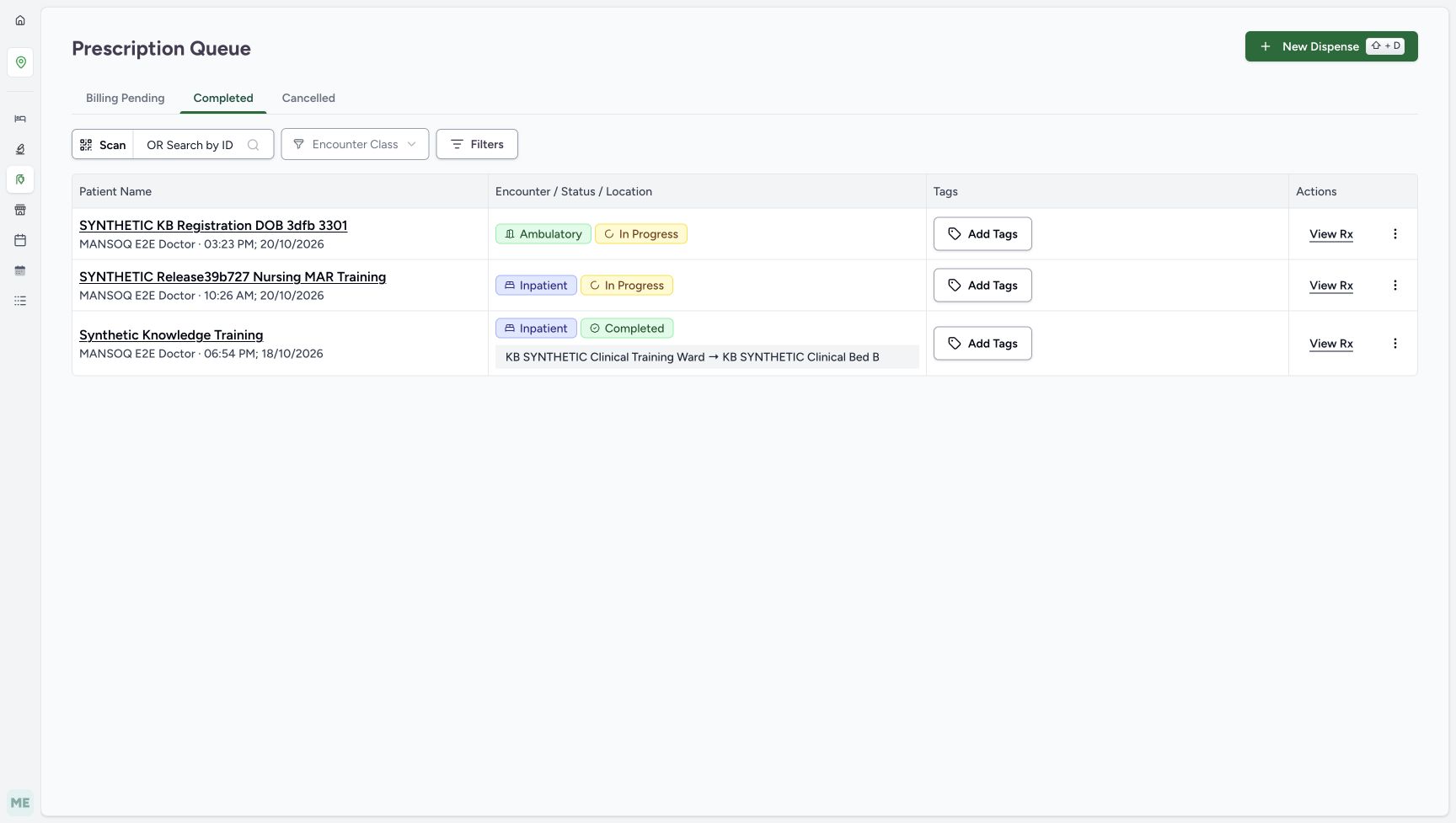
Open the Pharmacy sidebar flyout and choose Prescription Queue. Choose Completed, identify the SYNTHETIC KB Registration DOB 3dfb 3301 row prescribed at 03:23 PM on 20/10/2026, and select that row’s View Rx. Its preview has a Completed parent badge, while Synthetic Training — Paracetamol 500mg has dispense status Complete and status Active. The overview reads Total Rx 1, Complete 1, Partial 0 and Incomplete 0. Start Billing is absent for this single completed parent.
 12
12Open the ordinary Prescription Queue
Capture details
Search and Dispense Status change the displayed medicine rows in existing fictional prescriptions. No billing or prescription status action is performed.
Image SHA-256 9baaaf55a600bcb4d2f02244604c1e8bd7b64bc5ab4633823e268bf6eccf191d
- Open Pharmacy navigation: Use the existing sidebar flyout.
- Choose Prescription Queue: Go to the ordinary list to inspect the existing completed example.
 1234
1234Open the existing completed prescription
Capture details
Search and Dispense Status change the displayed medicine rows in existing fictional prescriptions. No billing or prescription status action is performed.
Image SHA-256 f29f00428d8d931b570d425d30f77729ed3f8828738feebe445fd61cd89a6318
- Choose Completed in the queue: This tab classifies the parent prescription, not each medicine.
- Identify the intended synthetic patient row: Match the patient and the 20/10/2026 03:23 PM prescription before opening it.
- Keep encounter In Progress separate: The encounter label is not the parent prescription lifecycle.
- Choose this row’s View Rx: Open the existing completed example without changing its status.
12345Distinguish the completed parent and medicine labels
Capture details
Search and Dispense Status change the displayed medicine rows in existing fictional prescriptions. No billing or prescription status action is performed.
Image SHA-256 b56263a8a102960ba05f2a674f5ad30b24c9f27ac4730c3a4c79d1699f9e3bf4
- Read parent Completed: This badge is the prescription lifecycle label.
- Read medicine Complete: This separate badge is the medicine fulfilment label used by the filter.
- Read medicine Active: Clinical status can remain Active beside Complete dispense status.
- Read Total Rx 1 and Complete 1: This overview belongs to the selected existing completed prescription.
- Open Dispense Status: Choose Complete to inspect its positive medicine match next.
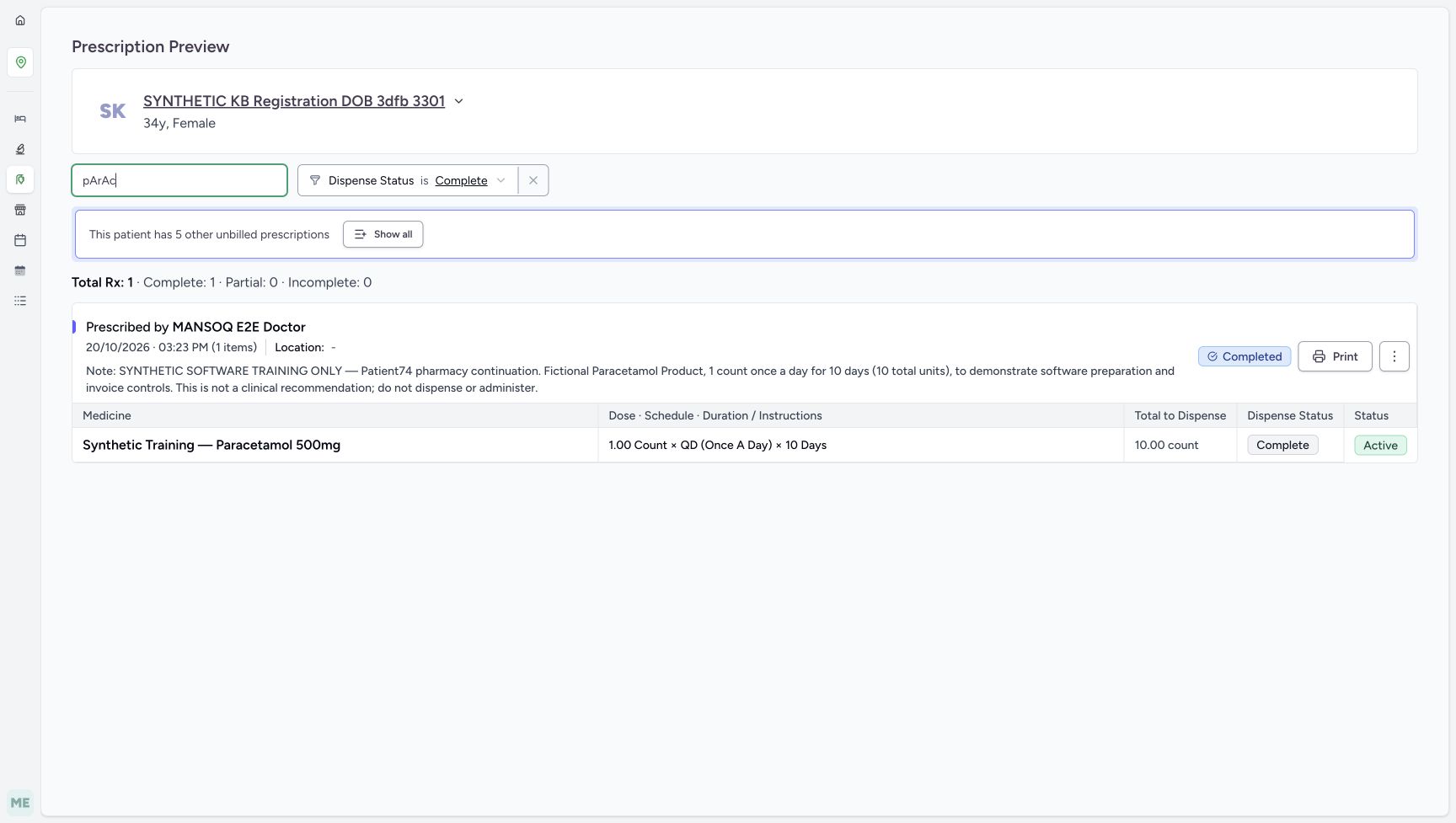
11. Check a positive Complete match and leave a settled readback
Choose Complete in Dispense Status. The existing synthetic Paracetamol medicine remains visible. Enter pArAc: the same row remains and Complete stays selected. Delete the search text and reload normally, keeping Complete selected. The settled result has the same appearance as the positive Complete screenshot: parent Completed, medicine Complete and Active, and the original 1 / 1 / 0 / 0 overview. End at this readback without a billing or prescription status action.
12345Distinguish the completed parent and medicine labels
Capture details
Search and Dispense Status change the displayed medicine rows in existing fictional prescriptions. No billing or prescription status action is performed.
Image SHA-256 b56263a8a102960ba05f2a674f5ad30b24c9f27ac4730c3a4c79d1699f9e3bf4
- Read parent Completed: This badge is the prescription lifecycle label.
- Read medicine Complete: This separate badge is the medicine fulfilment label used by the filter.
- Read medicine Active: Clinical status can remain Active beside Complete dispense status.
- Read Total Rx 1 and Complete 1: This overview belongs to the selected existing completed prescription.
- Open Dispense Status: Choose Complete to inspect its positive medicine match next.
1234Retain the positive Complete medicine match
Capture details
Search and Dispense Status change the displayed medicine rows in existing fictional prescriptions. No billing or prescription status action is performed.
Image SHA-256 8609cac0cab080c6fffefa2da96813ba26e9fe01aa1513bc757c05eb261df345
- Verify Complete selected: The existing medicine matches this dispense-status filter.
- Read the retained Complete badge: The filter displays the saved fulfilment state; it does not create one.
- Keep parent Completed separate: No lifecycle action is needed to inspect this result.
- Read the unchanged overview: Total Rx 1 has Complete 1, Partial 0 and Incomplete 0.
 123
123Combine Complete with mixed-case medicine search
Capture details
Search and Dispense Status change the displayed medicine rows in existing fictional prescriptions. No billing or prescription status action is performed.
Image SHA-256 59b240a49d83703ab529de91c0c0c29b58cfa6df4fe9f59e988fff64e336d068
- Enter pArAc: A case-insensitive part of the medicine name is enough to find this row.
- Verify Complete remains selected: Search and status stay applied together.
- Read the matching synthetic Paracetamol row: Clear search and reload for the final same-record readback; no prescription or billing action is required.
Display filters do not select what to bill
Search Medications and Dispense Status narrow the displayed medicine rows. Total Rx counts the selected prescriptions. Complete, Partial and Incomplete summarize their active medicines before display filtering; they are separate from the parent prescription lifecycle. Prescription headers remain, including cards with No Medications, and the overview totals still describe the selected prescriptions. Start Billing follows the active prescriptions included in the preview, not only the rows left visible by these filters. Leave it unused here. For explicit group and row selection, use Include active prescriptions, select groups and cancel.
1234Recognise an empty display result
Capture details
Search and Dispense Status change the displayed medicine rows in existing fictional prescriptions. No billing or prescription status action is performed.
Image SHA-256 41c5ecb0021e29762aa1b49b8e23bc6fa2a2c3d9a738c9e92520fa15376f0814
- Replace search with ZZZ KB no match: Use this harmless text to inspect an empty display result.
- Notice Incomplete is retained: Both search and status are still applied.
- Read No Medications: No medicine matches the current controls; the prescription is still present.
- Keep the original overview separate: Incomplete 1 is not recalculated from the empty displayed rows.
123Apply Partial across the expanded preview
Capture details
Search and Dispense Status change the displayed medicine rows in existing fictional prescriptions. No billing or prescription status action is performed.
Image SHA-256 303cc96312ba33f4f539c941d59fc746d80959053f43a33076759bcd6ce16bf3
- Choose Partial for the expanded preview: Apply the same medicine filter across the selected prescription cards.
- Read the original five-prescription totals: Partial 1 and Incomplete 4 still describe the full selected set.
- Read A’s empty matching area: A’s header remains even though its medicine does not match Partial.
1234Combine Partial and aDoL
Capture details
Search and Dispense Status change the displayed medicine rows in existing fictional prescriptions. No billing or prescription status action is performed.
Image SHA-256 eafe7bdb5fd78d37399d7b7b3cc4b6574f8c4b8120b0ce3dd9c60f2f3326ab98
- Enter aDoL with Partial selected: A medicine must match both the name search and Dispense Status.
- Verify Partial remains selected: Changing the search keeps this status restriction.
- Read the combined empty result: None of the selected medicines matches both controls.
- Clear only the status filter: Choose this X to keep the typed aDoL search and return status to All.
123Keep the search while clearing status
Capture details
Search and Dispense Status change the displayed medicine rows in existing fictional prescriptions. No billing or prescription status action is performed.
Image SHA-256 becb3f3cd16f31cee81333d6abc319a6ef6591284de4c6002244f7e452fd090c
- Verify aDoL is retained: Clearing Dispense Status leaves the medicine search unchanged.
- Verify status is All: Only the status restriction was removed.
- Read FEVADOL as a substring match: FEVADOL contains ADOL, so this search is not an exact-name filter.
Keep prescription lifecycle and medicine labels separate
The queue’s Completed tab and the parent Completed badge describe the prescription lifecycle. Dispense Status Complete describes a medicine’s fulfilment, while the adjacent Active badge is its separate medicine status. Selecting Complete in the display filter changes neither value. The prescription status lesson separately demonstrates parent completion, refusal and reactivation; do not use those actions to make a display filter return a row.
1234Open the existing completed prescription
Capture details
Search and Dispense Status change the displayed medicine rows in existing fictional prescriptions. No billing or prescription status action is performed.
Image SHA-256 f29f00428d8d931b570d425d30f77729ed3f8828738feebe445fd61cd89a6318
- Choose Completed in the queue: This tab classifies the parent prescription, not each medicine.
- Identify the intended synthetic patient row: Match the patient and the 20/10/2026 03:23 PM prescription before opening it.
- Keep encounter In Progress separate: The encounter label is not the parent prescription lifecycle.
- Choose this row’s View Rx: Open the existing completed example without changing its status.
12345Distinguish the completed parent and medicine labels
Capture details
Search and Dispense Status change the displayed medicine rows in existing fictional prescriptions. No billing or prescription status action is performed.
Image SHA-256 b56263a8a102960ba05f2a674f5ad30b24c9f27ac4730c3a4c79d1699f9e3bf4
- Read parent Completed: This badge is the prescription lifecycle label.
- Read medicine Complete: This separate badge is the medicine fulfilment label used by the filter.
- Read medicine Active: Clinical status can remain Active beside Complete dispense status.
- Read Total Rx 1 and Complete 1: This overview belongs to the selected existing completed prescription.
- Open Dispense Status: Choose Complete to inspect its positive medicine match next.
1234Retain the positive Complete medicine match
Capture details
Search and Dispense Status change the displayed medicine rows in existing fictional prescriptions. No billing or prescription status action is performed.
Image SHA-256 8609cac0cab080c6fffefa2da96813ba26e9fe01aa1513bc757c05eb261df345
- Verify Complete selected: The existing medicine matches this dispense-status filter.
- Read the retained Complete badge: The filter displays the saved fulfilment state; it does not create one.
- Keep parent Completed separate: No lifecycle action is needed to inspect this result.
- Read the unchanged overview: Total Rx 1 has Complete 1, Partial 0 and Incomplete 0.
Keep other tasks in their own workflows
This lesson reviews existing prescription medicines only. It does not assess stock availability or expiry, issue medicine, or produce a printout. Use the expired-stock preview lesson for that distinct inventory safeguard and Print a saved prescription and check the PDF for the separately captured printing path. Preserve the fictional notes and stop if the intended prescription cannot be identified.
1234Identify A before filtering
Capture details
Search and Dispense Status change the displayed medicine rows in existing fictional prescriptions. No billing or prescription status action is performed.
Image SHA-256 17732bea43cfd79d2f75f576d876642e7c8bdbeac5f869d6b2d1c4697d7416a5
- Verify the synthetic patient: Keep this patient and the intended existing prescription in view.
- Identify the full A note: A and B share 03:07 AM; the purpose note distinguishes A.
- Read the original overview: Total Rx 1 has Complete 0, Partial 0 and Incomplete 1.
- Read medicine Incomplete: This is the medicine fulfilment label used by Dispense Status.
123Inspect the lower original medicines
Capture details
Search and Dispense Status change the displayed medicine rows in existing fictional prescriptions. No billing or prescription status action is performed.
Image SHA-256 9b8848f535c5bad29ac82223d124667219fdd7e9c5dc1cbf494d81721bb65ece
- Read the FEVADOL name: This name also contains the letters ADOL.
- Read older ADOL Incomplete: This is another existing request, not A or B.
- Read HYMOX Partial: This existing partial example will match the Partial filter.
12345Distinguish the completed parent and medicine labels
Capture details
Search and Dispense Status change the displayed medicine rows in existing fictional prescriptions. No billing or prescription status action is performed.
Image SHA-256 b56263a8a102960ba05f2a674f5ad30b24c9f27ac4730c3a4c79d1699f9e3bf4
- Read parent Completed: This badge is the prescription lifecycle label.
- Read medicine Complete: This separate badge is the medicine fulfilment label used by the filter.
- Read medicine Active: Clinical status can remain Active beside Complete dispense status.
- Read Total Rx 1 and Complete 1: This overview belongs to the selected existing completed prescription.
- Open Dispense Status: Choose Complete to inspect its positive medicine match next.
Troubleshooting
No Medications appears but the overview still says Incomplete 1
Check both Search Medications and Dispense Status. The overview still describes the original selected prescription; it is not a count of the currently displayed medicine rows. Delete the search text or clear the relevant status restriction with its X, then verify the same purpose note and matching medicine. Do not cancel a prescription or change its medicine to recover an empty display result.
1234Recognise an empty display result
Capture details
Search and Dispense Status change the displayed medicine rows in existing fictional prescriptions. No billing or prescription status action is performed.
Image SHA-256 41c5ecb0021e29762aa1b49b8e23bc6fa2a2c3d9a738c9e92520fa15376f0814
- Replace search with ZZZ KB no match: Use this harmless text to inspect an empty display result.
- Notice Incomplete is retained: Both search and status are still applied.
- Read No Medications: No medicine matches the current controls; the prescription is still present.
- Keep the original overview separate: Incomplete 1 is not recalculated from the empty displayed rows.
123Clear search without clearing status
Capture details
Search and Dispense Status change the displayed medicine rows in existing fictional prescriptions. No billing or prescription status action is performed.
Image SHA-256 2262c07ef78a8a5e2385735fb82f233fd33eea2a460044ce3252d35bd7b33459
- Delete the search text: Clear only Search Medications.
- Verify Incomplete remains: Clearing search does not clear the status restriction.
- Verify ADOL returns: The same matching medicine is displayed again.
123Review Partial on the single A prescription
Capture details
Search and Dispense Status change the displayed medicine rows in existing fictional prescriptions. No billing or prescription status action is performed.
Image SHA-256 d0c54135c8898f67c17b3a0006bbbcb987535098aad257195c4b89bb114e966d
- Choose Partial: Only matching medicine rows are displayed.
- Read the empty Partial result: A’s medicine is Incomplete, so it does not match Partial.
- Read the unchanged overview: The original selected prescription still counts as Incomplete.
123Review Complete on the single A prescription
Capture details
Search and Dispense Status change the displayed medicine rows in existing fictional prescriptions. No billing or prescription status action is performed.
Image SHA-256 13da026bfef9ff8aa10a4f80decf68709b6efbb1eb76a964ab9799992a9f8e07
- Choose Complete: This filters medicine fulfilment rather than completing a prescription.
- Read the empty Complete result: This A has no matching Complete medicine.
- Clear only Dispense Status: Use the X beside the selector to return to All.
123Restore All and locate Show all
Capture details
Search and Dispense Status change the displayed medicine rows in existing fictional prescriptions. No billing or prescription status action is performed.
Image SHA-256 7ab877102e533a850a86405c8ed18184e41492e7598d91cc7fa6eb03bba3f718
- Verify All is restored: The status restriction has been cleared.
- Read the restored medicine: A’s existing ADOL row is visible again.
- Choose Show all: Expand this patient’s preview to the other listed prescriptions without starting billing.
Searching aDoL also shows FEVADOL
Search matches a case-insensitive part of the displayed medicine name. FEVADOL contains ADOL, so it matches along with the three ADOL rows in this five-prescription example. Review the full medicine name and prescription note rather than treating a search match as proof of identical products or clinical equivalence.
123Keep the search while clearing status
Capture details
Search and Dispense Status change the displayed medicine rows in existing fictional prescriptions. No billing or prescription status action is performed.
Image SHA-256 becb3f3cd16f31cee81333d6abc319a6ef6591284de4c6002244f7e452fd090c
- Verify aDoL is retained: Clearing Dispense Status leaves the medicine search unchanged.
- Verify status is All: Only the status restriction was removed.
- Read FEVADOL as a substring match: FEVADOL contains ADOL, so this search is not an exact-name filter.
123Compare the lower matching rows and empty card
Capture details
Search and Dispense Status change the displayed medicine rows in existing fictional prescriptions. No billing or prescription status action is performed.
Image SHA-256 91d3f52bff5406e0a3ca87c15fa39605ab99a92c6a563495fbdc7036193b48cf
- Read the visible FEVADOL row: Compare this lower result with the controls shown in the paired upper screenshot.
- Read the older ADOL Incomplete badge: A matching existing medicine remains visible.
- Read HYMOX No Medications: The empty matching area leaves the original prescription header intact.
123Inspect the lower original medicines
Capture details
Search and Dispense Status change the displayed medicine rows in existing fictional prescriptions. No billing or prescription status action is performed.
Image SHA-256 9b8848f535c5bad29ac82223d124667219fdd7e9c5dc1cbf494d81721bb65ece
- Read the FEVADOL name: This name also contains the letters ADOL.
- Read older ADOL Incomplete: This is another existing request, not A or B.
- Read HYMOX Partial: This existing partial example will match the Partial filter.
The Completed queue and Complete filter seem to mean the same thing
Read the parent badge and the medicine’s two labels separately. In the completed example, the parent is Completed, the medicine’s dispense status is Complete, and its status remains Active. In A, choosing Complete shows No Medications while the original Incomplete overview remains. A display filter does not change prescription lifecycle or establish a clinical decision.
123Review Complete on the single A prescription
Capture details
Search and Dispense Status change the displayed medicine rows in existing fictional prescriptions. No billing or prescription status action is performed.
Image SHA-256 13da026bfef9ff8aa10a4f80decf68709b6efbb1eb76a964ab9799992a9f8e07
- Choose Complete: This filters medicine fulfilment rather than completing a prescription.
- Read the empty Complete result: This A has no matching Complete medicine.
- Clear only Dispense Status: Use the X beside the selector to return to All.
1234Open the existing completed prescription
Capture details
Search and Dispense Status change the displayed medicine rows in existing fictional prescriptions. No billing or prescription status action is performed.
Image SHA-256 f29f00428d8d931b570d425d30f77729ed3f8828738feebe445fd61cd89a6318
- Choose Completed in the queue: This tab classifies the parent prescription, not each medicine.
- Identify the intended synthetic patient row: Match the patient and the 20/10/2026 03:23 PM prescription before opening it.
- Keep encounter In Progress separate: The encounter label is not the parent prescription lifecycle.
- Choose this row’s View Rx: Open the existing completed example without changing its status.
12345Distinguish the completed parent and medicine labels
Capture details
Search and Dispense Status change the displayed medicine rows in existing fictional prescriptions. No billing or prescription status action is performed.
Image SHA-256 b56263a8a102960ba05f2a674f5ad30b24c9f27ac4730c3a4c79d1699f9e3bf4
- Read parent Completed: This badge is the prescription lifecycle label.
- Read medicine Complete: This separate badge is the medicine fulfilment label used by the filter.
- Read medicine Active: Clinical status can remain Active beside Complete dispense status.
- Read Total Rx 1 and Complete 1: This overview belongs to the selected existing completed prescription.
- Open Dispense Status: Choose Complete to inspect its positive medicine match next.
1234Retain the positive Complete medicine match
Capture details
Search and Dispense Status change the displayed medicine rows in existing fictional prescriptions. No billing or prescription status action is performed.
Image SHA-256 8609cac0cab080c6fffefa2da96813ba26e9fe01aa1513bc757c05eb261df345
- Verify Complete selected: The existing medicine matches this dispense-status filter.
- Read the retained Complete badge: The filter displays the saved fulfilment state; it does not create one.
- Keep parent Completed separate: No lifecycle action is needed to inspect this result.
- Read the unchanged overview: Total Rx 1 has Complete 1, Partial 0 and Incomplete 0.
Source evidence
Every citation uses this exact committed version. The private source repository requires access.
- repositories/platform/mansoq-web/src/components/ui/filter-select.tsx:27 ·
b4d19c7030d9c20bae96890bac404ad8988197d0Source file checksum
ad2ddcd4a98ef25e6246ac6925208f756e4ea9f1163e515a68892e1d989aa7a5 - repositories/platform/mansoq-web/src/pages/Facility/services/pharmacy/PrescriptionsPreviewPage.tsx:45 ·
b4d19c7030d9c20bae96890bac404ad8988197d0Source file checksum
ae1f3068e0bb5b37f6920449947947068624eae0c5fd34c76302aa44b6367930 - repositories/platform/mansoq-web/src/pages/Facility/services/pharmacy/billMedications/UnbilledPrescriptionsCard.tsx:32 ·
b4d19c7030d9c20bae96890bac404ad8988197d0Source file checksum
ef931ab35c361c6a2c21c470e464f7aac23141a1ab4cfdf3ec3d704535a62a8c - repositories/platform/mansoq-web/src/pages/Facility/services/pharmacy/components/PrescriptionsPreviewTable.tsx:135 ·
b4d19c7030d9c20bae96890bac404ad8988197d0Source file checksum
76fb1ecc968e9c38a1811bb4ac3aa8efd9b1c690c9794ef870aef982ca3f4aee - repositories/platform/mansoq-web/src/pages/Facility/services/pharmacy/PrescriptionQueue.tsx:89 ·
b4d19c7030d9c20bae96890bac404ad8988197d0Source file checksum
20c2f3e573ae315ec5ff79b19575c1a6e3b2f7ca76b5e98bad319ef595b11d04